Analyzing 3D Scan Data - Saving Scan Data KLA-Tencor P-16+ / P-6 User’s Guide
7-44 KLA-Tencor Confidential 0142530-000 AB
3/13/09
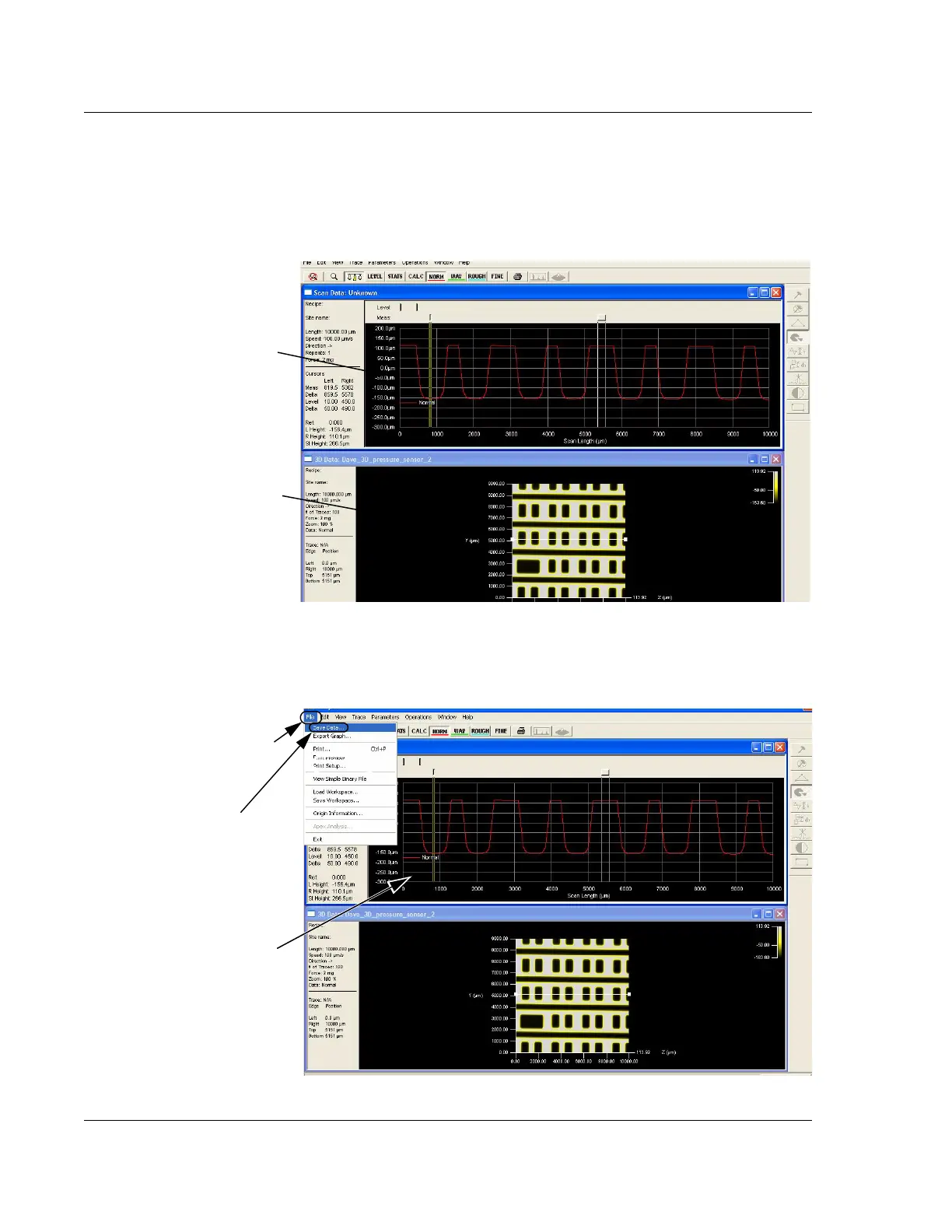
If the Window option is set to Tile Horizontal then the image is displayed as
illustrated in Figure 7.32. The 2D slice trace is displayed above the 3D image.
The 3D image is shown with the slice tool placed across the image at the place
where the 2D image is generated.
9. To save the 2D trace data from the 3D scan, click in the 2D trace portion of the
Analysis screen to activate it.
Figure 7.32 Analysis Screen with Both 2D and 3D Images
The current slice is
displayed as a 2D image
in the Analysis Screen.
The 3D image is displayed
in the top down mode, with
the slice tool across the
image as placed to create
the 2D slice.
Figure 7.33 Analysis Window with File Menu
Step 10 To save the 2D trace
data, click
File to display its
menu.
Step 11 Choose
Save Data…
to open the
Step 9 Click in the 2D trace
portion of the Analysis screen
to activate it.



 To Next Page