XY View Screen - Using Die Grid Navigation (Optional Feature, P-16+ only) KLA-Tencor P-16+ / P-6 User’s Guide
4-28 KLA-Tencor Confidential 0142530-000 AB
3/13/09
Clearing a Die Grid (Turn OFF Die Grid Navigation) 4
1. Go to the Teach Scan window.
2. Click the
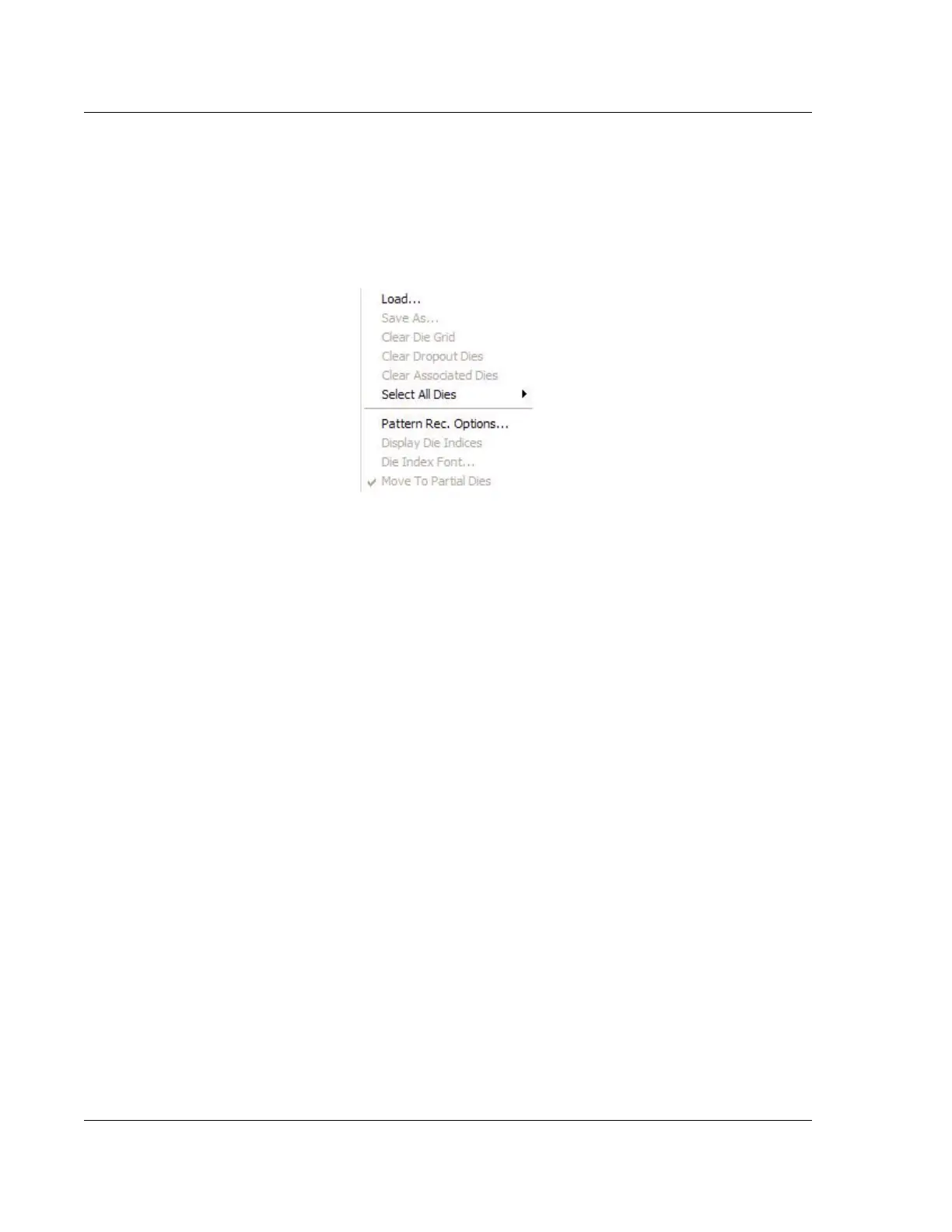
Die Grid menu, and select Clear Die Grid. (See Figure 4.23.)
Standard navigation is active again.
Navigating Across the Wafer Using the Die Grid 4
1. Load a die grid using the procedure in Loading a Die Grid (Turning ON Die
Grid Navigation) for a Single Scan on page 4-25)
2. Die Grid Navigation (see Figure 4.12 on page -17) uses the representation of the
sample that appears in the Sample Navigation Grid at the right of the XY View
screen. To move the to a specific die, click its location. The system moves the
stage to that die and focuses on the feature. The feature’s position is indicated in
the die representation below the Sample Navigation Grid.
Enabling the Dropout Die Option 4
Go to the Teach Scan window, and press the SHIFT key while clicking the dies in the
Die Grid Navigation Window that are to be dropped out. These dies are not scanned.
The die is blacked out. To restore a dropped out die, click it again.
Clearing Dropout Dies From the Grid 4
From the Die Grid menu, click Clear Drop Out Dies. The dies are restored to
availability for scan purposes.
Moving to Partial Dies 4
1. From the Die Grid menu select Enable Partial Die to enable the Partial Die option.
2. Go to the
Teach window, click Die Grid, then click Move To Partial Dies. (See
Figure 4.23.)
3. In the Die Grid Navigation Window, click the partial die to navigate to it.
Figure 4.23 Die Grid Menu From the Menu Bar



 To Next Page