XY View Screen - Aligning the Sample KLA-Tencor P-16+ / P-6 User’s Guide
4-30 KLA-Tencor Confidential 0142530-000 AB
3/13/09
4. Click View in the tool bar to display its menu. In the menu, click Align Sample.
This sets up the
Alignment Sample procedure which aligns the XY axis of the
screen with the chosen feature.
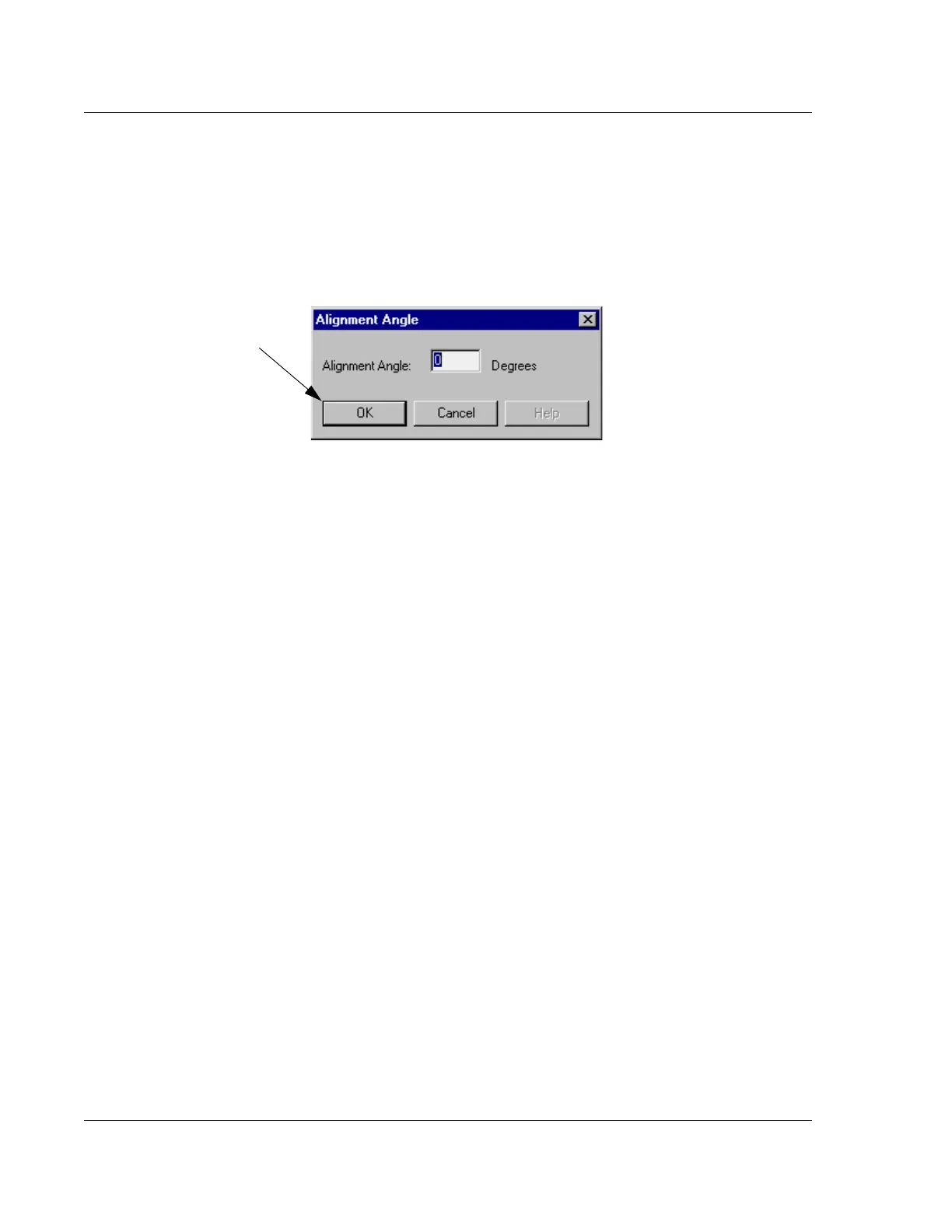
5. A dialog box appears requesting input of the intended alignment angle. The
default is 0 which aligns the feature with the X-axis after the procedure is
complete. Click
OK in the dialog box to accept the 0 value. (See Figure 4.24.)
6. Using the right arrow button (→), scroll across the feature to the left portion of
the feature. Stay close to the feature, and stop when a reasonable distance has
been covered (or at the end of the feature if it is small).
7. Place the crosshair cursor on a portion of the feature that is easily duplicated at
its other end and click with the left mouse button. The system performs
adjustments which align the screen crosshair to the feature at the point of
contact.
8. The message prompt displays at the bottom left of the screen, “
Press OK to
accept the first alignment position
.” Click OK, at the bottom right of the screen,
to accept the first alignment position.
9. Using the left arrow button (←), scroll across the center of the feature (starting
point). Stay close to the feature, and stop when the sample has move a
significant enough distance to give the software a long interval over which to
align the sample with the X-axis. Place the crosshair cursor over the same
portion of the feature that was used to set the first position and click with the
left mouse button. The system performs final adjustments, aligning the feature
with the XY axis.
10. The message prompt displays “
Press OK to accept the second alignment
position.
” Click OK, at the bottom right of the screen, to accept the second
alignment position.
11. After the adjustments have been completed by the system, the message prompt
at the bottom of the screen indicates that the
OK button must be clicked to accept
the new alignment adjustment. Click
OK (bottom right of screen) to accept or
click
Cancel to run a new alignment angle calculation.
This completes the Align Sample procedure.
Manual Alignment of the Sample (P-16+ only) 4
The sample can be aligned manually using the XY view screen in conjunction with
the theta (rotational) movement arrow buttons on the tool bar.
1. Follow Step 1 through Step 3 in Aligning the Sample with the Instrument.
Figure 4.24 Setting Alignment Angle
Step 5 Click OK to accept the
“0” angle alignment.



 To Next Page