0142530-000 AB KLA-Tencor Confidential 7-37
3/13/09
KLA-Tencor P-16+ / P-6 User’s Guide Analyzing 3D Scan Data - Customizing the View
CUSTOMIZING THE VIEW 7
Changing the Image Colors 7
1. Go to the View menu, and select Change...
2. Click Display Color.
3. Select a color from the palette or create a custom color.
Saving the scan file also saves custom colors. (See Table 7.10 on page 7-22.)
4. Click
OK to close the dialog box and apply the choice.
Changing the Scan Height Colors 7
Images can be color-coded and displayed in the Height Gradient Mode format to
better delineate height features. The Highlight feature allows the user to define a
highlight plane to bring out certain features of the image.
1. Go to the
View menu, and select Highlight.
A dialog box appears with the minimum and maximum heights obtained in the
scan.
2. Go to the
Plane Height entry field, and type the desired height.
3. Click
Set Headlight Plane Color.
4. Select a color from the palette or create a custom color.
5. Click
OK.
6. If desired, repeat to define additional planes.
Removing Banding with Line Leveling 7
Line leveling can be used to remove banding caused by environmental signal drift
with each successive trace in a 3D scan baseline. Line leveling calculates corrections
by comparing line segments line-by-line rather than by averaging areas. Line leveling
should generally be used when calculating 3D roughness, area, volume, and other
parameters.
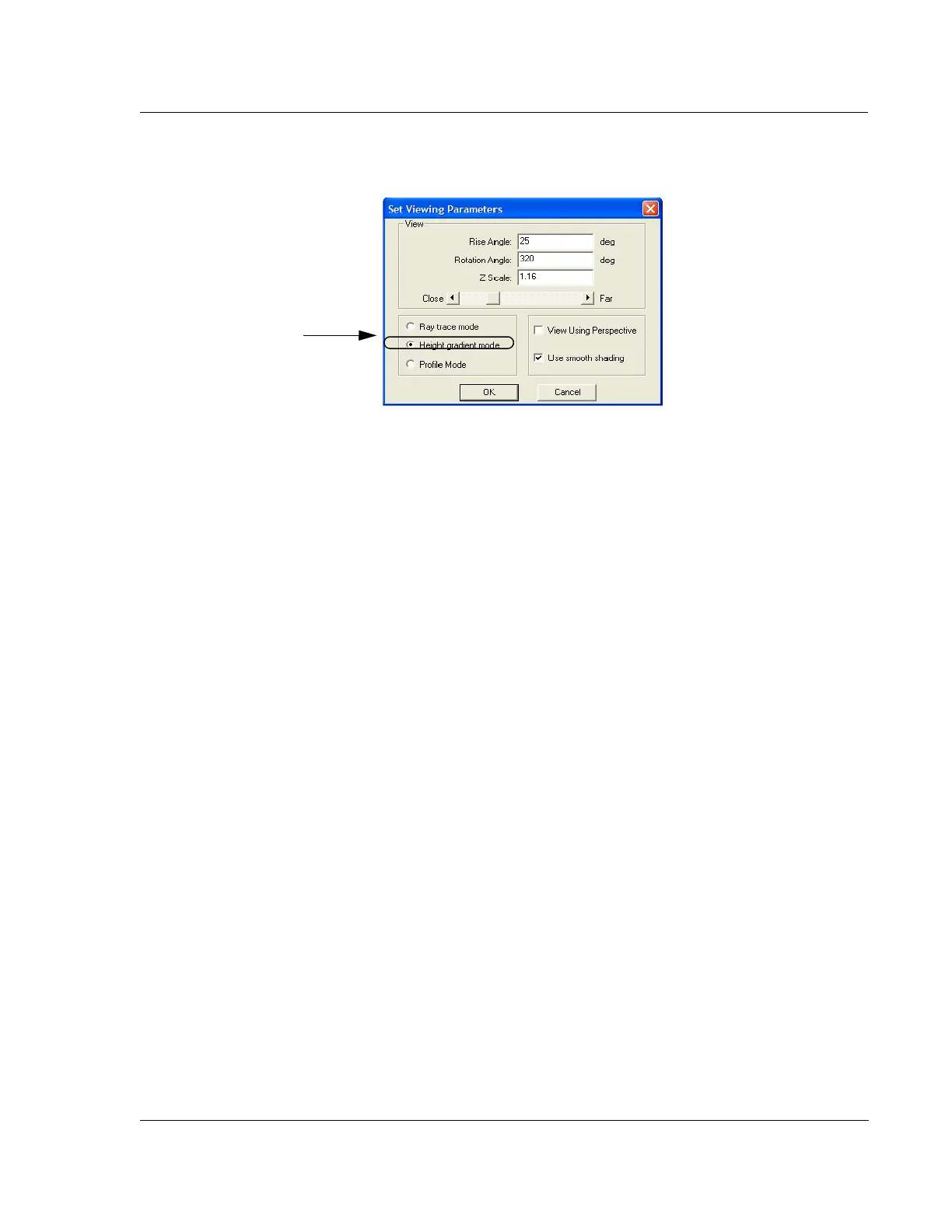
Figure 7.24 Set Viewing Parameters Dialog Box
Shading mode options. Chose
the one that best fits the
requirements by clicking in its
empty radio button.



 To Next Page