11. VECTOR DISPLAY
209
11. VECTOR DISPLAY
To display vectors, press VECT, F•1 VECT INTEN/CONFIG, and then F•1 VECTOR DISPLAY to
select VECTOR.
When VECTOR DISPLAY is set to 5BAR, see 11.12, “5-Bar Display,” for the explanation. When
set to HISTOGRAM, see 11.13, “Histogram Display,” for the explanation. When VECTOR DISPLAY
is set to CIE, see 12, “CIE Chromaticity Diagram Display (SER22),” for the explanation.
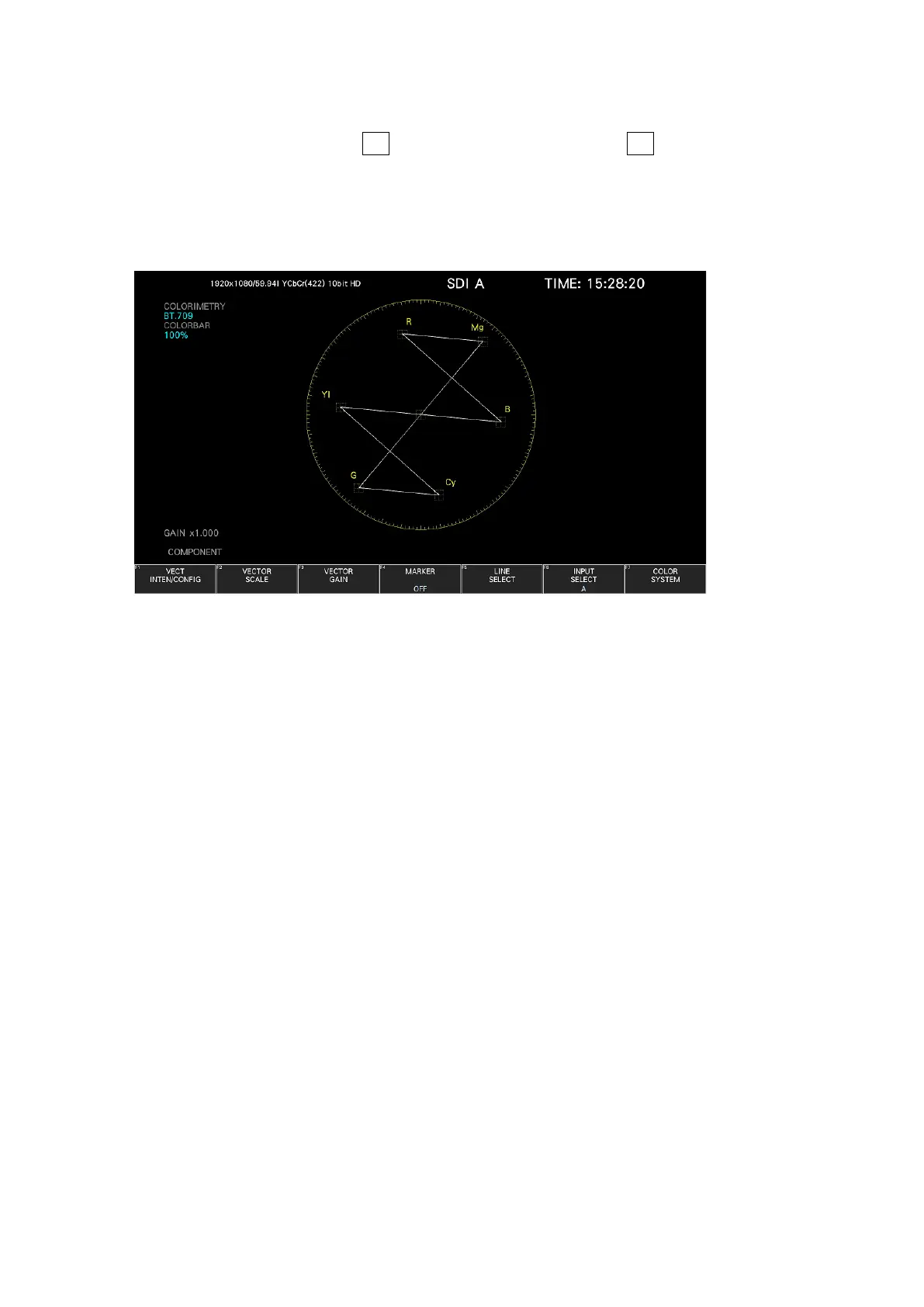
Figure 11-1 Vector display
• Vectors
Component signal vector displays are X-Y displays based on C
B
(horizontal) and C
R
(vertical).
The vector display scale has the following qualities.
Frame: ±5% of the full scale value 0.7 V (during component display) (*1)
±3% of the full scale value 0.7 V (For the pseudo-composite display when
VARIABLE SCALE is set to off)
Circle: +20 % with respect to green (For the pseudo-composite display when VARIABLE
SCALE is set to off)
*1 The variable scale is set to on, it can be varied from 5% (±2.5%) to 10% (±5%).
• Blanking interval
Normally, blanking interval is not displayed with vectors, but if SWEEP MAG is set to BLANK on
the WFM menu or BLANKING is set to REMOVE, it is displayed.
• Colorimetry
The colorimetry selected on the SYS menu is displayed in cyan in the upper left of the screen.
However, for 3G(DL)-4K, the current applied colorimetry is displayed in yellow if the
colorimetry information of all links specified by the payload ID are not matched.
When the colorimetry alarm on the SYS menu is set to on and a colorimetry different from the
one specified is received, the alarm is indicated in red.
[See also] Colorimetry alarm → 7.1.3, “Setting the Input Format and Format Alarm”


 To Next Page