7. SYSTEM SETTINGS
157
7.2.13 Setting the Operation keys
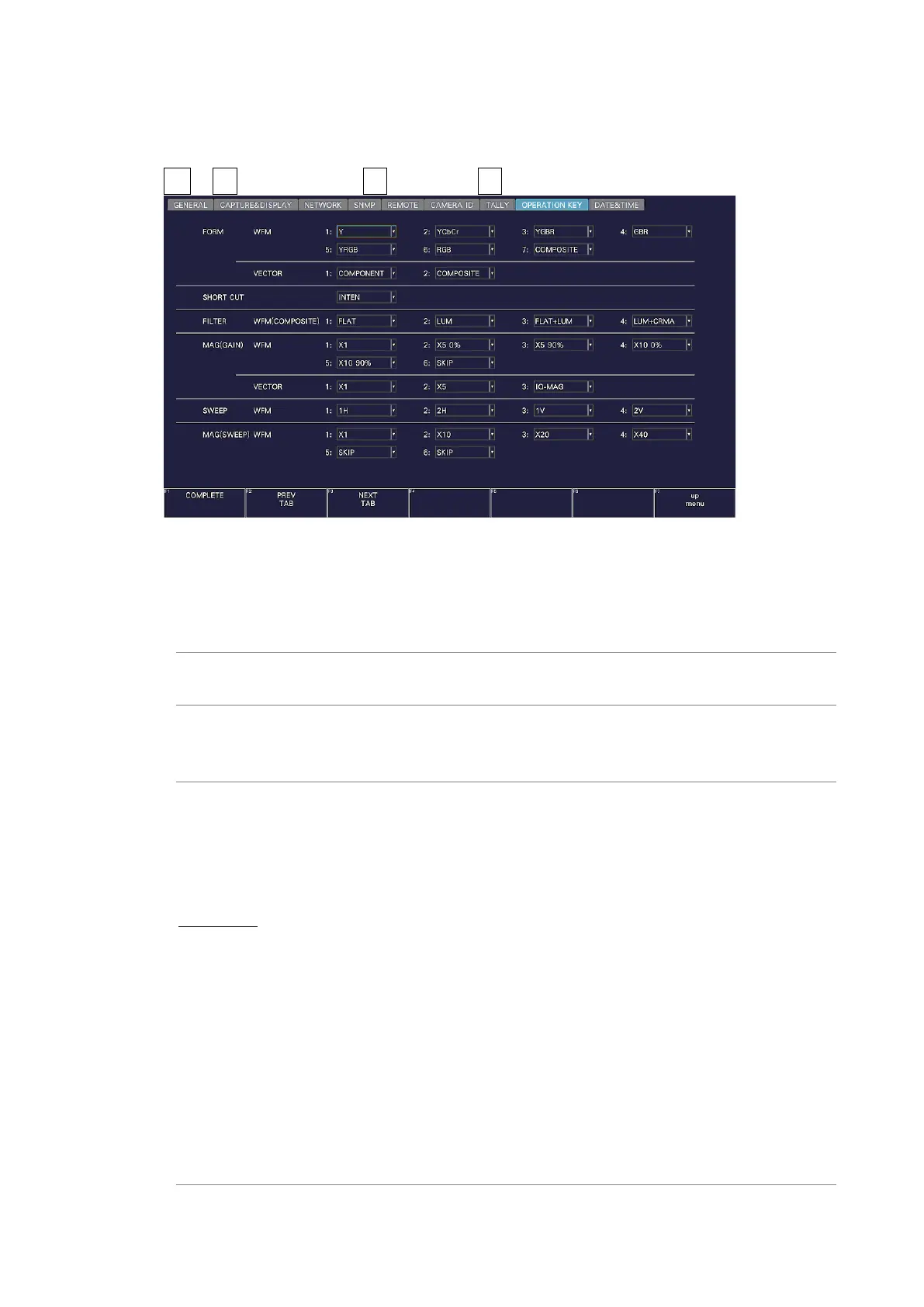
Use the OPERATION KEY tab to set the operation keys.
SYS → F•2 SYSTEM SETUP → F•2 PREV TAB or F•3 NEXT TAB →
Figure 7-25 OPERATION KEY tab
• FORM
Set the display format and display order to apply when the FORM key is pressed on the
video signal waveform display or vector display. Select SKIP to skip an item.
WFM: Y / YCbCr / YGBR / GBR / YRGB / RGB / COMPOSITE / SKIP
VECTOR: COMPONENT / COMPOSITE / SKIP
• SHORT CUT
Select the action to perform when the S-CUT key is pressed.
DIRECT: The previously registered panel settings will be loaded. To register the
panel settings, configure the instrument to the settings that you want to
register, press MEM, and then press SHORTCUT.
CAP&WAIT: A screen capture will be taken and saved to a USB memory device.
Connect a USB memory device in advance.
INTENSITY: Use the function menu shown in the lower right of the screen to adjust
the waveform intensity. This is valid on the video signal waveform
display, vector display, and audio display. When a mouse is connected,
clicking the function menu resets the value to the default. When using
the touch panel, tapping the function menu resets the value to the
default.
CURSOR: Performs cursor measurement. This is valid on the video signal
waveform display and vector display.
VOLUME: Use the function menu shown in the lower right of the screen to adjust
the headphone volume. When a mouse is connected, clicking the
function menu resets the value to the default. When using the touch
panel, tapping the function menu resets the value to the default.


 To Next Page