19.2 TELNET
From a PC connected to the same network as the instrument, you can remotely control most
of the operations that can be controlled from the panel.
If you are using the LV5350 or LV7300, read LV5300 and lv5300 as LV5350 and lv5350 or
LV7300 and lv7300.
19.2.1 How to Use
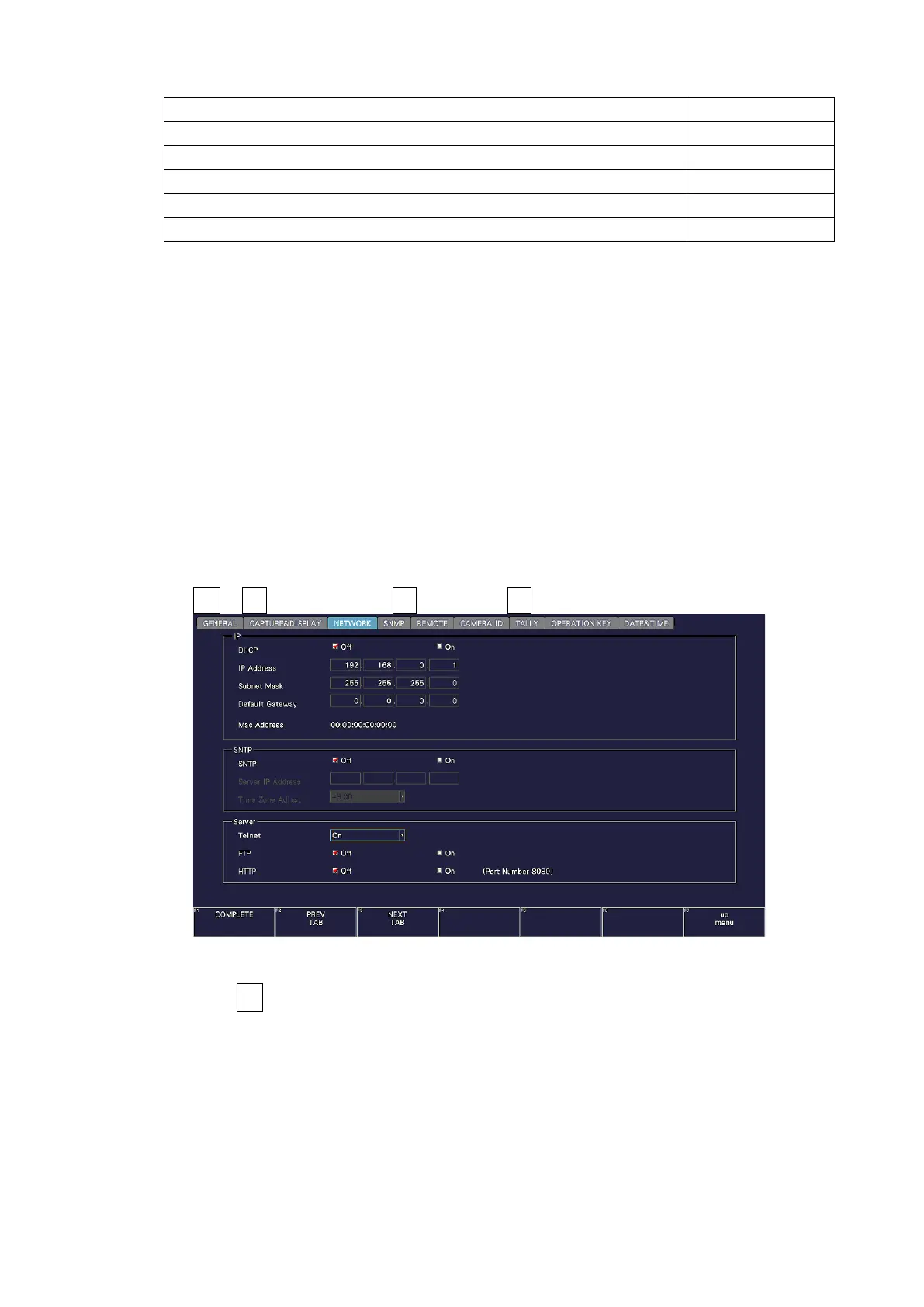
1. Configure the Ethernet settings on the NETWORK tab of the SYS menu.
Set the IP address, and set Telnet to On.
You cannot use the LV7290 REMOTE CONTROLLER while using TELNET. Conversely, if
you set LV7290 to On, you cannot use TELNET.
[See also] 7.2.8, “Configuring the Server”
SYS → F•2 SYSTEM SETUP → F•2 PREV TAB or F•3 NEXT TAB →
Figure 19-2 NETWORK tab
2. Press F•1 COMPLETE.
3. Connect the instrument's Ethernet port to the external network device.
4. On the PC, start a TELNET client.
On Windows 7, on the taskbar, click Start, and then click Run. Type “TELNET” and the IP
address that you set in step 1. Then, click OK.
(To use TELNET, open Control Panel, click Turn Windows features on or off under
Program and Features, and select the Telnet Client check box.)


 To Next Page