15. Audio Display
320
15.5.4 Setting the Reference Level
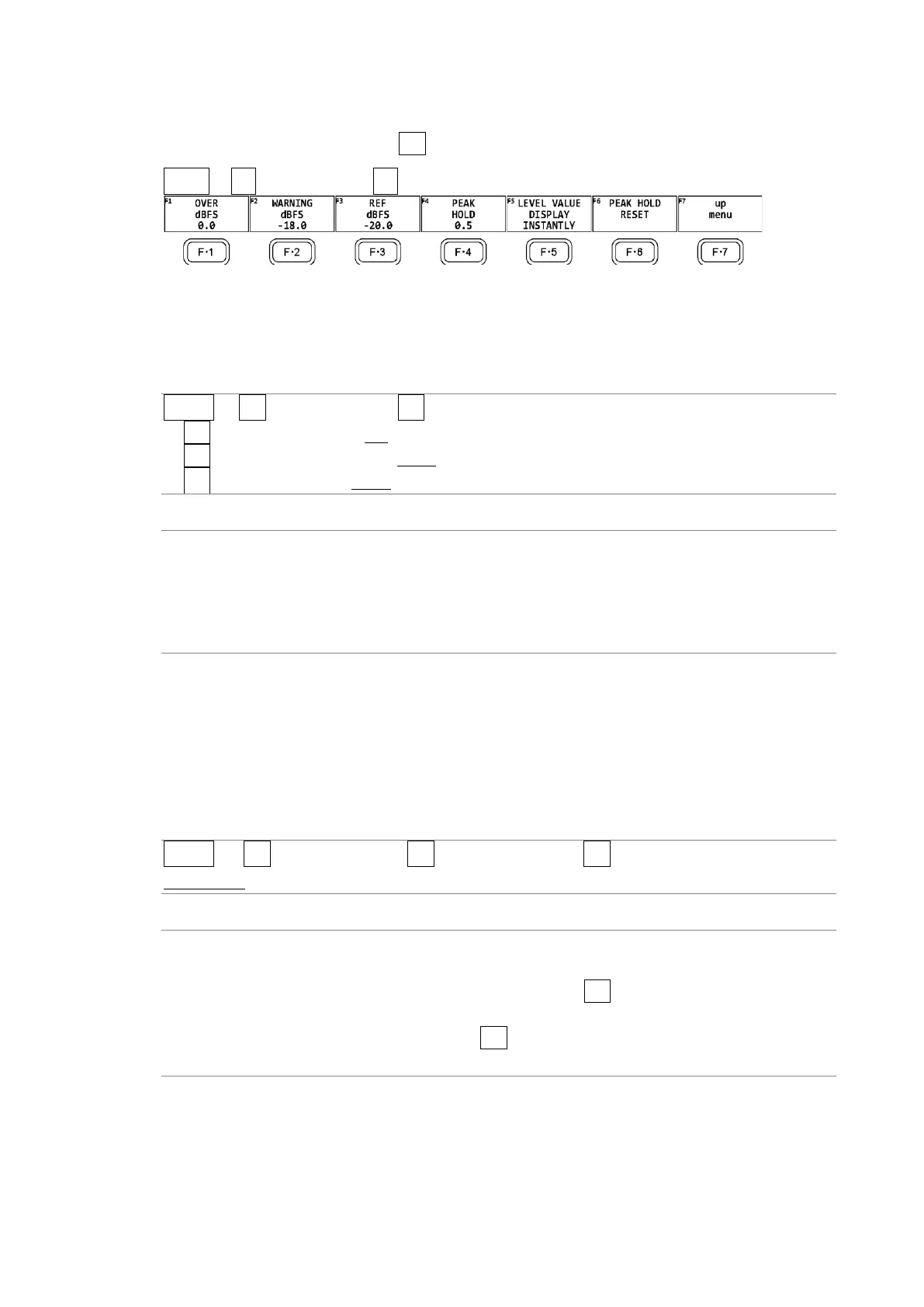
To set the reference level, press F•5 LEVEL SETTING on the METER SETUP menu.
AUDIO → F•2 METER SETUP → F•5 LEVEL SETTING →
Figure 15-8 LEVEL SETTING menu
To set the meter reference level, follow the procedure below.
Procedure
AUDIO → F•2 METER SETUP → F•5 LEVEL SETTING
→ F•1 OVER dBFS: -40.0 - 0.0
→ F•2 WARNING dBFS: -40.0 - -18.0 - 0.0
→ F•3 REF dBFS: -40.0 - -20.0 - 0.0
Settings
OVER dBFS: Set the threshold level for audio level errors.
WARNING dBFS: The portion of the meter that exceeds the level specified here is displayed
in red. The portion of the meter below this level is displayed in yellow.
REF dBFS: The portion of the meter that exceeds the level specified here is displayed
in yellow. The portion of the meter below this level is displayed in green.
15.5.5 Configuring the Numeric Display
On the meter display, measured values are displayed using a meter and numeric values. You
can select the content of the numeric display by following the procedure below. Note that for
Level in the status display, the current measured value (INSTANTLY) is displayed regardless
of the selection made here.
Procedure
AUDIO → F•2 METER SETUP → F•5 LEVEL SETTING → F•5 LEVEL VALUE DISPLAY:
INSTANTLY / PEAK HOLD
Settings
INSTANTLY: The current measured value is displayed. Normally, the value is displayed
in light blue. When Level Over detection is enabled and the measured
value exceeds the value specified using F•1 OVER dBFS, the values
displayed in red.
PEAK HOLD: The peak value set using F•4 PEAK HOLD is displayed. The value is
always displayed in green.


 To Next Page