5. BEFORE YOU BEGIN MEASURING
70
• Selecting Settings
To select a setting from a list like the one shown in the figure above for F•4 WFM COLOR,
press F•4 several times to select the setting you want. The setting changes each time you
press F•4. After you stop pressing F•4, the setting is confirmed and the pop-up menu
disappears.
When the options are on and off or start and stop, the setting toggles each time you press
the key.
• Selecting Settings Using the
▲
SELECT
▼
Key (LV7300)
On the LV7300, you can use the
▲
SELECT
▼
key to operate the function menu. Press
the
▲
▼
key to move horizontally, and press SELECT to select.
The menu level changes. If there is no applicable menu item, the selection moves to the
left menu item.
5.5.3 Mouse and Touch Panel Control
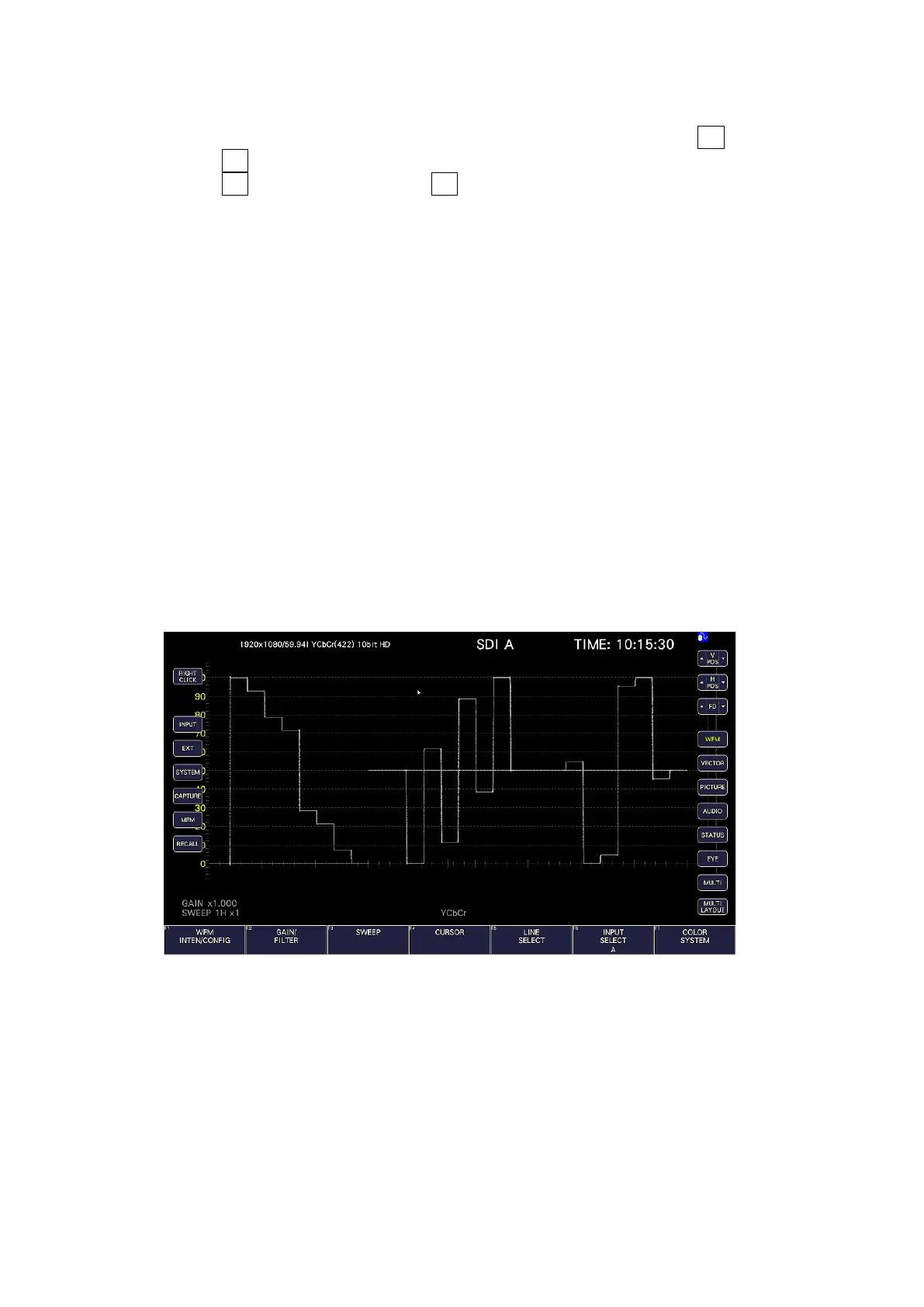
You can use the mouse or touch panel to control the keys on the screen to specify settings
in the same manner as using the front panel keys. To display the keys, connect a mouse,
and click in the screen or tap the screen.
Mouse and touch panel can be used at the same time.
To use touch panel control on the LV7300, connect the USB touch panel interface of a touch
panel monitor using a USB cable. Connect the video interface of the touch panel monitor to
the monitor output connector.
Figure 5-10 Mouse and touch panel control
• Measurement Screen Settings
Click or tap the keys on the screen and the function menu.
You can change a value in the function menu by using the ▲▼ key to the left and right of
FD, the ▲▼ key to the left and right of the value, or the mouse wheel.


 To Next Page