19. Network Control
459
19.3 FTP
The files that are generated by the instrument can be transferred to a PC connected to the
same network.
If you are using the LV5350 or LV7300, read LV5300 and lv5300 as LV5350 and lv5350 or
LV7300 and lv7300.
19.3.1 How to Use
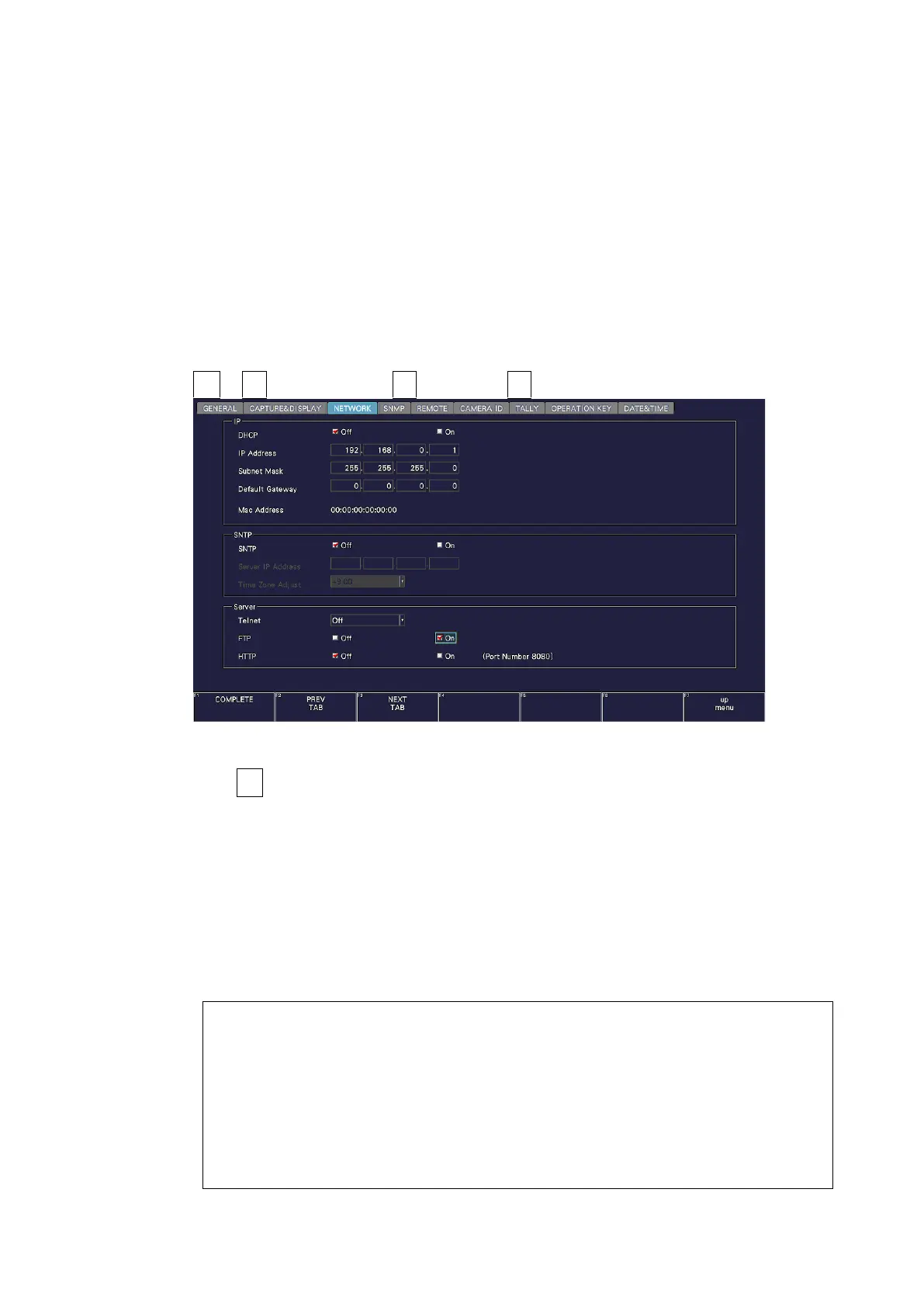
1. Configure the Ethernet settings on the NETWORK tab of the SYS menu.
Set the IP address, and set FTP to ON.
[See also] 7.2.8, “Configuring the Server”
SYS → F•2 SYSTEM SETUP → F•2 PREV TAB or F•3 NEXT TAB →
Figure 19-3 NETWORK tab
2. Press F•1 COMPLETE.
3. Connect the instrument's Ethernet port to the external network device.
4. On the PC, start an FTP client.
On Windows 7, on the taskbar, click Start, and then click Run. Type “FTP” and the IP
address that you set in step 1. Then, click OK.
5. Type the login name and password.
The login name and password are “LV5300”. Use uppercase for all characters.
When the login name and password are entered correctly, “ftp>” appears.
Connected to ***.***.***.***.
220 Walcome to LV5300 FTP service.
User (***.***.***.***:(none)): LV5300 ..... User name
331 Please specify the password.
Password: LV5300 .................................... Password (The password is not actually
displayed.)
230 Login successful
ftp>


 To Next Page