4. PANEL DESCRIPTION
51
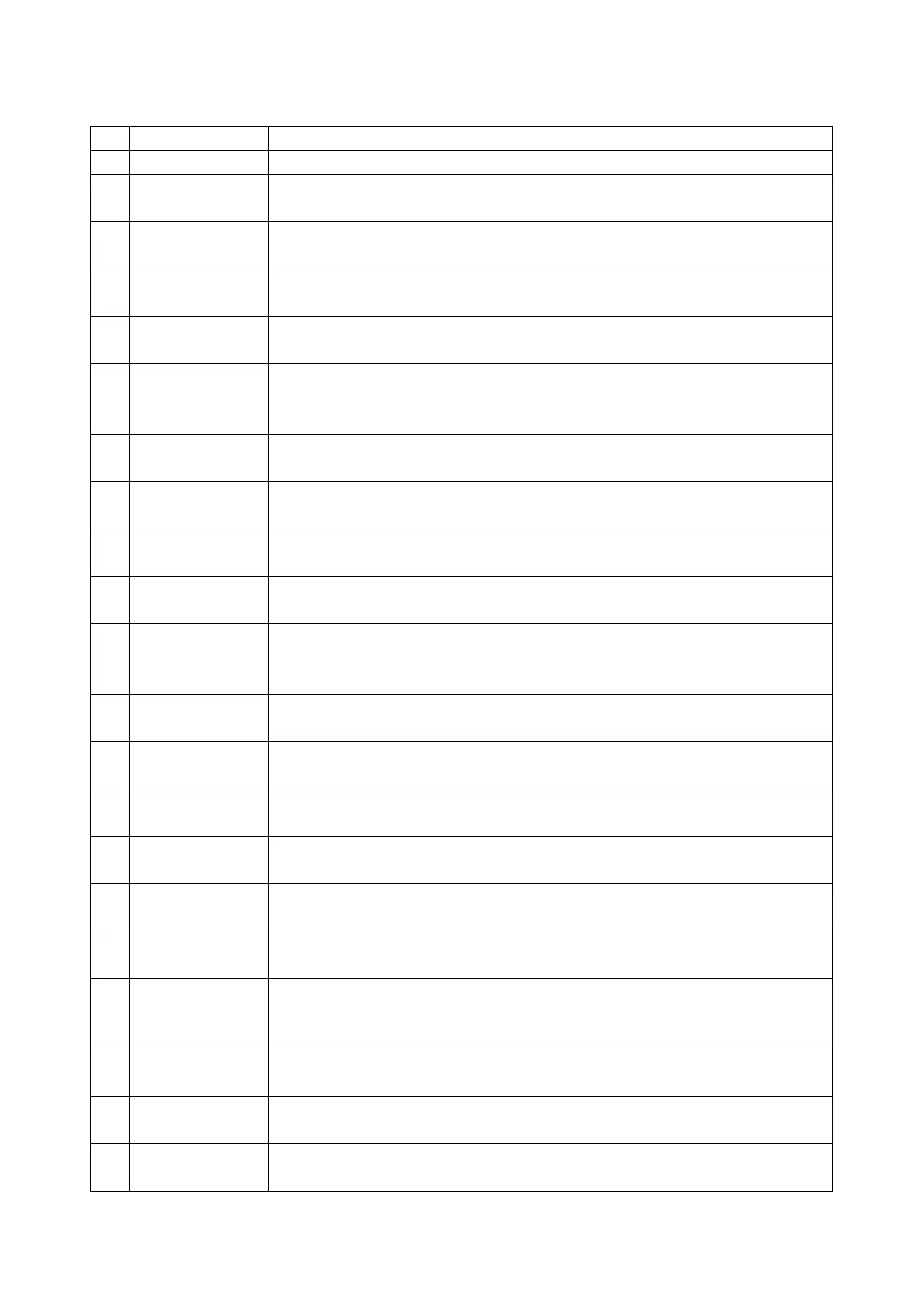
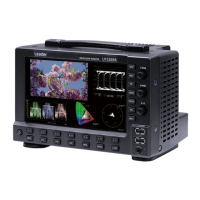
Table 4-1 LV5300/LV5300A/LV5350 front panel description
Use this to carry the instrument.
Displays measurement and setup screens. Control the instrument with the touch
panel.
Carries out the corresponding function menu operation.
[See also] 5.5.2, “Function Menu Operations”
Press to turn the instrument on. Hold down to turn the instrument off.
[See also] 5.1, “Turning the Instrument On and Off”
Sets the display channel.
[See also] 6.1, “Setting the Input Signals”
Switches the sync signal. When the internal sync signal is being used, this key’s LED
turns off. When the external sync signal is being used, this key’s LED lights.
[See also] 5.4.2, “External Sync Signal Input”
Configures the settings
[See also] 7, “SYSTEM SETTINGS.”
Captures the screen
[See also] 8, “CAPTURE FEATURE”
Press this key to register or delete a single preset setting, or copy all preset settings.
[See also] 9, "PRESET FEATURE"
Press this key to recall a preset setting configuration.
[See also] 9, "PRESET FEATURE"
Loads panel settings, saves a screen capture to the USB memory device, adjusts the
intensity, performs cursor measurement, or adjusts the headphone volume.
[See also] 6.4, “Operation Key Actions”
Shows the video signal waveform display. You can change the layout as you like.
[See also] 10, “Video Signal Waveform Display.”
Shows vectors. You can change the layout as you like.
[See also] 11, “VECTOR DISPLAY”
Shows the picture display. You can change the layout as you like.
[See also] 13, “PICTURE DISPLAY”
Shows the audio display. You can change the layout as you like.
[See also] 14.4.4, “AUDIO DISPLAY”
Shows the status. You can change the layout as you like.
[See also] 16, “Status Display”
The eye pattern is displayed. You can change the layout as you like.
[See also] 17, “EYE PATTERN DISPLAY (SER02)”
Shows a combination of measurement screens. You can change the layout as you
like.
[See also] 6.3.7, “MULTI-SCREEN DISPLAY”
Turn to adjust the vertical position of the video signal waveform or other item. Press
to return to the reference position.
Turn to adjust the horizontal position of the video signal waveform or other item.
Press to return to the reference position.
Turn to specify a numeric value or to move cursors. In most cases, press to reset
the value to its default value.


 To Next Page