P.6.9
Date Code 20151029 Protection Manual SEL-411L Relay
PC Software
ACSELERATOR QuickSet Settings
ACSELERATOR QuickSet Settings
ACSELERATOR QuickSet provides the ability to create settings for many
relays, or download and store settings from existing relays (see Database
Manager). You can then modify and upload these settings from the settings
library to a relay.
SEL provides
ACSELERATOR QuickSet for easier, more efficient
configuration of relay settings. However, you do not have to use
ACSELERATOR QuickSet to configure relays; you can use an ASCII terminal
or a computer running terminal emulation software.
ACSELERATOR QuickSet
provides the advantages of rules-based settings checks, SEL
OGIC
®
Control
Equation Expression Builder, event analysis, and help.
File Menu
ACSELERATOR QuickSet uses a database to store and manage SEL device
settings. Each unique device has its own record of settings. Use the Settings
menu to create New settings, to Open an existing record, and Read device
settings.
File > New
To get started making relay settings, select File > New from the main menu.
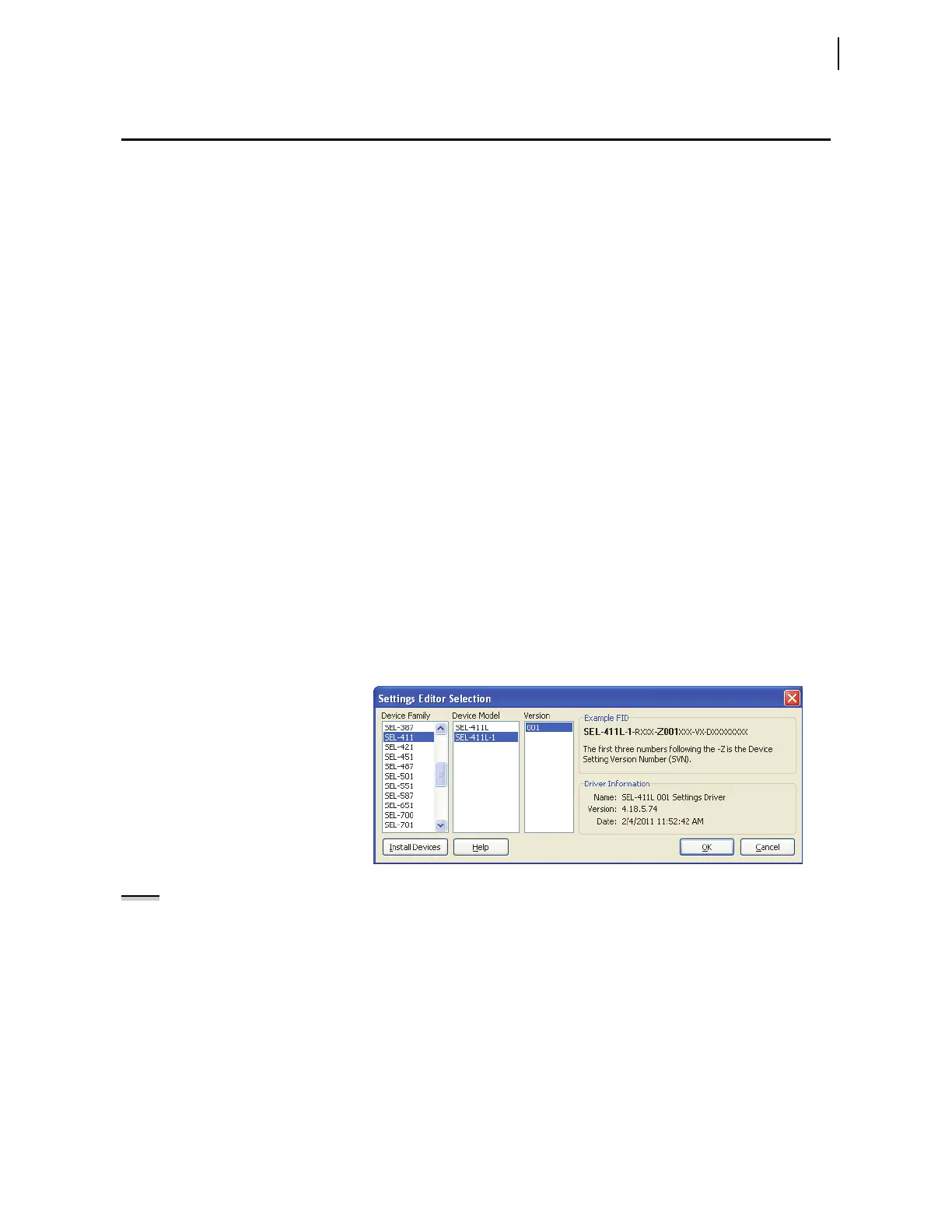
ACSELERATOR QuickSet will display the Settings Editor Section window
similar as shown in Figure 6.5. Select the relay from the Device Family menu,
and the appropriate model (for example, -7) from the Device Model menu.
Finally, select the Z number from the Versions menu. Click OK.
If the device family, device model, or version for the relay are not present,
select Install Devices and follow the on-screen instructions to add the
appropriate drivers.
Figure 6.5 Settings Editor Selection
NOTE:
Fields marked with * in the
Device Part Number dialog box are of no
consequence to the
ACSELERATOR
QuickSet rules-based editor.
After the relay model and settings driver are selected, ACSELERATOR
QuickSet presents the Device Part Number dialog box (an example is shown
in Figure 6.6). Use the drop-down menus within the Device Part Number
dialog box to select the part number of the relay. Click OK.
View the bottom of the Settings Editor window to check the Settings Driver
number (see Figure 6.7 for an example). Compare the
ACSELERATOR
QuickSet driver number and the first portion of the Z-number in the FID
string. These numbers must match.
ACSELERATOR QuickSet uses this first
portion of the Z-number to determine the correct Settings Editor to display.


 To Next Page