P.10.20
SEL-411L Relay Protection Manual Date Code 20151029
Basic Relay Operations
Making Simple Settings Changes
=>>SET T<Enter>
Alias
Relay Aliases
(RW Bit or Analog Qty. 7 Character Alias [0-9 A-Z _])
1: EN,"RLY_EN"
? ><Enter>
26:
? PMV01,THETA<Enter>
27:
? PMV02,TAN<Enter>
28:
? END<Enter>
Alias
Relay Aliases
(RW Bit or Analog Qty. 7 Character Alias [0-9 A-Z _])
1: EN,"RLY_EN"
2: TLED_1,"INST"
3: TLED_2,"TIME"
.
.
.
25: TLED_24,"IRIGLCK"
26: PMV01,"THETA"
27: PMV02,"TAN"
Save settings (Y,N) ?Y<Enter>
Saving Settings, Please Wait...........
Settings Saved
>>
Figure 10.12 Using Text-Edit Mode Line Editing to Set Display Points
This procedure proposes connecting the transformer bank fan sensor to relay
input IN205. In the SET G (GLOBAL) command, verify that the debounce
time (setting IN205PU and IN205DO) are correct for your fan-running sensor.
To access separate input parameters, you must first enable independent control
input settings with setting EICIS. To change the input conditioning, enter
these settings:
EICIS := Y Independent Control Input Settings (Y, N)
IN205PU := 0.3750 Input IN205 Pickup Delay (0.0000–5 cyc)
IN205DO := 0.3750 Input IN205 Dropout Delay (0.0000–5 cyc)
Use the appropriate interface hardware to connect the fan-running sensor to
IN205. Choose any relay input that conforms to your requirements. See
Control Inputs on page P.2.5 for more information on relay control inputs.
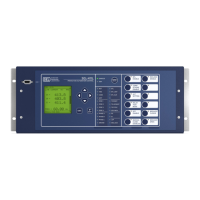
Settings: Front Panel
You can use the relay front panel to enter some of the relay settings. The relay
presents the settings in order from class to instance (if applicable) to category
to the particular setting, in a manner similar to setting the relay using a terminal.
Use the LCD and the adjacent navigation pushbuttons to enter each character
of the setting in sequence. This can be a laborious process for some settings
(e.g., long SEL
OGIC control equations). However, if you need to make a quick
correction or have no faster means to make settings, settings functions are
available at the front panel. For more information on making settings changes
from the front panel, see Set/Show on page P.7.28.


 To Next Page