P.6.11
Date Code 20151029 Protection Manual SEL-411L Relay
PC Software
ACSELERATOR QuickSet Settings
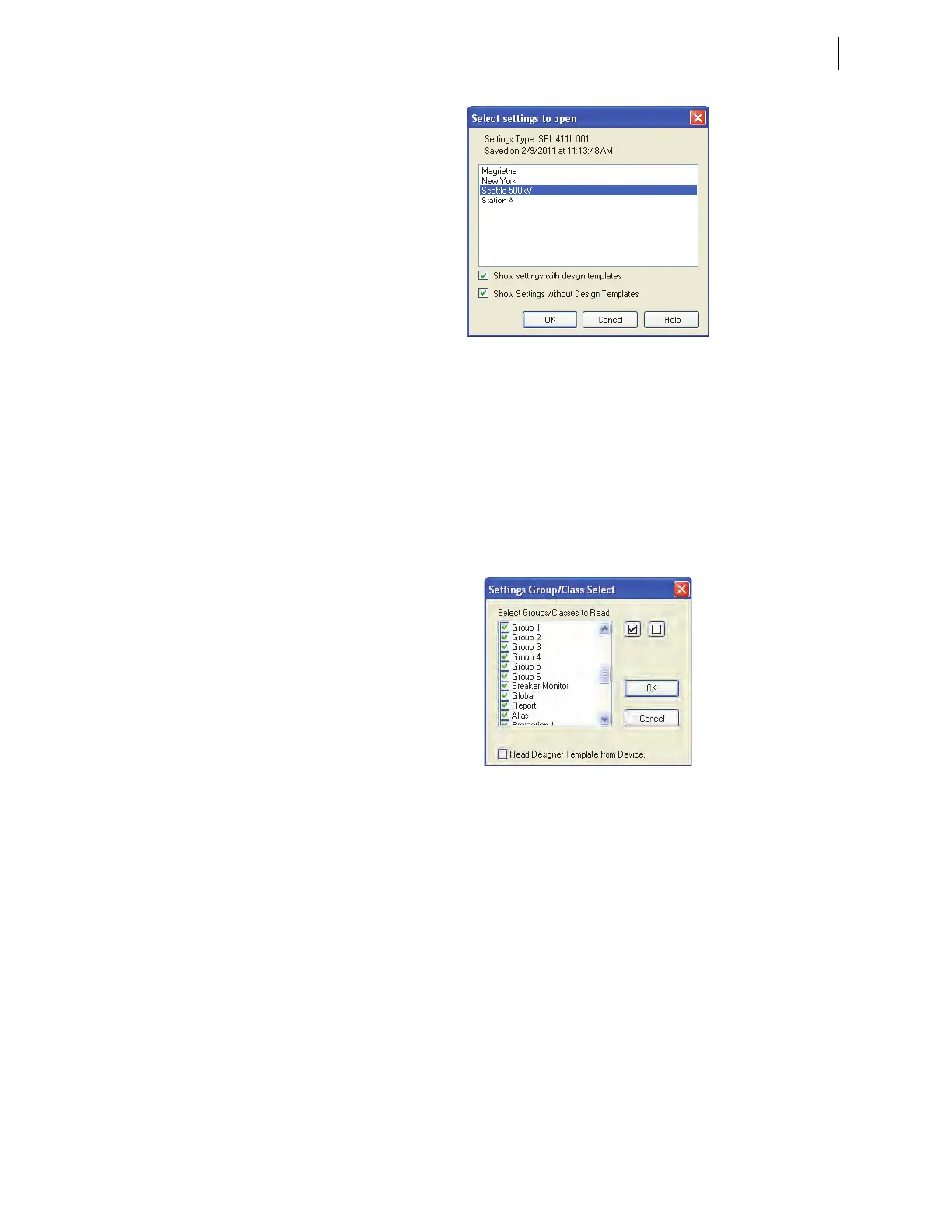
Figure 6.8 Opening Settings
Highlight the relay settings to be opened and click OK.
File > Read
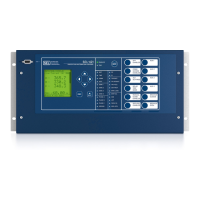
When the Read menu item is selected, ACSELERATOR QuickSet displays the
Settings Group/Class Select window (see Figure 6.9 for an example). Select
the check boxes to specify which settings groups or classes are to be read from
the connected device. Click OK. Note that settings not read from the device
will be populated with the default settings. As
ACSELERATOR QuickSet reads
the device, a Transfer Status window appears.
Figure 6.9 Reading Settings
Device Editor
The relay settings structure makes setting the relay easy and efficient. Settings
are grouped logically, and relay elements that are not used in the selected
protection scheme are not visible. For example, if settings are entered using
the SET command and only three levels of a particular type of overcurrent
protection are enabled, the Level 4, Level 5, and Level 6 overcurrent element
settings do not appear on the communications terminal screen. Hiding unused
elements and settings that are not enabled greatly simplifies the task of setting
the relay.
ACSELERATOR QuickSet uses a similar method to focus attention on the
active settings. Unused relay elements and inactive settings are dimmed
(grayed) in the
ACSELERATOR QuickSet menus.
ACSELERATOR QuickSet shows all of the settings categories in the settings
tree view. The settings tree view does not change when settings categories are
enabled or disabled. However, any disabled settings are dimmed. Figure 6.10
illustrates this feature of
ACSELERATOR QuickSet.


 To Next Page