P.10.13
Date Code 20151029 Protection Manual SEL-411L Relay
Basic Relay Operations
Making Simple Settings Changes
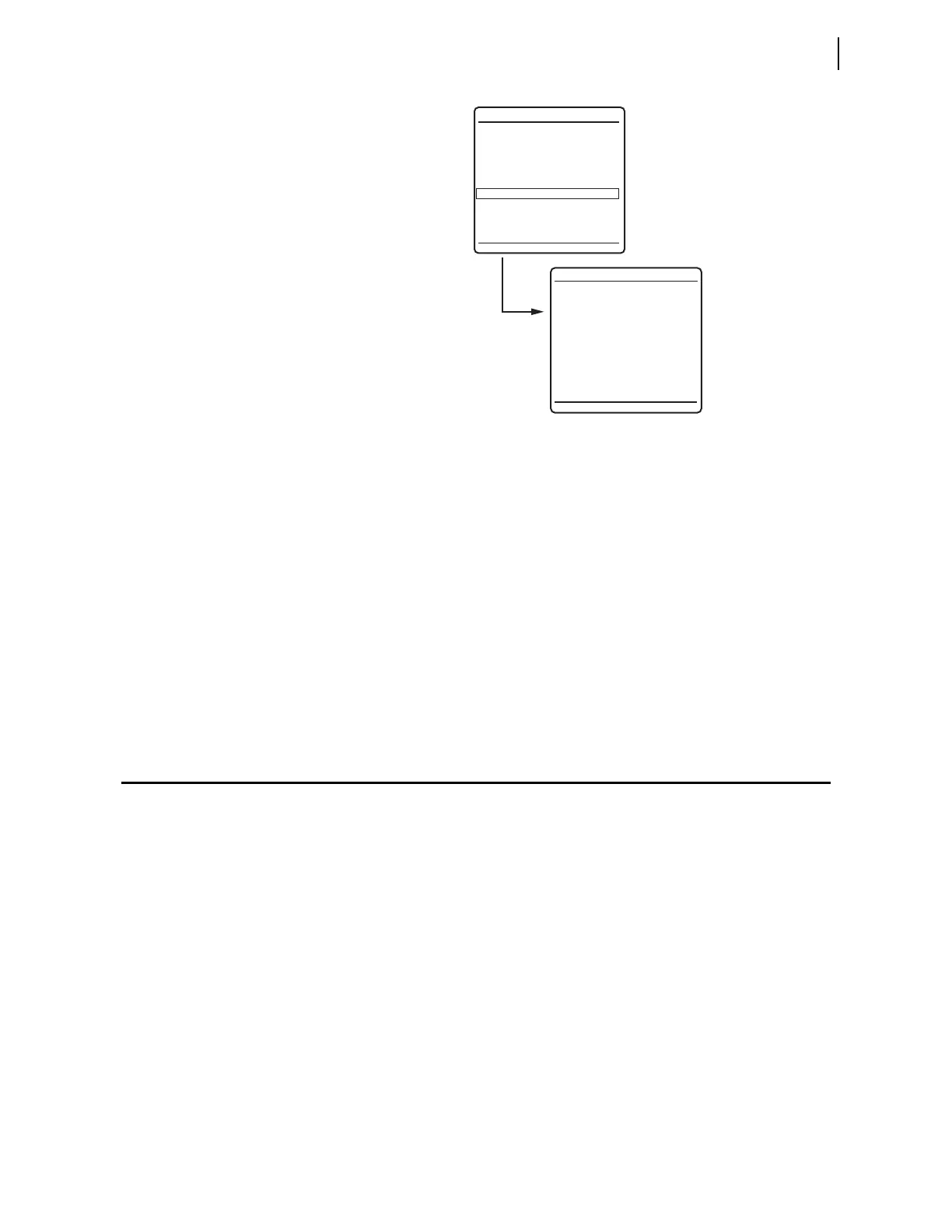
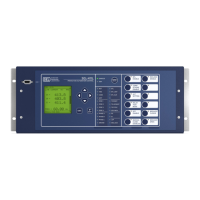
Figure 10.9 Checking Relay Status: Front-Panel LCD
Step 3. View the relay status:
a. Press the Up Arrow and Down Arrow navigation
pushbuttons to highlight the
RELAY STATUS action item
(see Figure 10.9).
b. Press the ENT pushbutton.
You will see the
RELAY STATUS screen (the second
screen of Figure 10.9).
Step 4. Press the ESC key to return to the
MAIN MENU.
Step 5. Press ESC again to return to the ROTATING DISPLAY.
For more information on the front-panel screen presentations and the items in
the
STATUS screens, see Relay Status on page P.7.32.
Making Simple Settings Changes
The relay settings structure makes setting the relay easy and efficient. Settings
are grouped logically, and you do not see relay elements that are not used in
your selected protection scheme.
For example, if you select only three levels of a particular type of overcurrent
protection, the corresponding Level 4 overcurrent element settings do not
appear on the communications terminal screen. Hiding unused elements and
settings that you have not enabled greatly simplifies the task of setting the
relay.
ACSELERATOR QuickSet uses a similar method to focus your attention on the
active settings. Unused relay elements and inactive settings are dimmed
(grayed) in the
ACSELERATOR QuickSet menus. See Section 6: PC Software
for more information on
ACSELERATOR QuickSet.
(a)
(b)
METER
EVENTS
BREAKER MONITOR
RELAY ELEMENTS
LOCAL CONTROL
SET/SHOW
RELAY STATUS
VIEW CONFIGURATION
DISPLAY TEST
RESET ACCESS LEVEL
MAIN MENU
RELAY STATUS
SEL-411L-R101-V0-
Z001001-D20110315
S/N=2011001234
RELAY ENABLED
NO WARNINGS


 To Next Page