Firmware Update
SM 3-139 D014/D015/D078/D079
Replacement
Adjustment
3.11.2 FIRMWARE UPDATE PROCEDURE
1. Obtain the System SD card.
2. Disconnect the network cable and other interface cables. This prevents outside
interference caused by data transfers to the machine while the software is being
uploaded.
3. Turn the main switch off.
4. Remove the SD card slot cover (x1).
5. Insert the SD card into Slot 1 (lower slot).
6. Open the front door of the copier. This prevents generation of electrical noise from
motors during the update procedure.
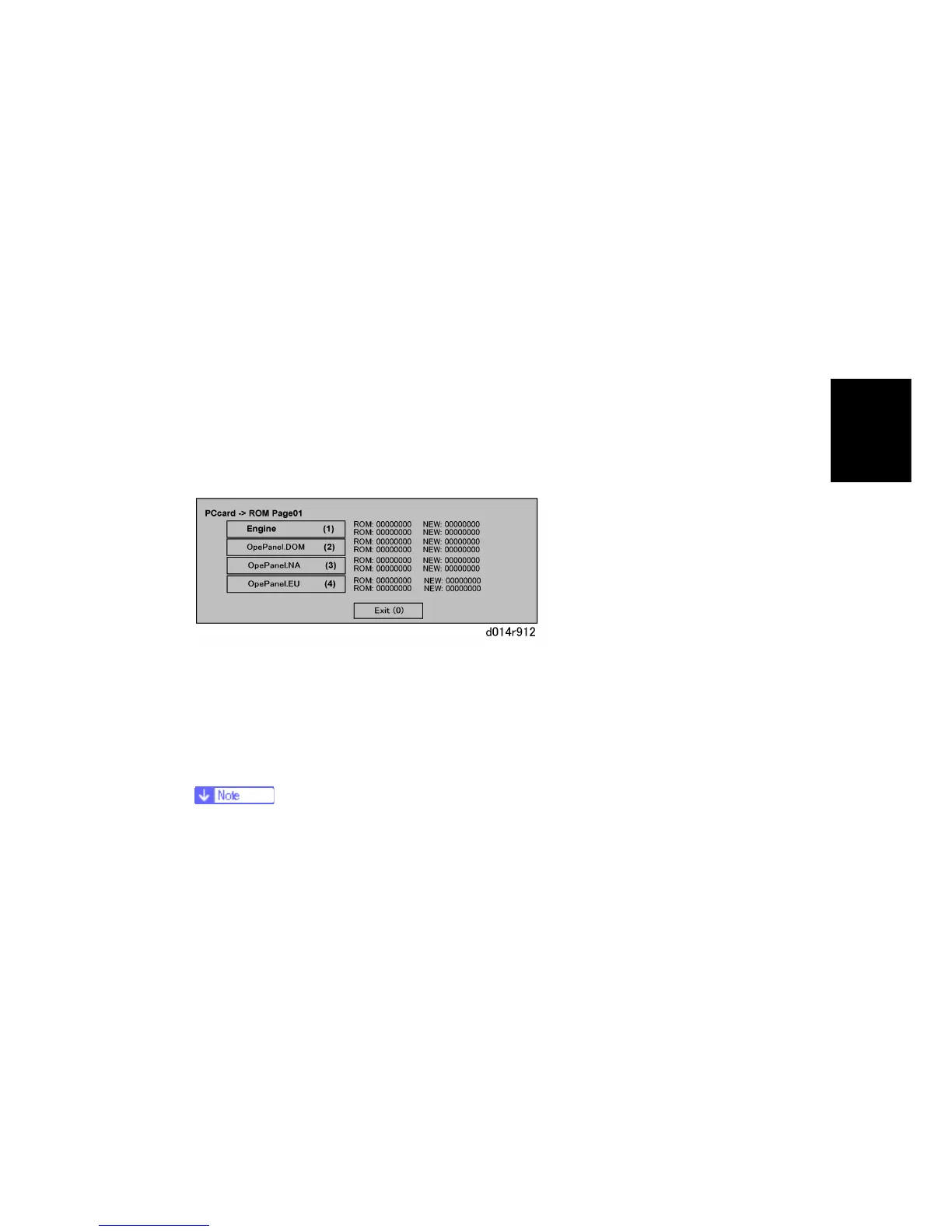
You will see "Please Wait" then "Preparing to start firmware update."
The first screen appears after about 90 sec.
7. Check the notations to the right.
"ROM" tells you the module number and version of the currently installed software.
"NEW" tells you the module number and version of software on the SD card in
Slot 1 (lower slot).
8. Touch "Engine" or "OpePanel.xxx". The item that you select changes to dark gray.
You can select "Engine" and one "OpePanel" selection if you want to update
both
9. Touch [Update] or push [#] on the 10-key pad to start the update.
While the Update Is in Progress
Remain with the machine. Do not leave it unattended.
Never close the front door during firmware update.
The [Start] key flashes RED during firmware update, and then lights GREEN when
the update is finished.
When the [Start] key LED starts flashing rapidly, this means the update is almost
finished.
Never switch the machine off while the [Start] key is flashing RED.
⇒
Rev. 04/13/2009
⇒



 To Next Page