Cobalt 8.1 - 20181029
694
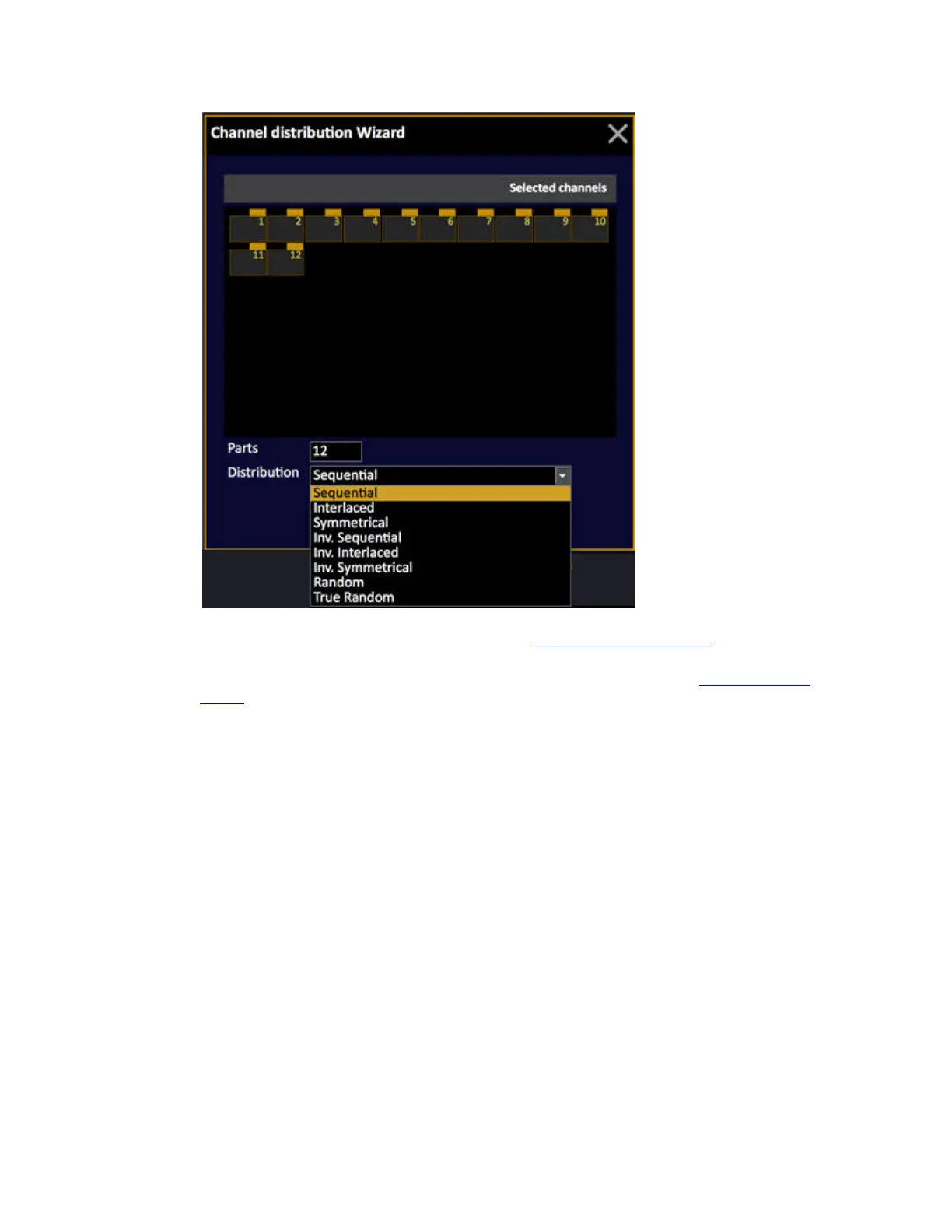
2. Select channels, parts, name and distribution. See Channel Distribution Wizard
.
3. You can now start the chase, by selecting it and setting a level over zero. See Select & Activate
Effects.
It will use the default times and values. These can be edited in the Chase Editor and the Chase Step
Editor.
Copy a chase effect
You can use the COPY function to duplicate a chase effect.
1. Open the chase editor and select the chase you wish to copy
2. Press PASTE to create a copy at the end of the chase editor list.
Control a Chase Effect
As soon as a Chase Effect playback is selected, you can control it in two ways:



 To Next Page