Cobalt 8.1 - 20181029
695
• From the console parameter wheels using U1-U3. In Cobalt jr these can be found under the
Device softkey or by using [C/Alt & [FOCUS], [COLOR], [BEAM] respectively.
• From the Live Effects view.
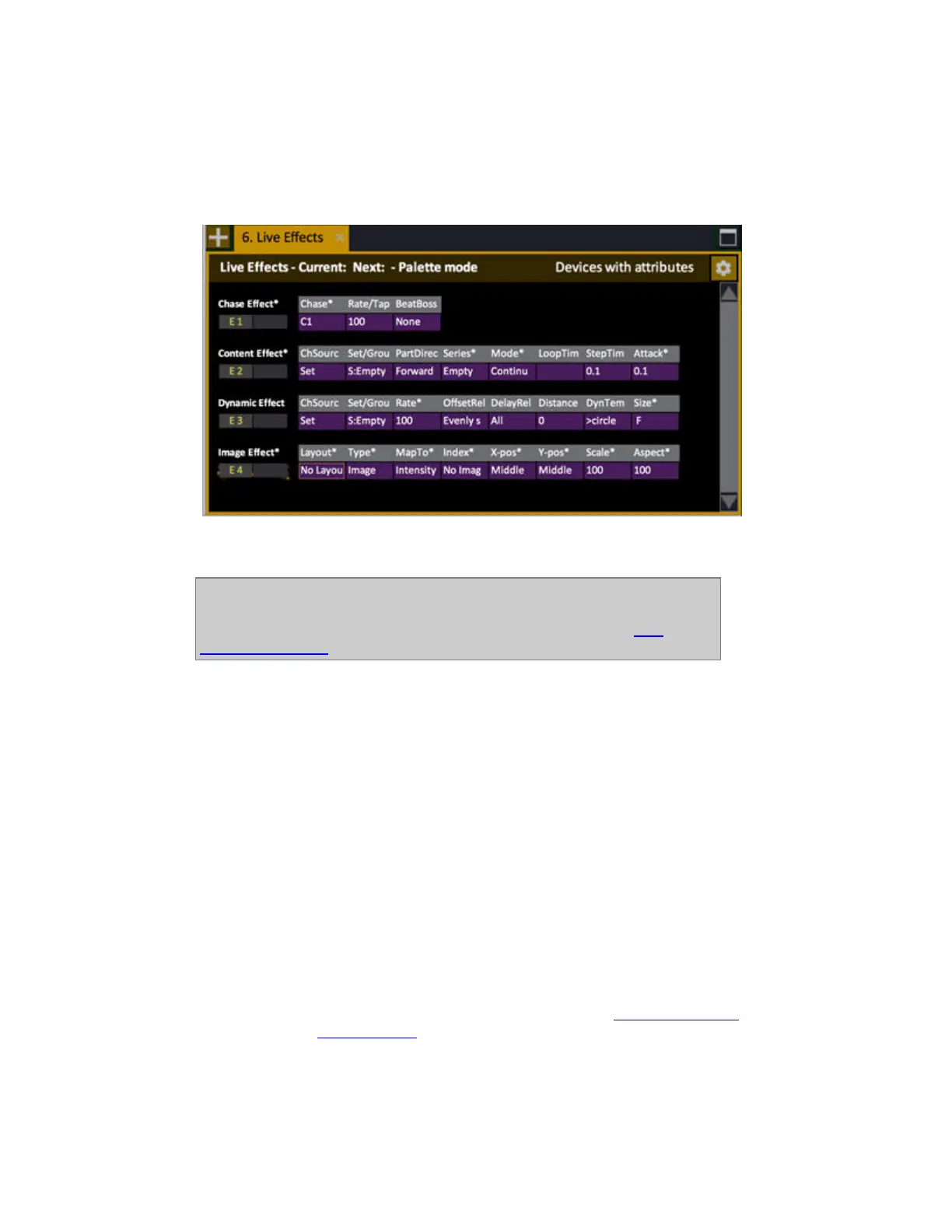
Live Effects looks like this:
Press MODIFY to get a dropdown to change chase, or enter a number and press MODIFY.
NOTE
When you press MODIFY or enter a number it will be an absolute value or a
Palette value - depending on the setting in Attribute Settings. See Play
Settings - Attribute.
Chase Tap Tempo
When you select a Chase Playback, you will have two parameters, Chase # and Rate/Tap.
Press the Rate/Tap parameter key in the main display of the console to set a Rate/Tap. You can also
edit this parameter in the Live Effects view.
Chase Beat Boss
You can assign a Beat Boss to a Chase and Content effect. It will scale the rate of the effect through a
master rate that can be shared with other Chase and Content effects. The BPM will be set to 120 with
the fader at 50%, 240 at the top and 0 at the bottom. To tap a BB on a fader set the FLASH key to
TAP manually.
There are 9 Beat Bosses and they can be assigned to a master (see Masters - Beat Boss
) and run in the
Beat Boss tab(See Tab - Beat Boss
).



 To Next Page