Cobalt 8.1 - 20181029
704
Create a Content Effect Playback
1. Create a Content Effect Playback. This can be done in two ways.
• # INSERT & EFFECT and select Content .
• Press INSERT in the Effect Playbacks List, and select Content .
Now that the effect playback is created you can apply it to any channel group, or you can create
channel sets and select them. You have to have a Series defined, since it is the engine of the content
effects.
2. You can now start the effect, by selecting it and setting a level over zero. See Activate & Control
Effects.
NOTE
The Effect playback is controlled similar to how a moving device channel is
controlled. A level above 0 starts the non-intensity content and the intensity
level of the playback masters the intensity levels within the effect.
Control Content Effects
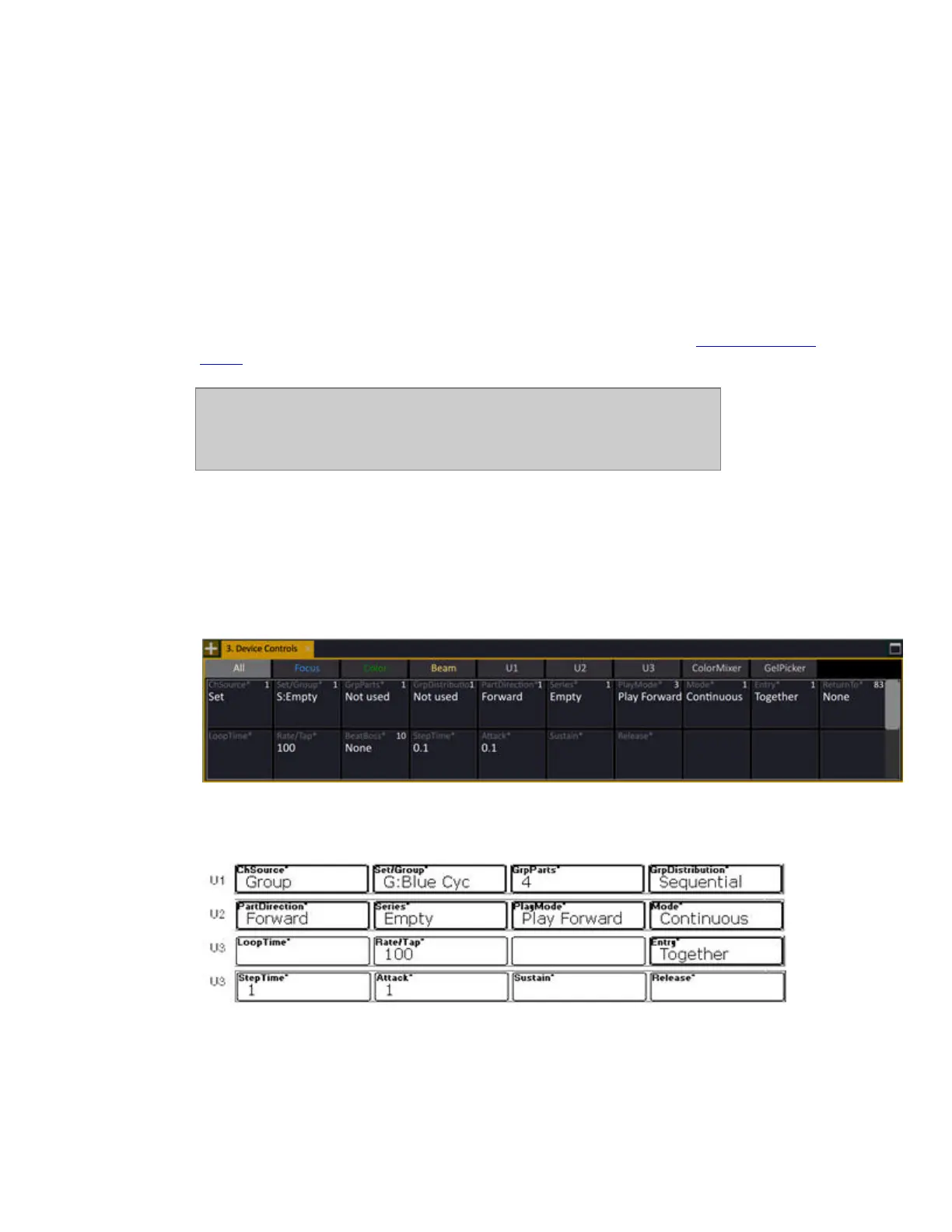
As soon as a Content Effect playback is selected, you can control it in three ways:
• From the Device Controls tab- this is the absolutely easiest way.
• From the console parameter wheels using U1-U3 (In Congo Jr/Kid these are found in the
Effect soft key page, or by using [C/Alt & [FOCUS], [COLOR], [BEAM] respectively).
• From the Live Effects view (if editing is enabled). <Press EFFECT.



 To Next Page