Cobalt 8.1 - 20181029
95
Mask
Tap to apply a recorded parameter mask state to the console.
(See Mask
)
Section
Tap to jump to a section marker within the sequence on the main playback.
(See Sections
)
Master
Tap the master button and without lifting your finger, slide your finger up and down to adjust the
output level of that master. Use the direct select keys like master faders, especially useful with Cobalt
Nomad or when you want to adjust a master you don’t currently have assigned to a fader.
(See Masters
)
Screen
Tap so activate any recorded Screen setting.
(See Screens
)
Client
Tap to enable/disable connected clients. Displays connected clients.
Cobalt Direct Selects - Special Functions
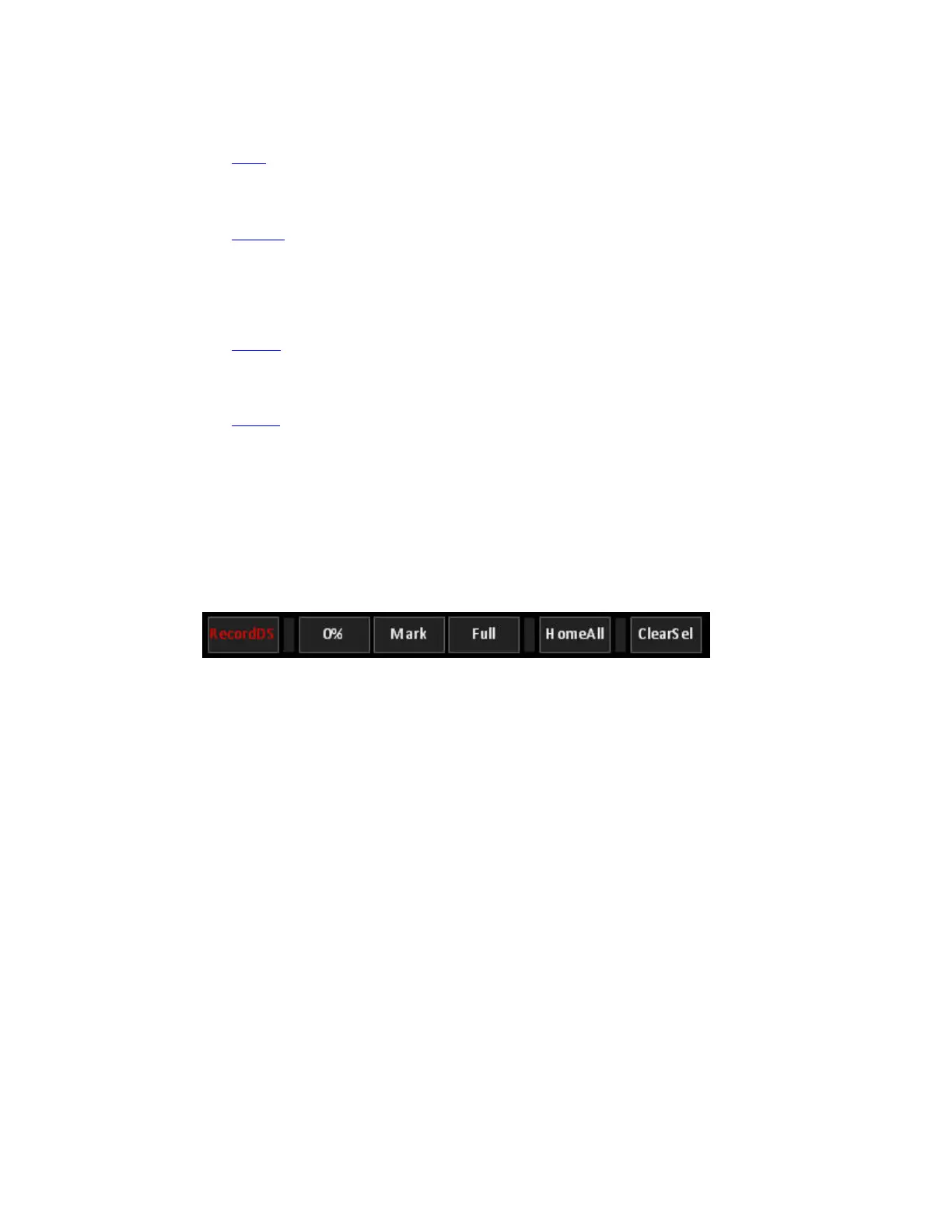
Along the top of the DS tab there are some special function keys.
RecordDS
Allows you to record DS types directly within the DS tab. Select the Type of direct select you wish to
record, press RecordDS and then press the DS button you want to store to.
0%, Mark, Full
These are buttons to quickly set intensity levels to selected channels directly from the DS tab. For
additional intensity levels, use a DS block with the data type “Level”.
HomeAll
This button when double-tapped will send selected device channels to their default levels, as defined
in the fixture templates or as recorded to the HOME ATTRIB key.
ClearSel
Deselects all currently selected channels/effects/masters.



 To Next Page