Cobalt 8.1 - 20181029
754
3. You have now created the layout. Go to the Magic Sheet editor to set this as a target for a Pixel
Grid. See Magic Sheets
.
Copy an effect layout
You can copy effect layouts to make alternative versions.
1. Open the effect layout list (Browser >Effects >Image Effects >Effect Layouts...)
2. Select the layout you want to copy and press COPY/CUT.
3. Press PASTE.
Connect an Effect Layout with a Pixel Grid (8.0)
This is a step by step example of how you can connect an Effect layout to a Pixel Grid in a Magic
Sheet, to be able to use and display image effects connected to, for example, intensity.
1. Open the Effect Layout list (Browser >Effects >Image Effects >Effect Layouts...).
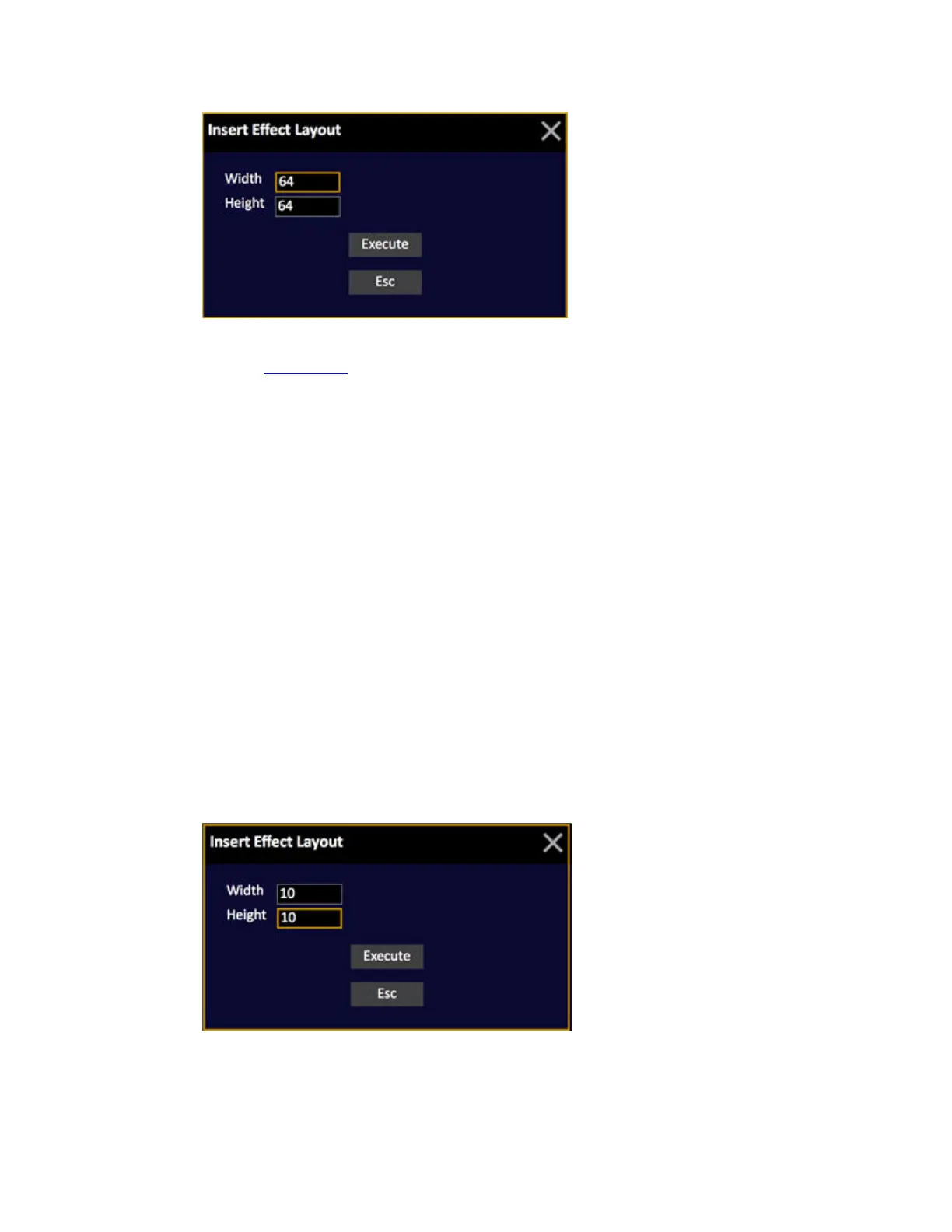
2. Press INSERT to insert a new layout, set width and height to 10 pixels.
3. Go to a Live tab (press LIVE).



 To Next Page