Cobalt 8.1 - 20181029
664
Masking indication
When Mask is enabled, a summary of active masks is shown in the ML display. Each parameter
category is indicated with a dash, lowercase or uppercase letter.
"-" (Dash) means the category is unmasked - all parameters are available for control and recording.
"fcb" (Lowercase lettering) means the category is partially masked - some parameters have been
masked and are unavailable for control or recording.
"FCB" (Uppercase lettering) means the entire category is masked and no parameters from that
category are available for control or recording.
Mask - Editor
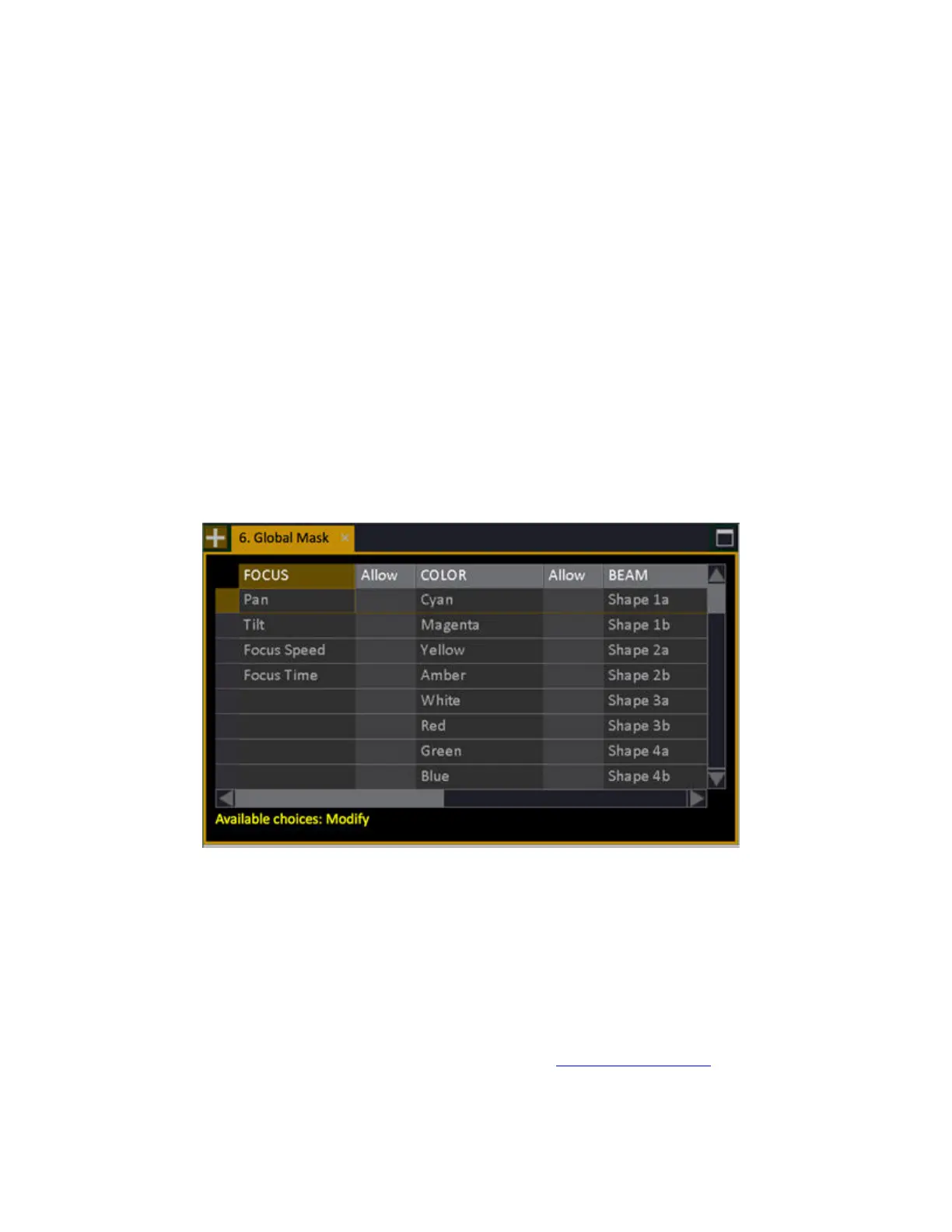
Hold MODIFY and press MASK to open the editor.
In the Mask Editor, single parameters can be toggled on/off by pressing MODIFY in the Allow
column. This also means that, if you want to toggle a parameter column on/off, you can select the top
cell, press COLUMN to select the whole column, and the press MODIFY.
User Masks - Functions
You can save and label up to 999 different combinations of masked parameters. These Masks can then
be applied to masters as playback masks, or to the Global Mask for use when recording Palettes or
Presets. They are stored in the Mask List (Browser > Devices >Masks).
To record a user Mask:
1. Set up the Global Mask any way you want (See Global Mask - Functions
)



 To Next Page