Cobalt 8.1 - 20181029
718
Examples:
The waveform will "run" the parameter it is assigned to, but you can still move the "base value" of the
parameter that the Dynamic is working with.
NOTE
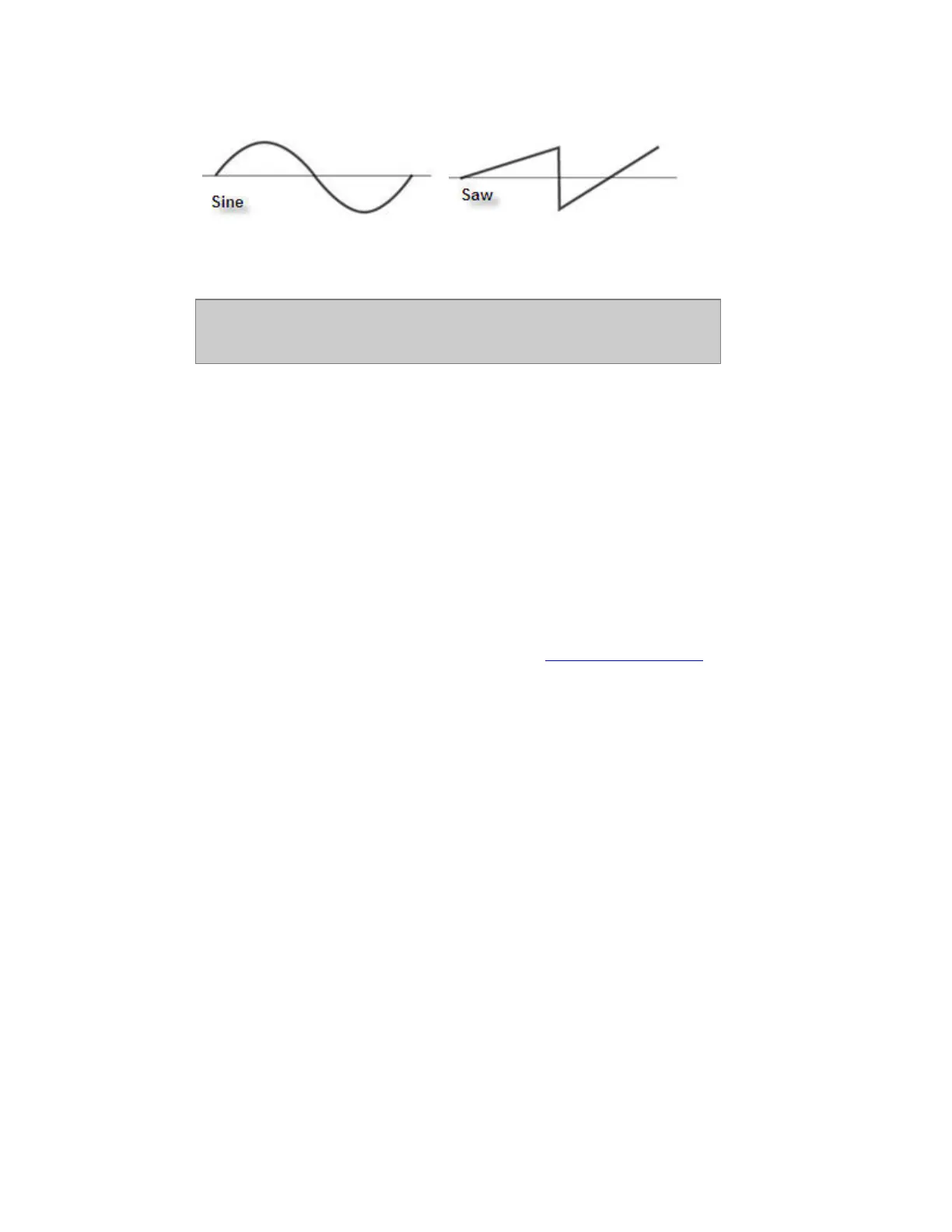
To create a movement, like a "Circle" for a moving Device, two sinus waves
are applied to pan and tilt, and one of them is offset 25%.
Create a Dynamic Effect Playback
1. Create a Dynamic Effect Playback. This can be done in two ways.
• # INSERT & EFFECT and select Dynamic.
• Press INSERT in the Effect Playbacks List, and select Dynamic.
Now that the effect playback is created you can apply all existing Dynamic templates to any channel
group, or you can create channel sets and select them. The Effect playback is controlled similar to
how a moving device is controlled. Select the effect and use the parameter wheels or the Live Effects
editor.
2. Select the Effect, to start is set a level over zero. See Select & Activate Effects
.
Control a Dynamic Effect
As soon as a Dynamic Effect playback is selected, you can control it in two ways:
• From the console parameter wheels using U1-U3. On Cobalt jr these can be found under the
Device softkey or by using [C/Alt & [FOCUS], [COLOR], [BEAM] respectively.
• From the Live Effects view.



 To Next Page