Cobalt 8.1 - 20181029
722
4. Go to TEXT and press MODIFY to enter a name. Press MODIFY again to confirm.
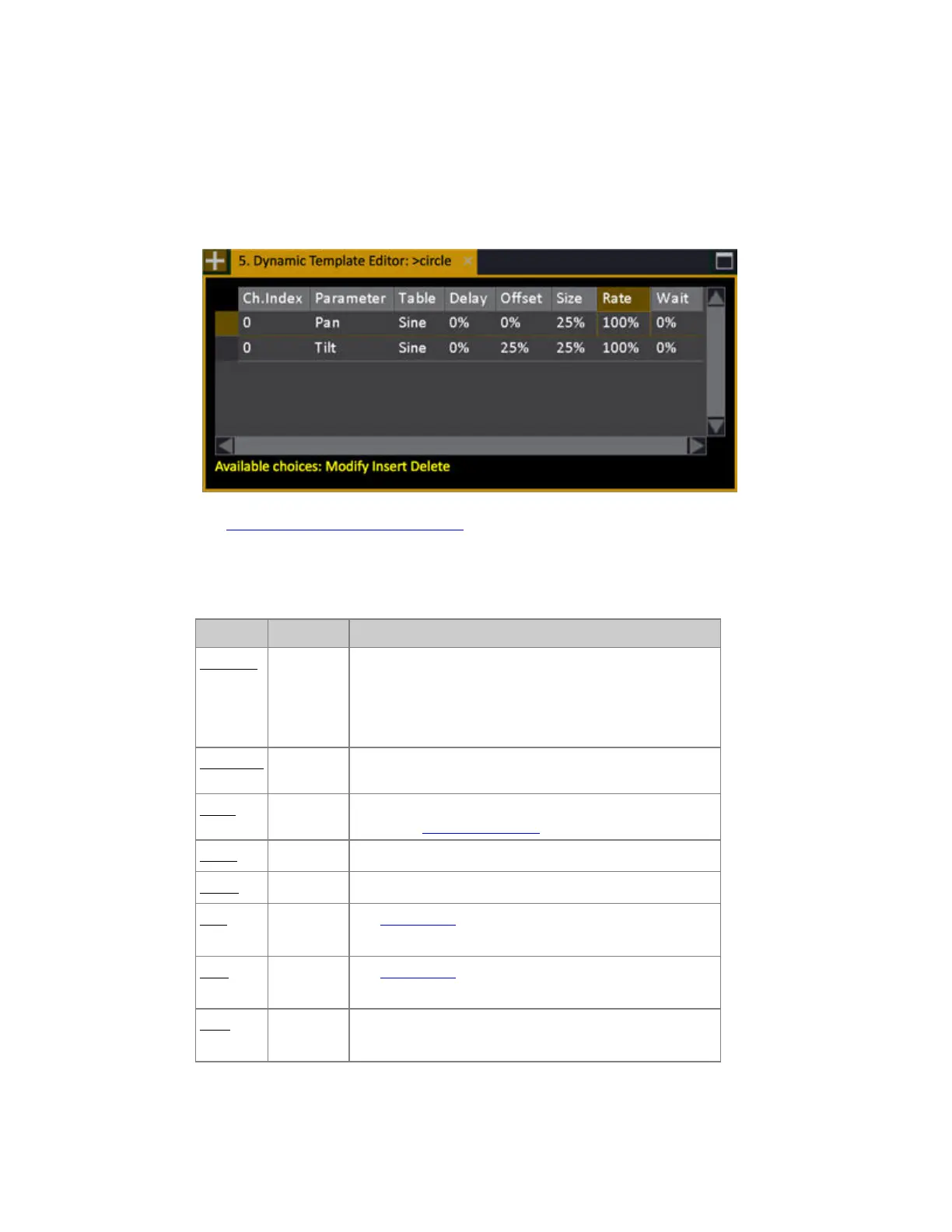
5. Go to Parameters and press MODIFY to open the Template Editor.
6. Press INSERT to create a step. Each step contains the settings for a single parameter - for example,
a pan/tilt effect would have two steps.
See Dynamic Template Editor - Functions.
Dynamic Template Editor - Functions
Column Input Function
Ch.Index
[#]
[MODIFY]
0 means all selected channels are affected by this step.
For numbers >0 only channels that match this index
number will be activated. For example "2" means that
only every second channel will be affected (of the
selected channels).
Parameter
[MODIFY]
Opens a dropdown. Select which parameter this step shall
affect.
Table
[MODIFY]
Opens a dropdown. Select which table this step should
apply. See Dynamics - Tables.
Delay
[MODIFY]
A delay in % before the step starts to move
Offset
[MODIFY]
An Offset in % where in the table this step starts
Size
[#]
[MODIFY]
See Size & Rate
Rate
[#]
[MODIFY]
See Size & Rate
Wait
[#]
[MODIFY]
A wait time, in percent (1- 1000%) for this step before it
is repeated. The Wait time is relative to all other steps.



 To Next Page