Cobalt 8.1 - 20181029
90
The color wheel indicates the current setting of the selected device channel or the first channel in a
grouping. Some of the fixture templates within the Cobalt library also include color calibration data.
In this case, a black line is drawn on the color wheel when that device is selected. This line indicates
the valid color space for the fixture type. Colors outside of the black line are not achievable by the
color mixing system of that device.
The Hue and Saturation controls will move the dot in the color wheel either around the wheel from
one color to the next (Hue) or along the radius of the wheel where the dot is currently located
(Saturation).
The closer the dot gets to the center of the circle, the closer to white the color system is moving –
approaching a saturation of zero. Away from center indicates deeper color – approaching full
saturation.
The RGB and CMY Saturation controls allow you to adjust the color by adding or decreasing the
amount of a color area within the Hue/Sat space. As you move around the wheel, the RGB and CMY
controls will indicate equivalent mixes for those two color spaces.
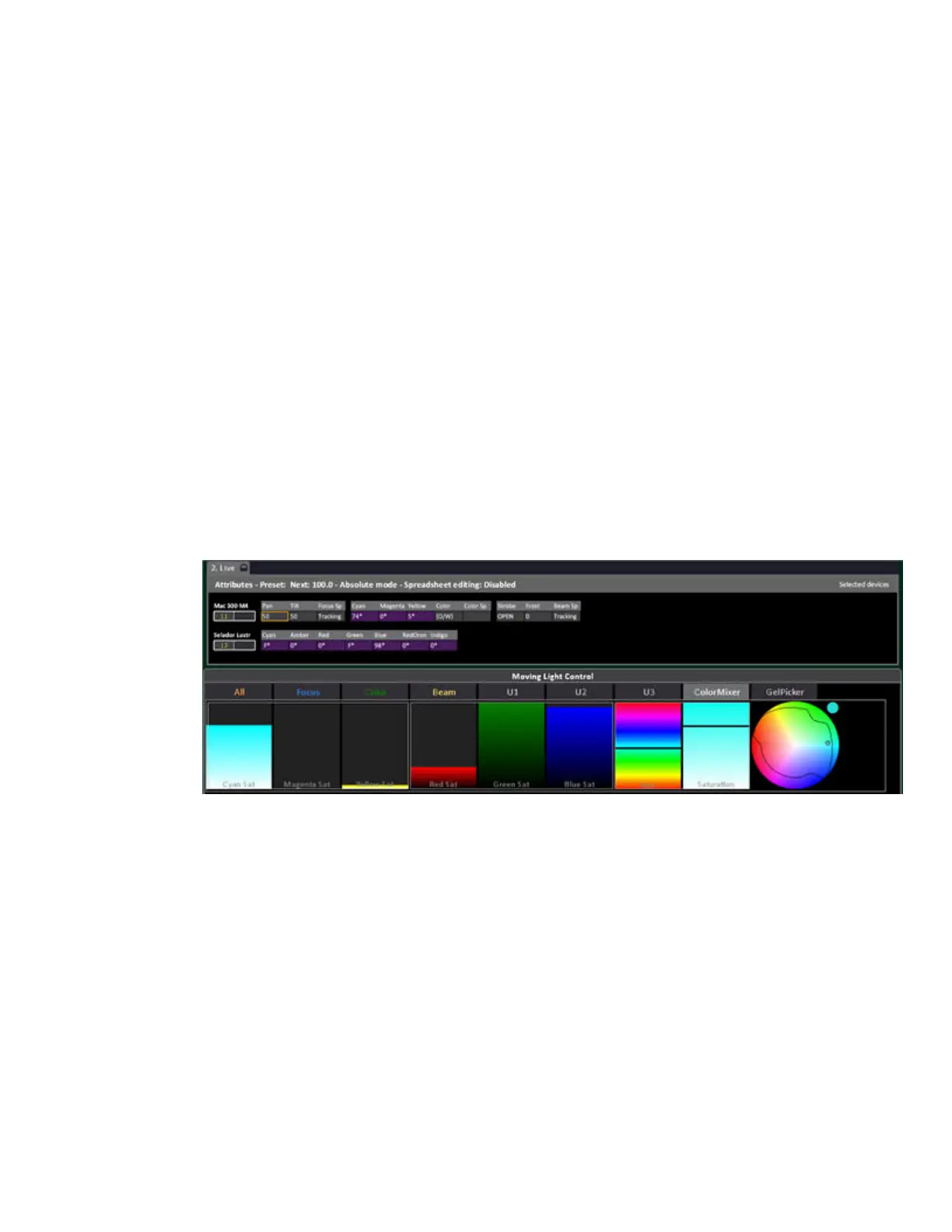
In the image below, you see a patched Source Four LED Lustr+ with a 7-color mixing system selected
with the Mac300 device with a CMY mixing system. Both channels are selected at the same time and
when you make adjustments within the tab, both devices will react to create a similar color. In the
screen below you can see both lights are set to a light cyan color. In the CMY saturation tools, this
color contains no magenta at all.
As an example, if we increast the level of magenta saturation, both fixtures will shift to a more purple
color in output, and the other color saturation handles will adjust to reflect the new mixed color. The
dot on the color wheel will also move to the new color position. All of the controls in this tab are
interconnected and will move as you change the colors.
You can see that the color mixing systems of the two devices are very different, but they are adjusted
by Cobalt to create the desired color automatically. Raising the Red Saturation control could perform
a number of different adjustments - increasing the red circuit in an RGB system, or increasing both.
Magenta and Yellow in a CMY system, for example. The virtual tools allow you to mix colors
without having to work in all the native color spaces of the devices in your rig.
Please note, if you have devices that have been calibrated, it may not be possible to drag the
RGB/CMY Saturation controls to “full”, depending on the current color mix of the device(s). As you



 To Next Page