iPECS eMG80 & eMG800 & UCP
Administration and Programming Manual Issue 1.6
584
4.5.2 Database
4.5.2.1 Database Upload
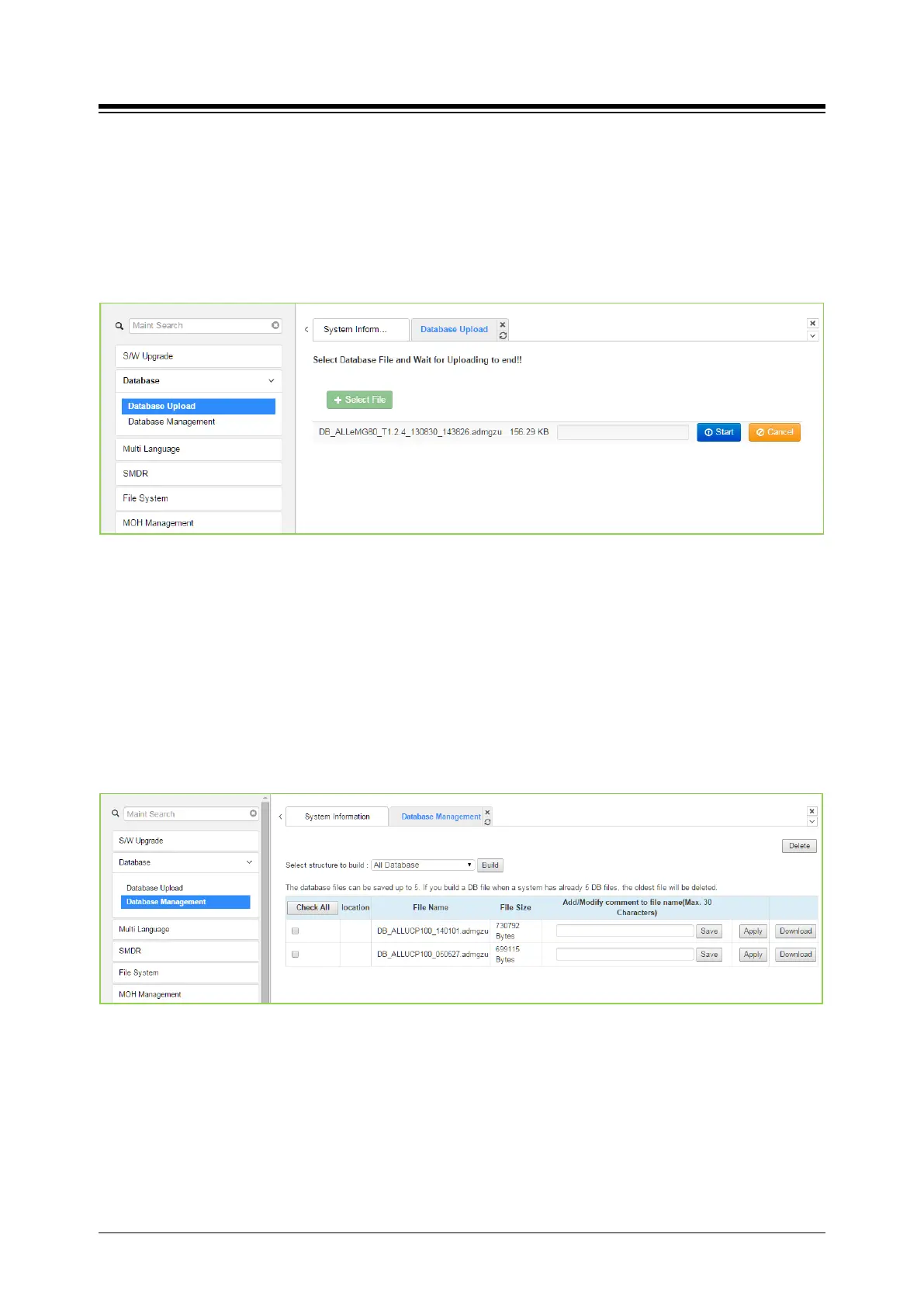
The Database Upload selection will display the Database Upload page as shown in figure. Select
[Select Files] then select the database file desired from the local PC and click [Start] to upload
the database to the system.
Figure 4.5.2.1-1 Database Upload
4.5.2.2 Database management
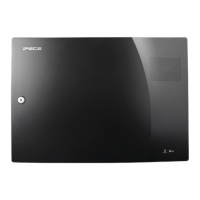
Selecting Database Management will display the Database Download page. Select the structure
to determine the portion or structure of the download. Click [Download] then select the directory
and file name in the pop-ups that follow to save the file to the PC. After building a database file,
the download function will be available. A maximum of five downloadable files for various types of
data and structure can be built; building additional files deletes the oldest.
Figure 4.5.2.2-1 Database Download
You can add or modify the file name by entering the characters including special character (#,
$, %, &, ', ( ), -, ., @, _). The comment will be created as [XXXXX] before ‘.admgzu’. It is useful to
search DB after downloading.
Clicking on [Download] button will present the File Download window. Files should be saved to
disk. Note that this screen will appear for all download processes.
A user can apply DB file from USB memory. The DB file name is composed of system type, DB
type, date & time and version information.





 To Next Page