3.2 Setting Up Editing Environment
3-8
Display ID Number When this box is checked, the ID number of each part is
displayed.
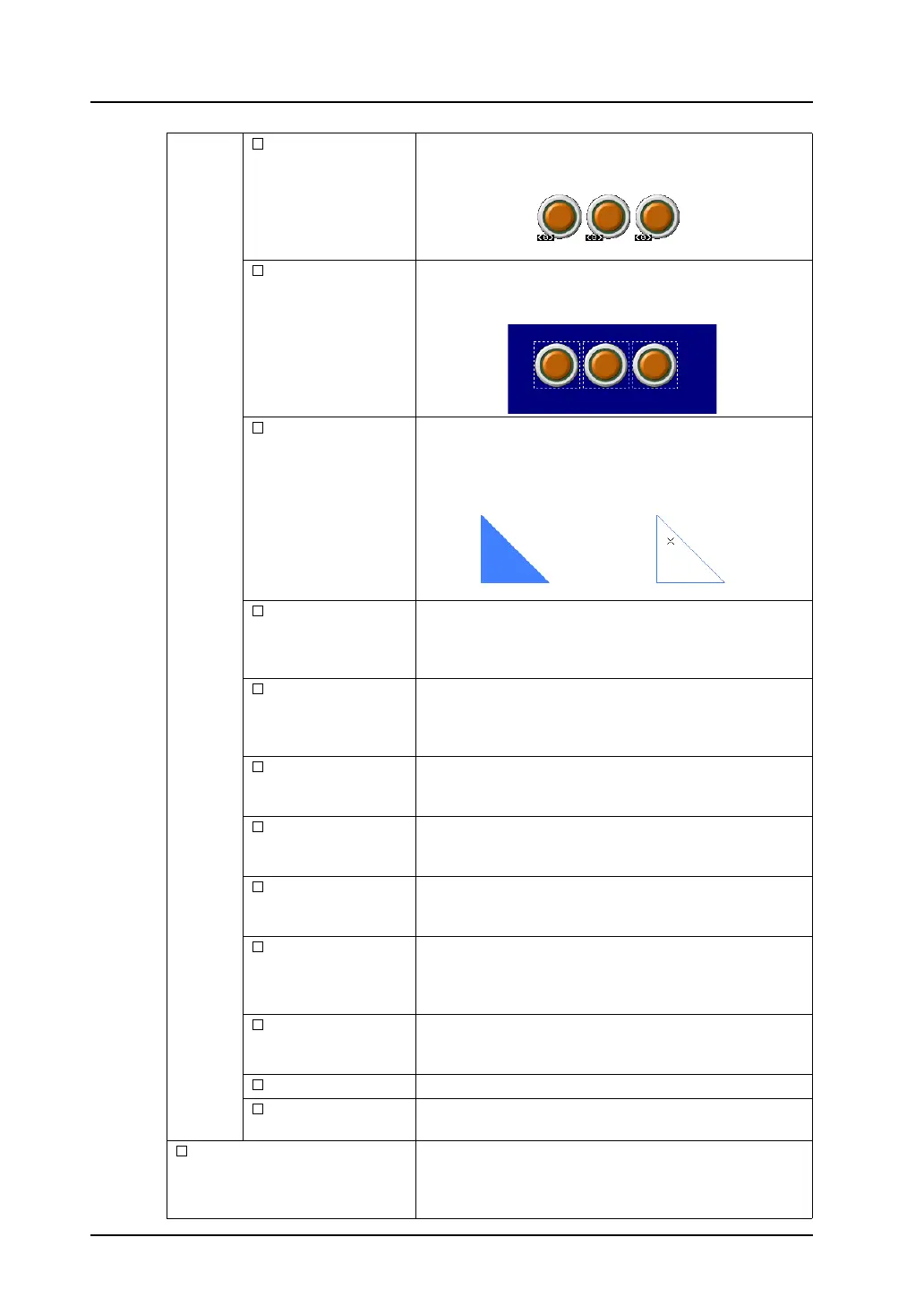
Display Area When this option is checked, the area of each part (the touch
switch area in case of a switch) is displayed with dotted
lines.
Display Paint When this option is checked, the graphic drawn with the
[Paint] icon is displayed as painted. When this box is
unchecked, [×] is displayed as the paint start point.
Display Message When this option is checked, messages set for bit order
alarming/message (applicable only when [Block] or [Internal
Command] is set)/alarm tracking are displayed on the
screen.
Display Data Block This option is valid only when a data block area is set on the
screen.
When this option is checked, contents registered in the data
block area are displayed on the screen.
Display
MLIB/GLIB/SLIB
Mark
When this option is checked, the MLIB (overlap library)
mark, GLIB (graphic library) mark and SLIB (screen library)
mark are displayed.
Interlock Text with the
Switch
When a switch part or lamp part is enlarged/reduced in size
while this option is checked, the text on the switch part or the
lamp part is also enlarged/reduced.
Display in
Monochrome 8-tone
Colors
This option is valid on MONITOUCH of monochrome type.
When this option is checked, the colors on the screen are
displayed in the monochrome 8-gradation colors.
Limit of Edit Model
Area
When this option is unchecked, items can be placed in the
marginal area (right or bottom).
When this option is checked, items can only be placed within
the available area for the edit model.
Display Path of
Animation
This option is valid only for animation.
When this option is checked, the path of animated graphics
is displayed.
Display Center Line When this option is checked, the center lines are displayed.
Display Component
Parts Icon
When this option is checked, the component part icon is
displayed.
Apply to all screens. When this option is unchecked, the display environment
setting is only applied to the current screen.
When this option is checked, the setting is applied to all
screens.
Checked: Unchecked:



 To Next Page