Language Entry Method
A1-12
Chinese (Traditional) and Chinese (Simplified)
Key in characters in the same manner as you type Chinese characters (traditional or simplified) on
your computer.
Using “Chinese” Font on Non-compatible Operating System
This section explains how to enter Chinese (simplified) text on Windows XP, for example.
IME installation
1. On Windows XP, click [Start] → [Settings] → [Control Panel]. The [Control Panel] window is
displayed.
Double-click [Regional and Language Options]. The [Regional and Language Options] dialog is
displayed.
2. Open the [Languages] tab window. Click the [Details] button.
3. The [Text Services and Input Languages] dialog is displayed.
Click the [Add] button.
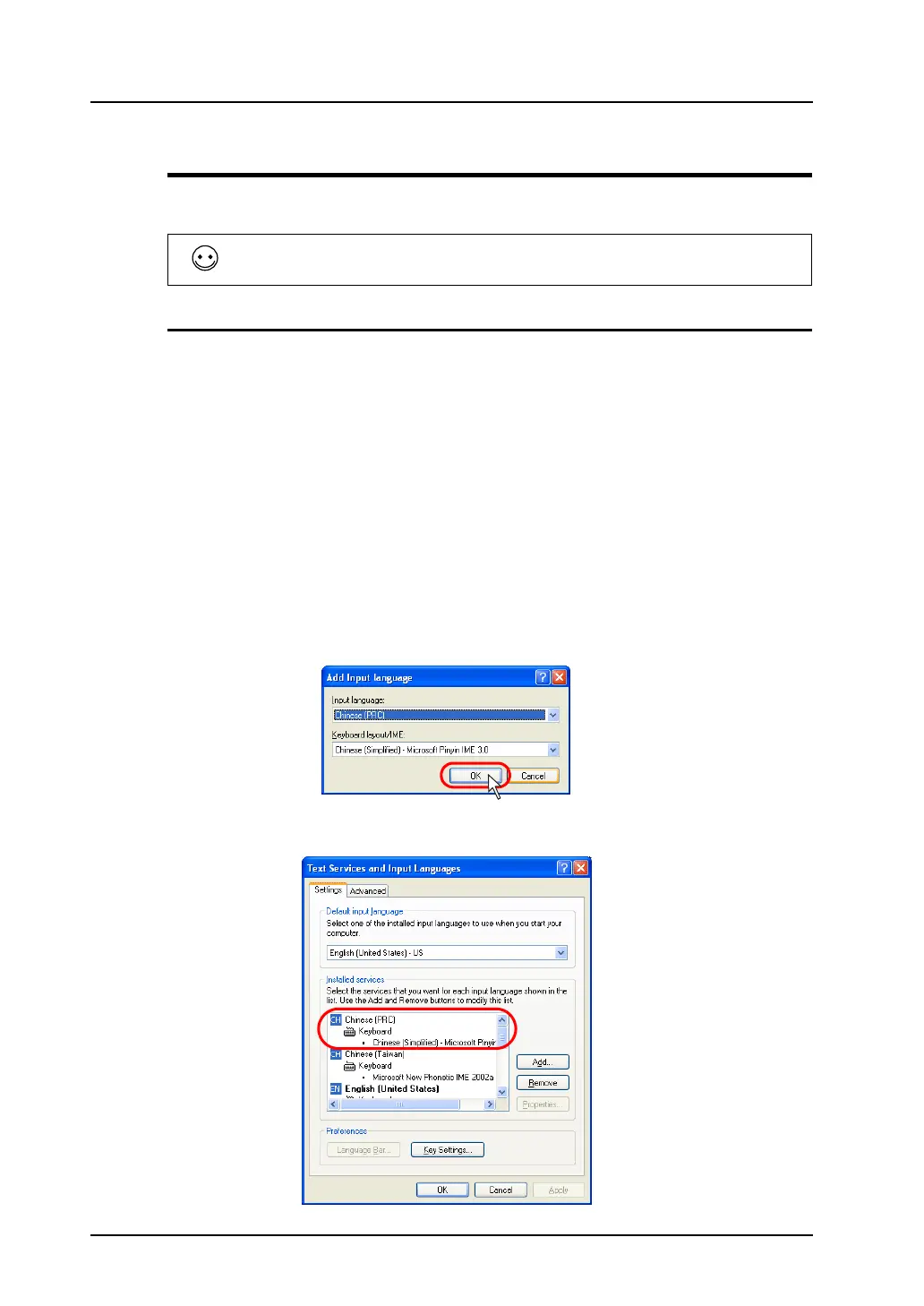
4. The [Add Input Language] dialog is displayed.
Select [Chinese (China)] under [Input language] and [Chinese (Simplified) - Microsoft Pinyin IME
3.0] under [Keyboard layout/IME]. Click [OK].
5. In the [Text Services and Input Languages] dialog, “Chinese (PRC)” appears under [Installed
services].
Enter Traditional Chinese characters in BIG5 code, and Simplified Chinese in GB2312 code.



 To Next Page