8.7 Other Functions in the [Tool] Menu
8-75
8
Useful Functions
Copy Image to Pattern
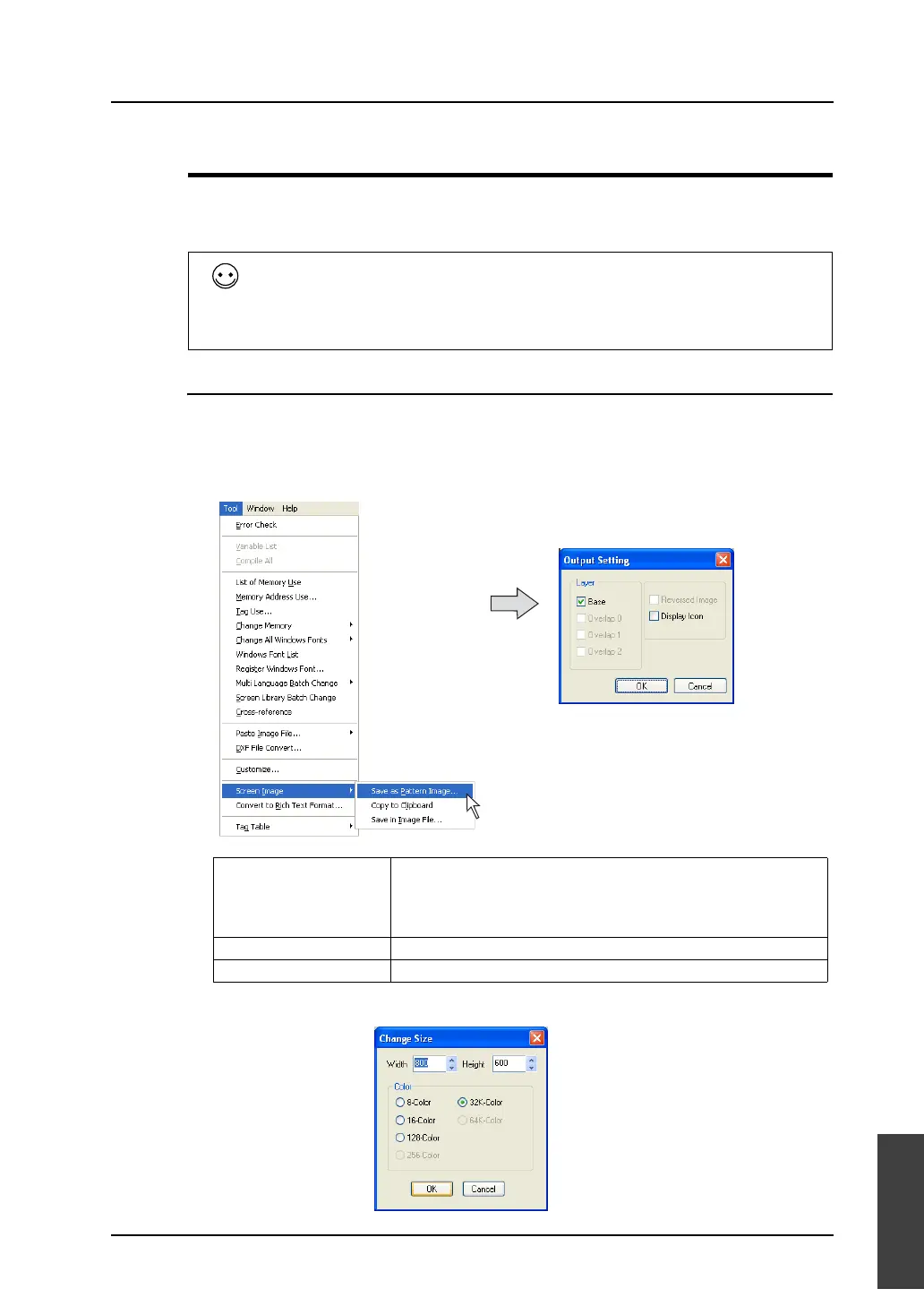
The screen being displayed on the computer can be registered as a pattern.
A pattern can be pasted to a screen change switch to show the target screen instead of text, or can be
used in various ways.
Operating Procedure
1. Bring up the desired screen.
2. Click [Tool] → [Screen Image] → [Save as Pattern Image].
3. The [Output Setting] dialog is displayed. Check the option you wish to output as a pattern. Click
[OK].
4. The [Change Size] dialog is displayed.
The following items can be registered as patterns:
• Screen
• Graphic library
• Multi-overlap
• Data block
• Screen library
Layer
Base
Overlap 0
Overlap 1
Overlap 2
Select a layer to be output as a pattern.
Reversed Image Check this option when you output an image in reverse video.
Display Icon Check this option when you output the icon of MLIB, SLIB, or entry mode.



 To Next Page