8.7 Other Functions in the [Tool] Menu
8-74
5. Click [OK].
The cross-shaped cursor with the dot-lined square is displayed.
Clicking any location on a screen shows the converted DXF file as the grouped drawings.
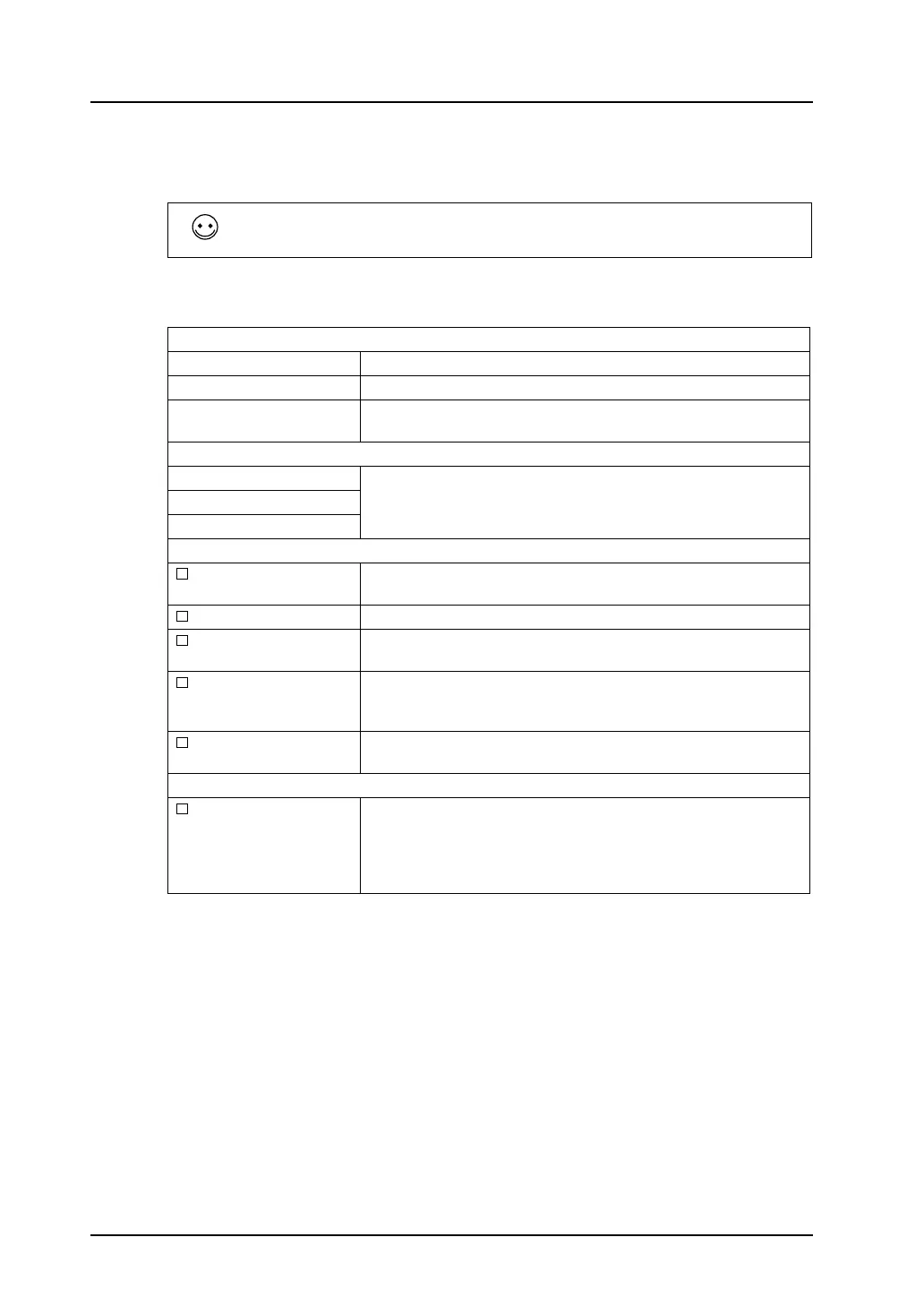
[Detail Setting] options
The following items are included.
After setting, click [OK].
These figures are converted to the drawings in the V-SFT editor. The drawings are grouped. The
displayed color depends on the original DXF file.
For more information, refer to the next section.
Imported Canvas Size
Area of Diagram Only areas containing graphics are read during file import.
Size of Plan Drawing sizes are read during file import.
Area of Diagram (Creating) If the graphics could not be read in the above manner, V-SFT sets an
area and the data within the area is read.
Color Level of DXF File
8-Color Display
Choose the option specified for DXF file creation.16-Color Display
256-color (or More) Display
Import Options
Do Not Convert Texts Choose whether or not text in DXF file is converted.
(1 character is converted into 16 × 16 dots.)
Do Not Import Dots Choose whether or not dots as graphics are ignored.
Do Not Import Dimension
Lines
Choose whether or not the dimension lines in DXF file are ignored.
Invert Black and White
Colors
Choose whether or not inverting to black-on-white is executed.
(When a file is imported into the V-SFT editor, white-on-black or
some other color line is used for display as default.)
Do Not Import Layer Choose whether or not layers not to be converted are specified.
Specify the name of such layers instead of their numbers.
Graphic Library No.
Specify When blocks are used in a DXF file, register them in the graphic
library.
Choose this option to specify the graphic library number for which the
blocks are registered.



 To Next Page