Windows Font
A1-31
A1
Font
*7 There is a limit on the multi-text size as the following:
height × length = 120,000 bytes or fewer for one piece of multi-text
*8 When sampling data is printed out, Windows fonts are not available.
Setting Procedure
In Text Properties Setting
1. Open the item dialog for the part.
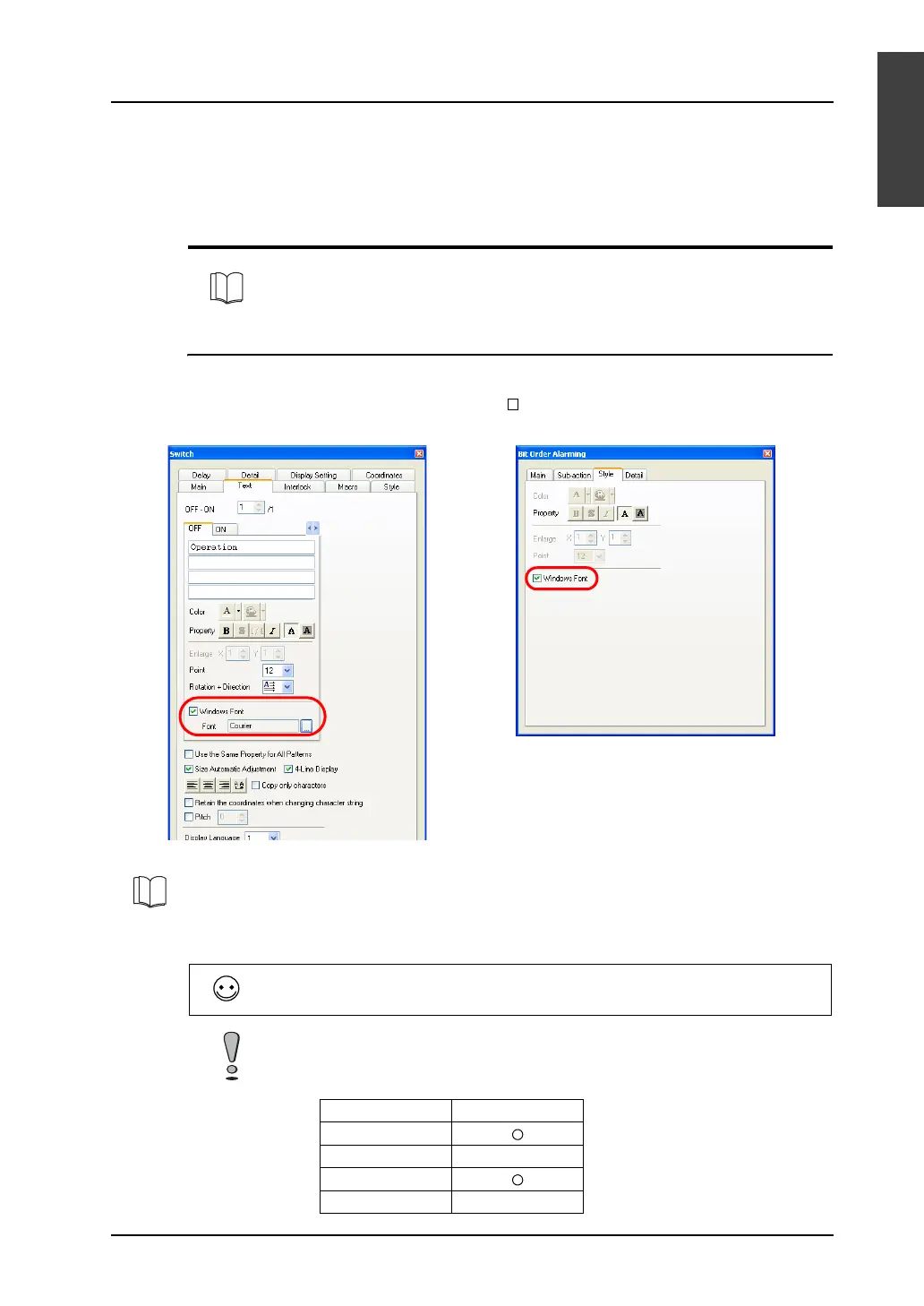
2. Open the [Text] or [Style] tab window. Check [ Windows Font].
3. The name of the Windows font is displayed.
4. Click the button provided for [Font]. In the dialog to be displayed, select the desired font name and
the number of points.
It is possible to perform Windows font settings for multiple items all at once.
For more information, refer to “Change All Windows Fonts” (page A1-36).
Switch: Bit order alarming:
For description of the [Windows Font Registration] button, refer to “Font Registration” (page A1-33).
For a part that requires also message editing, follow step 2 only (check [Windows Font]).
Windows font settings are made in message editing.
Only the monospaced Windows fonts can be used for numerical data and character display parts.
Proportional fonts are not available.
Example:
Fonts Availability
MS Gothic
MS P Gothic ×
Courier
Arial ×



 To Next Page