Windows Font
A1-30
Option
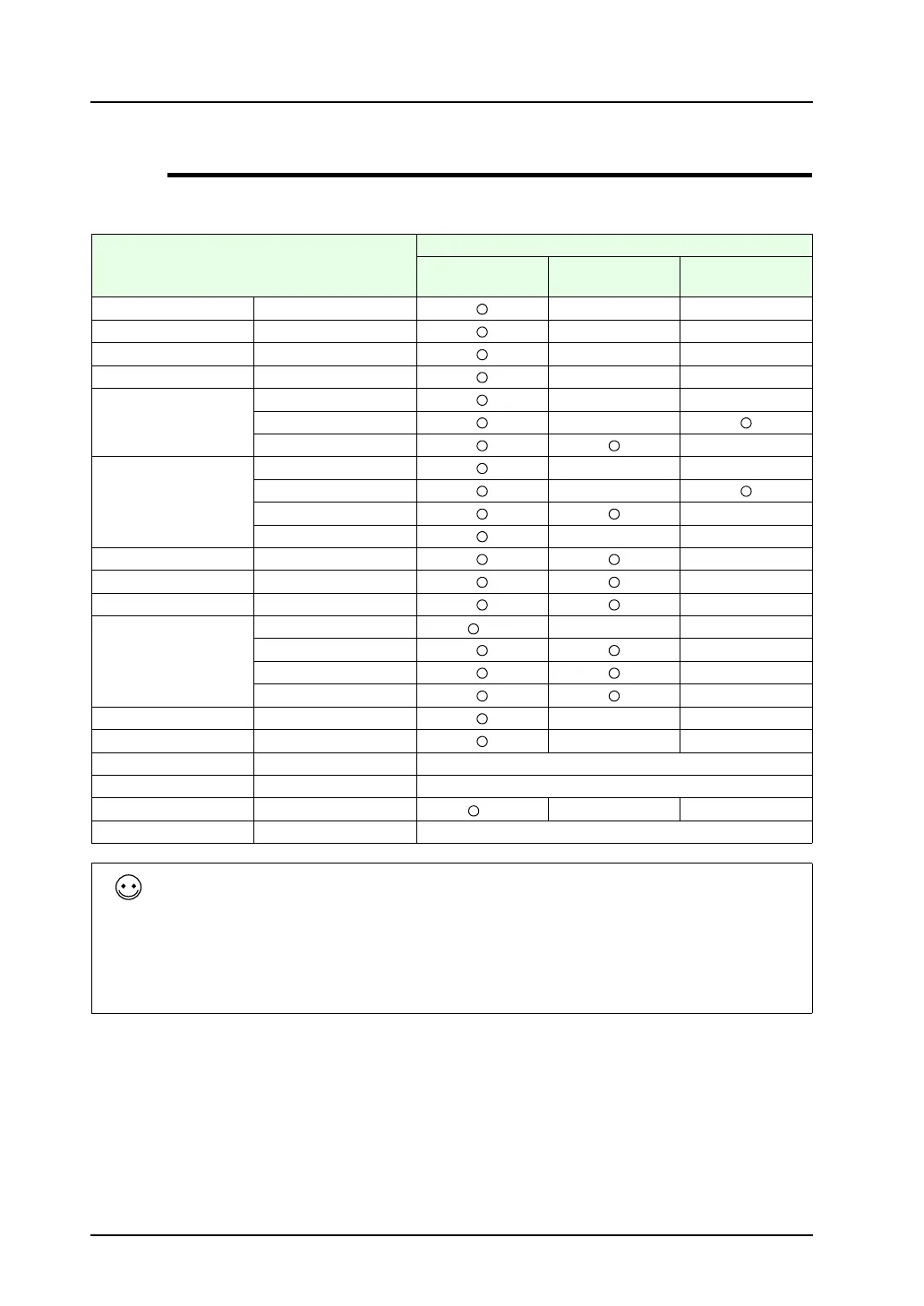
Depending on parts that use Windows fonts, setting items required for these parts vary. See the table
below for details:
*1 When Windows fonts are used, the option selected for [Function] must be [No Function], [Entry
Display Part], [Entry Target], [Max. Value Display Part], [Min. Value Display Part] or [Digital
Switch]. Windows fonts are not available with data display in graphic library.
*2 Go to the [Main] tab window in the [Sampling Display Area] dialog for setting.
*3 Set the character ON and OFF colors in the [Alarm Logging] dialog. The color setting in
message editing is disabled.
*4 The size of time display/status display in the sampling area is fixed.
*5 Go to the dialog opened in comment registration (click [Registration Item] → [Comment]).
*6 Windows fonts are disabled if [Max. Value Display Part], [Min. Value Display Part], or [Total Value
Display] is selected for [Function].
Parts Necessary Settings
Text Properties
(page A1-31)
Message Edit
(page A1-32)
Font Registration
(page A1-33)
Text in graphic --- --- ---
Multi-text *7 --- --- ---
Text in switch --- --- ---
Text in lamp --- --- ---
Data display Numerical data *1 --- Automatic
Text *1 ---
Message ---
Table data display Numerical data *6 --- Automatic
Text ---
Message ---
Text in graphic --- ---
Bit order alarming --- ---
Alarm sub display --- ---
Message mode --- ---
Sampling *8 Data sampling *2 --- ---
Alarm logging *3*4 ---
Time order alarming *4 ---
Alarm tracking *4 ---
Time display --- --- Automatic
Calendar --- --- Automatic
Memory card mode --- Unavailable
Recipe --- Unavailable
Comment display ---
*5 --- ---
Data sheet --- Unavailable
• The font selected in the [Font Setting] dialog (click [System Setting] → [Font Setting]) takes
effect for text display (instead of Windows fonts) in situations as the following:
A part placed on the screen requires settings for both text properties and message editing, but
the settings are not made completely.
Any Windows-font-disabled part is placed on the screen.
• If no font is registered for a part that requires font registration, spaces are displayed in place of
characters.



 To Next Page