8.6 Customizing the Toolbar
8-57
8
Useful Functions
8.6 Customizing the Toolbar
Overview
On the default toolbar, parts are randomly placed regardless of your preference or the frequency of
use.
The V-SFT editor supports the toolbar customizing function, thus, icons on the toolbar can be added,
changed, or deleted.
You can arrange the toolbar to suit your preference and enhance its usability.
Icon
How to Add
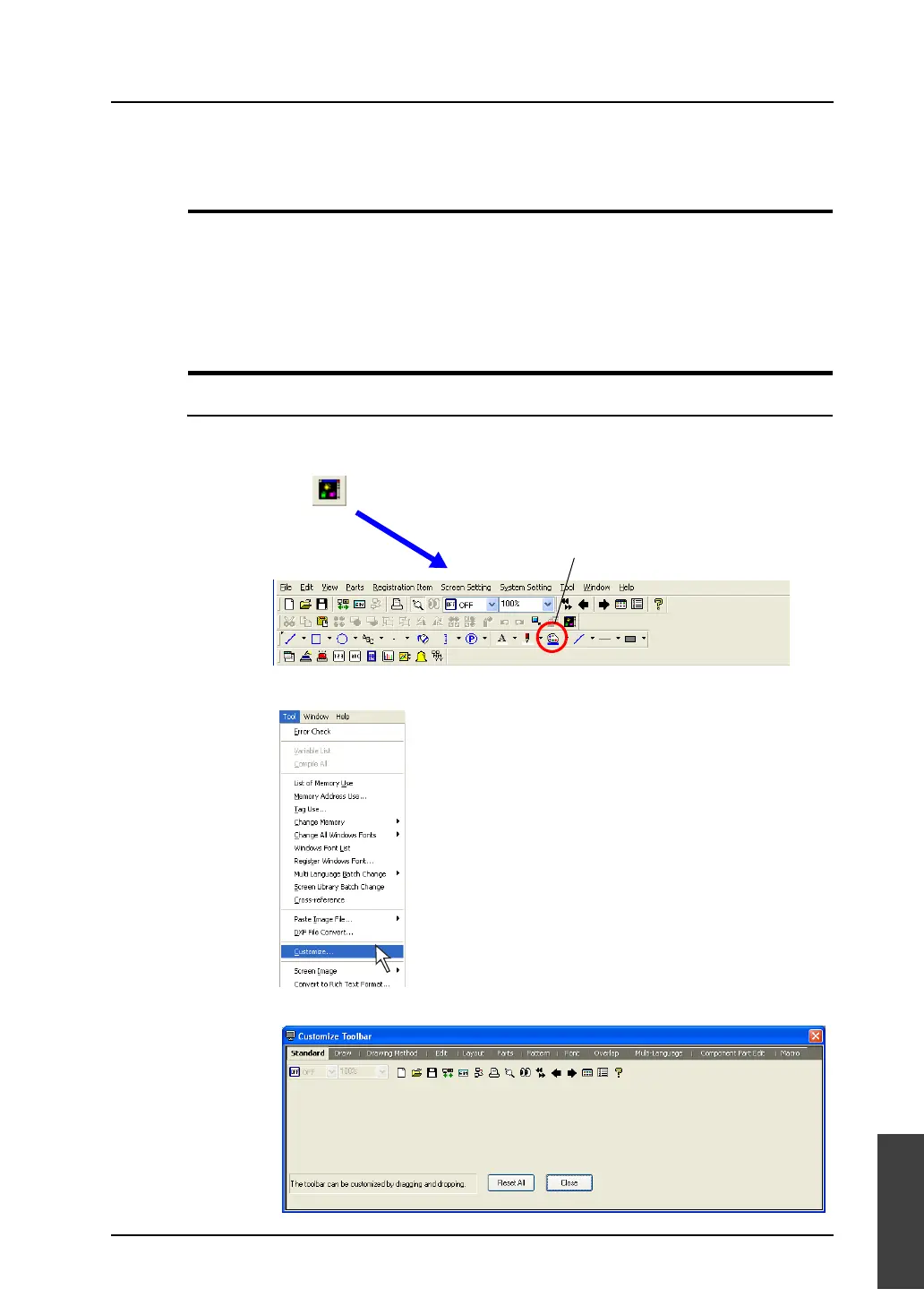
This section explains how to add the [Parts List] icon (= [Parts] → [Parts List]) to the extreme right of
the [Edit] toolbar as an example.
1. Click [Customize] from the [Tool] menu.
2. The [Customize Toolbar] dialog is displayed.
: Parts list
Newly added



 To Next Page