3.5 Color Types and Settings
3-37
3
Screen Editing
[Custom Color] Dialog
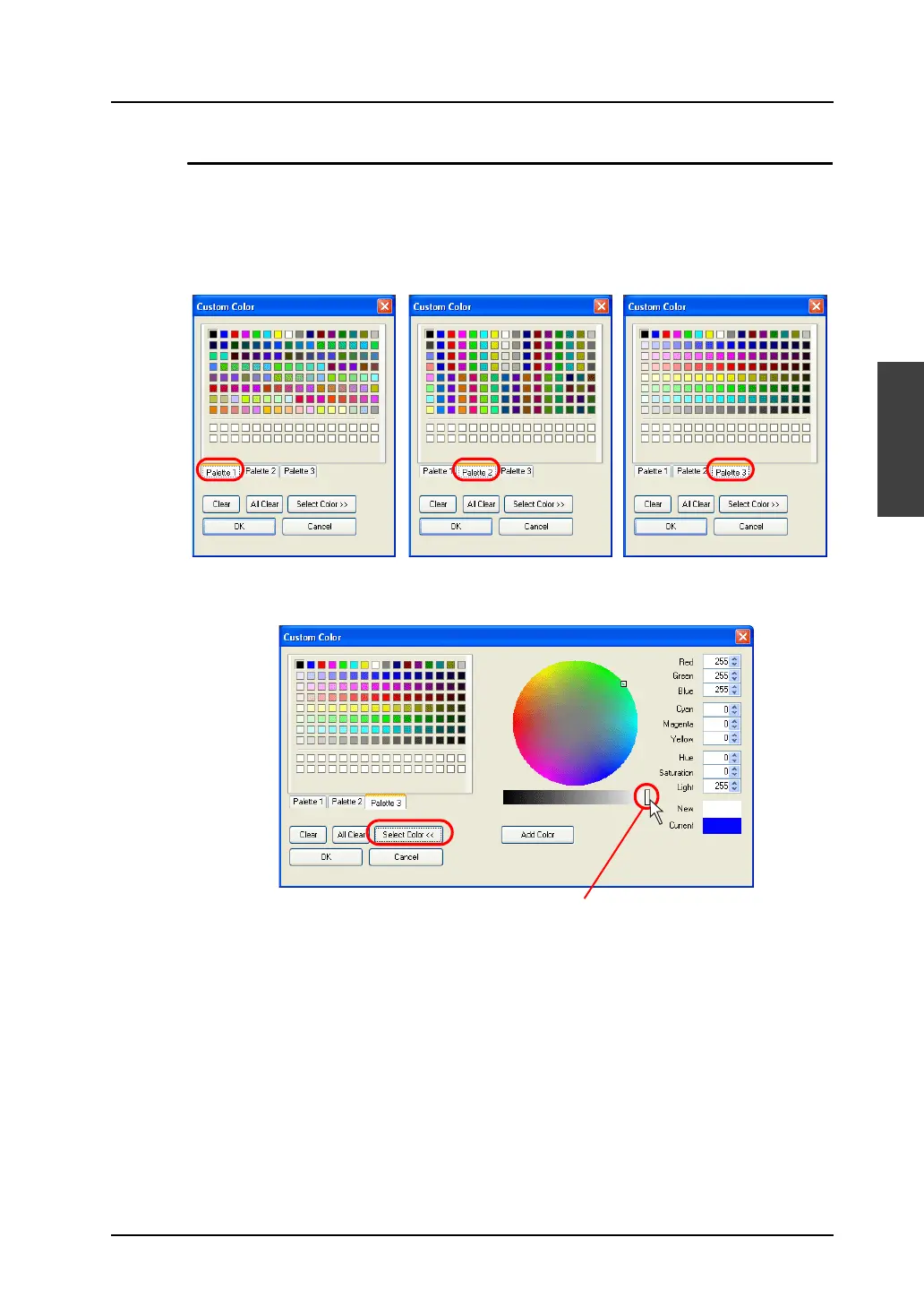
The [Custom Color] dialog enables you to select colors from 32,000 or 64,000 colors.
Clicking [Palette 1], [Palette 2], or [Palette 3] brings up its own color palette. Click your desired color
and [OK]. The graphic is then displayed in the selected color. When the 128-color type is selected,
only palette 1 or palette 2 can be displayed.
If none of these palettes include your desired color, click the [Select Color] button. The [Custom Color]
dialog enlarges to provide the section for more detailed color setting.
By clicking anywhere on the circle, the color at the clicked point is displayed at [New].
For further adjustments to the color, use the slider on the bar or change the values for the individual
color options.
[Palette 1] (V6-compatible) [Palette 2] (V6-compatible) [Pallet 3]
Move the slider on this bar to adjust the shade of a color.
(Slide it to the right (the white side) for a lighter color.)



 To Next Page