3.5 Color Types and Settings
3-40
128-color Type
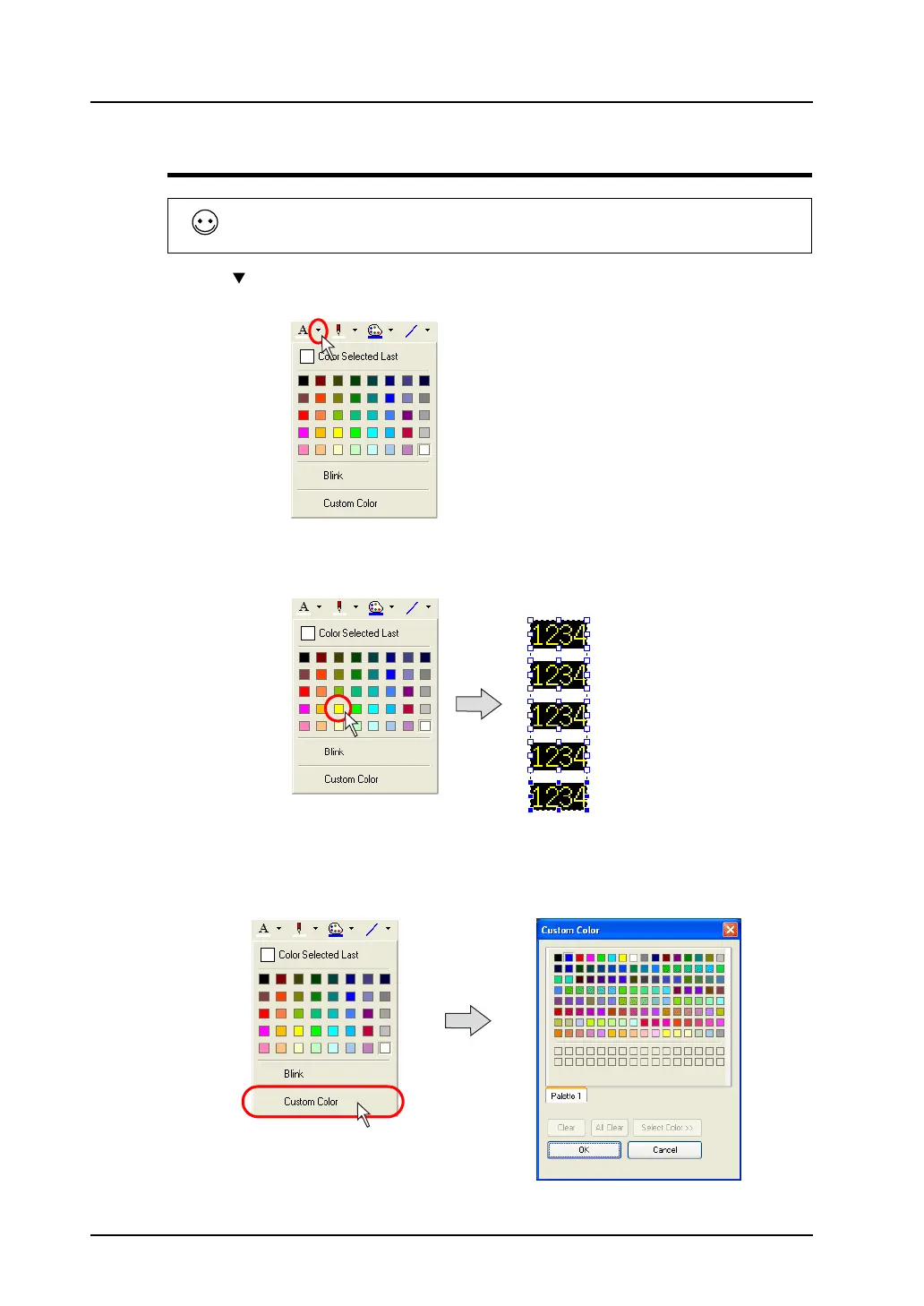
Click the “ ” button on the right of the color change icon or the color change button.
The pull-down menu for selecting a color is displayed.
Click your desired color in the pull-down menu.
The color clicked is applied as the color of the specified item(s) and/or the color change icon.
If you do not find your desired color in the pull-down menu, click [Custom Color].
The [Custom Color] dialog is displayed.
Even a 64k-color-displayable model can be set to 128-color mode.
If you wish to create screens in 128-color mode, go to the [Edit Model Selection] dialog from the
[System Setting] menu and select [128-Color] under [Color].
Click.
Yellow is selected as a
foreground color.



 To Next Page