5.10 Pattern
5-55
5
Registration
Placing a Pattern
Registered patterns can be placed on screens or in the graphic library.
Click the [Pattern] icon on the drawing toolbar to place a pattern.
After a pattern placement, the [Pattern No.] can be changed and [Rotate/Mirror] operations can be
performed.
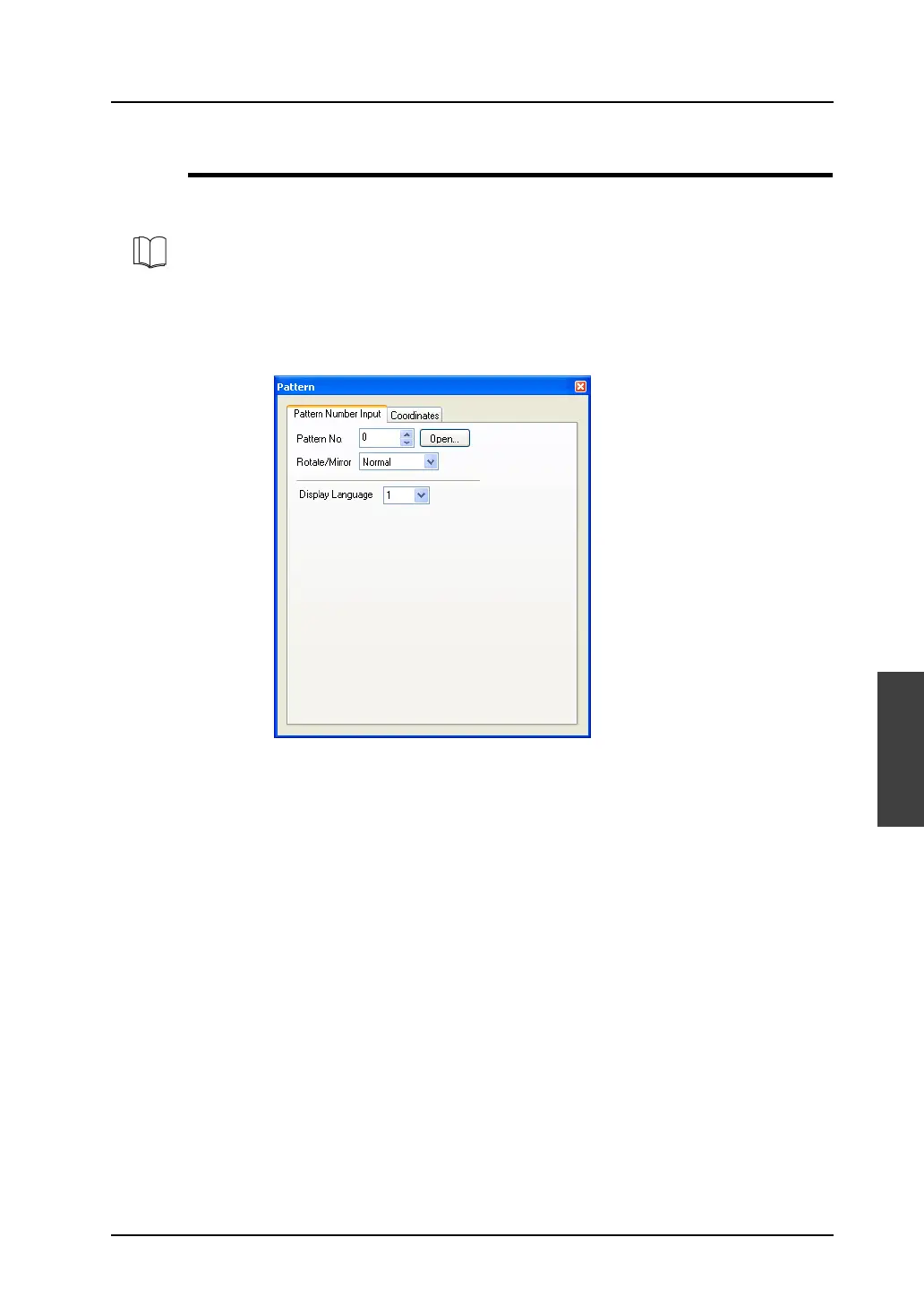
Click (or double-click) the placed pattern (within 4,088-dot size), or select it with handles and click
[Detail Setting] icon. The [Pattern] dialog is displayed.
Pattern number setting on multi-language screens
For multi-language screens, pattern numbers are selectable individually for [Display Language].
Go to the [Open] button when selecting a pattern.
Size of a placed pattern
• On the condition that the data size of a pattern is 1 MB or smaller, the pattern is allowed to be as
large as 1,024 dots wide (X size) and 768 dots high (Y size). However, if [Rotate/Mirror] operation
is performed with a pattern placed on a screen or in a graphic library, the size is limited to 4,088
dots or smaller (pattern size = X size × Y size).
• When animation is performed with patterns in the graphic mode or the graphic relay mode,
patterns that are 4,088 dots or less in size tend to be displayed more smoothly.
• Once a pattern is placed, it cannot be reduced but can be enlarged. If a pattern is 4,088 dots or
less in size, its size can be multiplied by integers.
Note that if a pattern that does not exceed 4,088 dots is enlarged on the screen or in the graphic
library, it may exceed 4,088 dots, and thus be subject to the limitations described above in the
case of [Rotate/Mirror] operation or animation.
For more information, refer to “Pattern” (page 4-48) in “4 Drawing”.



 To Next Page