5.10 Pattern
5-41
5
Registration
[Eraser] Icon
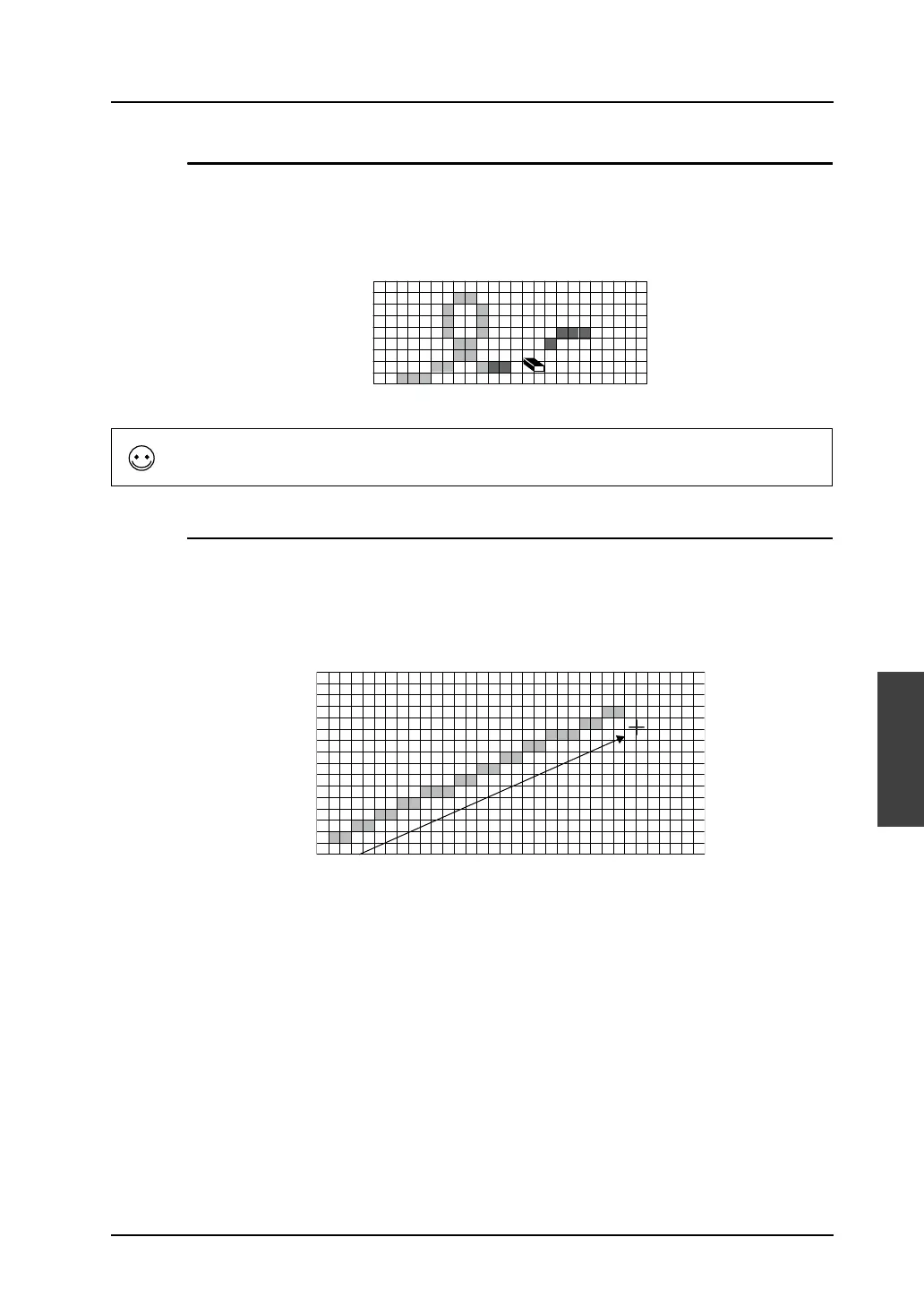
The [Eraser] icon enables you to erase graphics freehand.
1. Select your desired size using the [Pen Size] icon.
2. In the [Pattern Edit] window, click or drag the mouse over the graphic. The eraser in the size for
[Pen Size] erases the graphic.
[Straight Line] Icon
The [Straight Line] icon enables you to draw straight lines.
1. Select your desired line color with the [Line Color/Frame Color] icon, right-click color with the
[Paint Color/Background] icon, and pen size with the [Pen Size] icon.
2. Click the [Straight Line] icon. In the [Pattern Edit] window, draw lines by dragging the mouse.
The previously selected color and the pen size apply to the line you are drawing.
3. To draw in the color for [Paint Color/Background], right-drag the mouse.
Click or drag.
Operation by the eraser command is the same as drawing in dots using black color.
Drag.



 To Next Page