3.7 Parts Placement and Setting
3-81
3
Screen Editing
Entry Mode
Placement procedure
1. Click [Parts] → [Entry] (or drag [Entry] from Catalog View).
Move the mouse to the editing window. The part is displayed along with the cursor.
2. Click the mouse in a desired position on the screen. The part is placed in that position.
Setting method
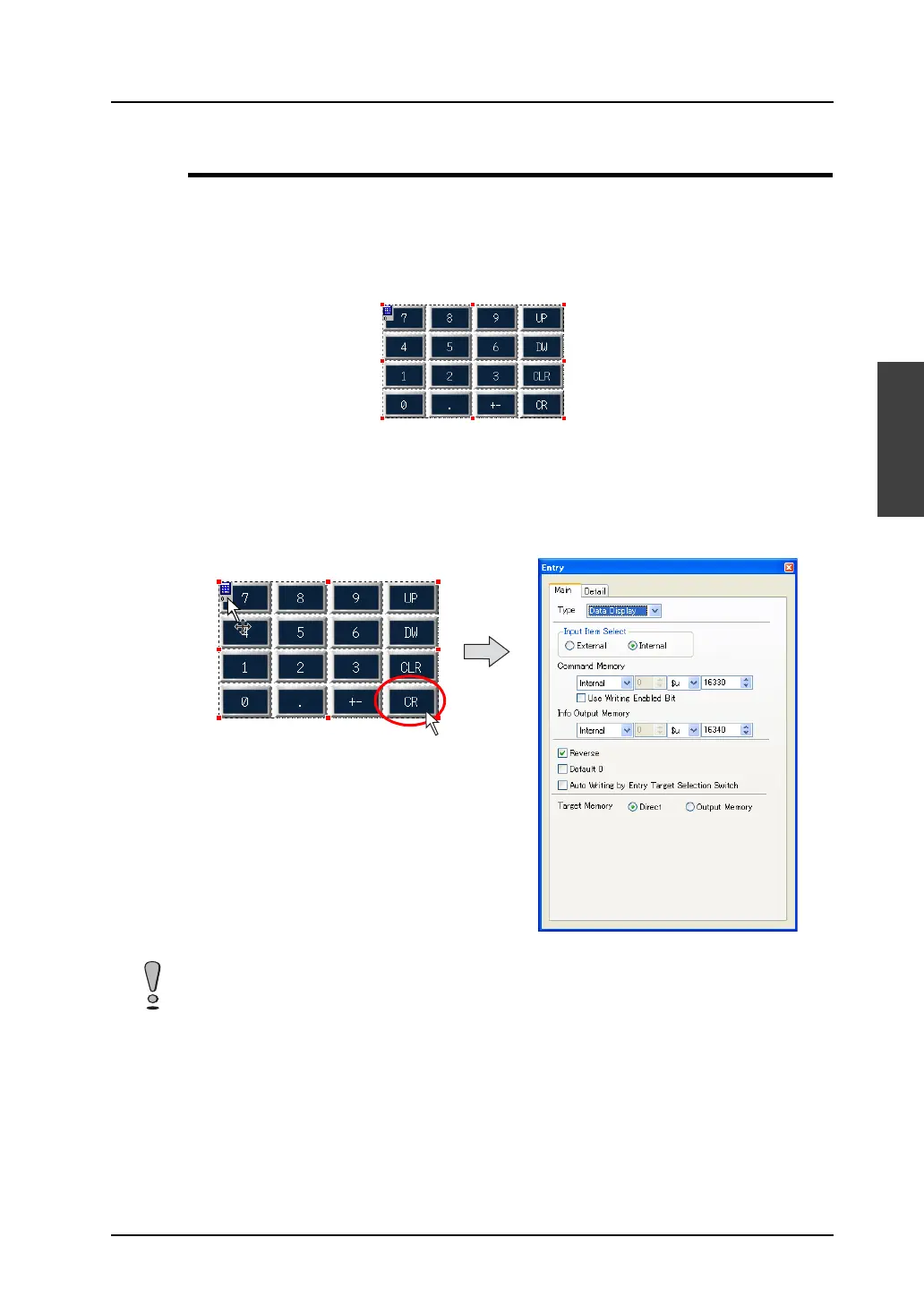
When the [Entry] icon is clicked (or double-clicked), the [Entry] dialog is displayed. By clicking any
switch part, the item dialog for the switch is displayed.
If you wish to select a keypad or keyboard in entry mode prior to placing it on the screen, go to the
[Parts List]. For more information, refer to the next section.
Click the icon.
The item dialog is displayed.
Clicking a switch brings up
its item dialog.
Once a keypad or a keyboard in entry mode is placed on the screen, modifying the design of the
contained switches all at once is not possible. (They can be modified one by one though.)



 To Next Page