3.2 Setting Up Editing Environment
3-4
Grid Setting
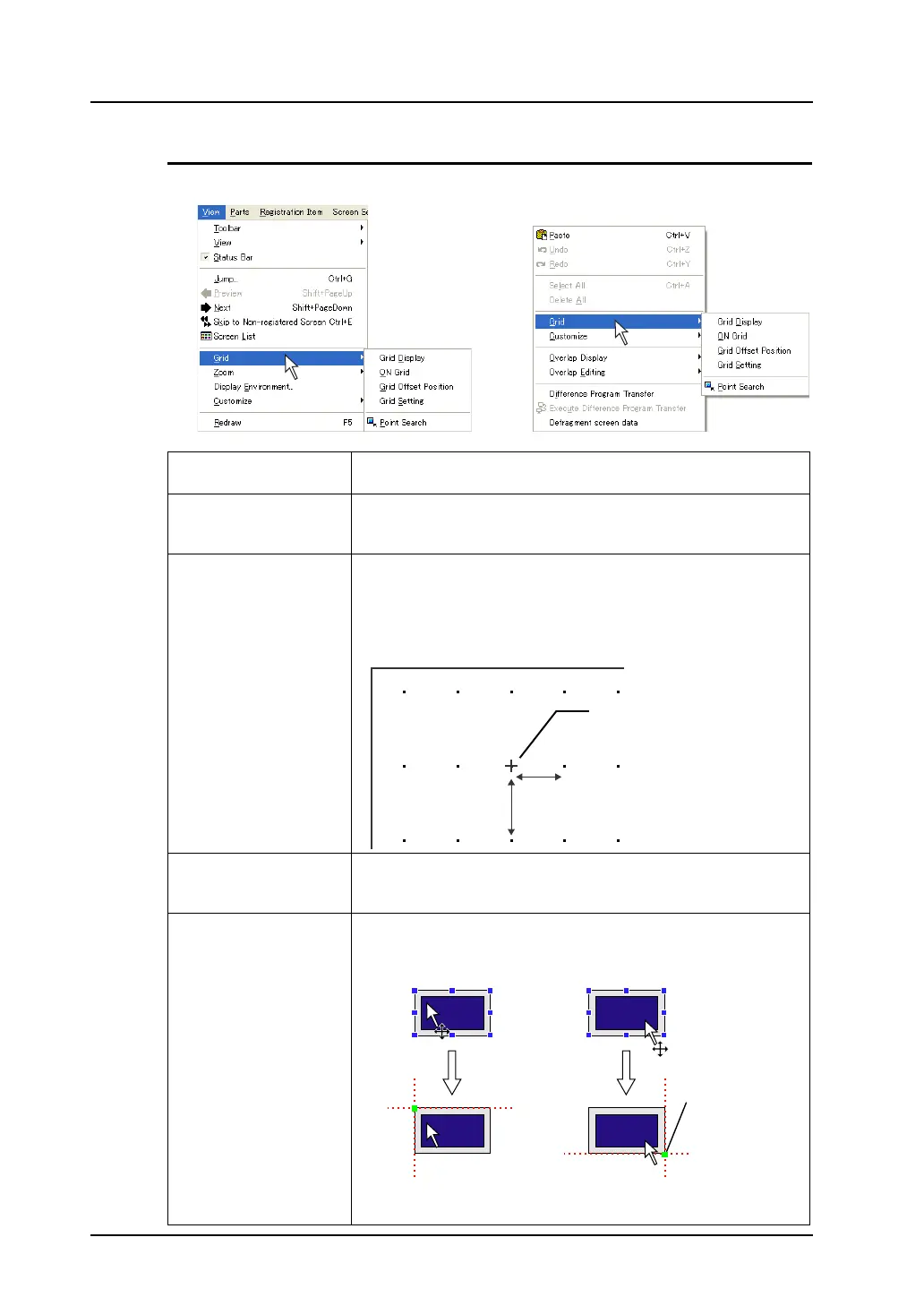
Click [Grid] from the [View] menu, or click [Grid] from the right-click menu.
Grid Display Shows grids when this option is checked.
Unchecking this option clears grids from the screen.
ON Grid When this option is checked, items are moved or changed based on
the grid.
(“ON Grid” is not valid for overlap displays.)
Grid Offset Position This menu is active when [Free] is chosen for [Grid Type].
When this menu is checked, the grid offset position is determined by
clicking the desired position on the screen.
Example:
X pitch: 30, Y pitch: 40
Grid Setting Clicking this menu brings up the [Grid Setting] dialog.
For more information on the [Grid Setting] dialog, refer to the next
page.
Point Search When this menu is checked, the handle closest the dragged point
becomes the datum point.
Right-click.
OR
30 dots
40 dots
Grid offset position (Grid position is
determined based on this point.)
By dragging at the upper left: By dragging at the upper right:
Upper left handle becomes
datum point.
Upper right handle becomes
datum point.
The datum handle
turns green.



 To Next Page