Windows Font
A1-33
A1
Font
Font Registration
In the case of some parts, setting text properties for Windows fonts activates the [Windows Font
Registration] button.
Unlike fixed text used for text in drawing or message display, the above-mentioned parts are likely to
display varied characters. Therefore, it is necessary to register all such probable characters through
[Windows Font Registration] so as to make them displayable on MONITOUCH.
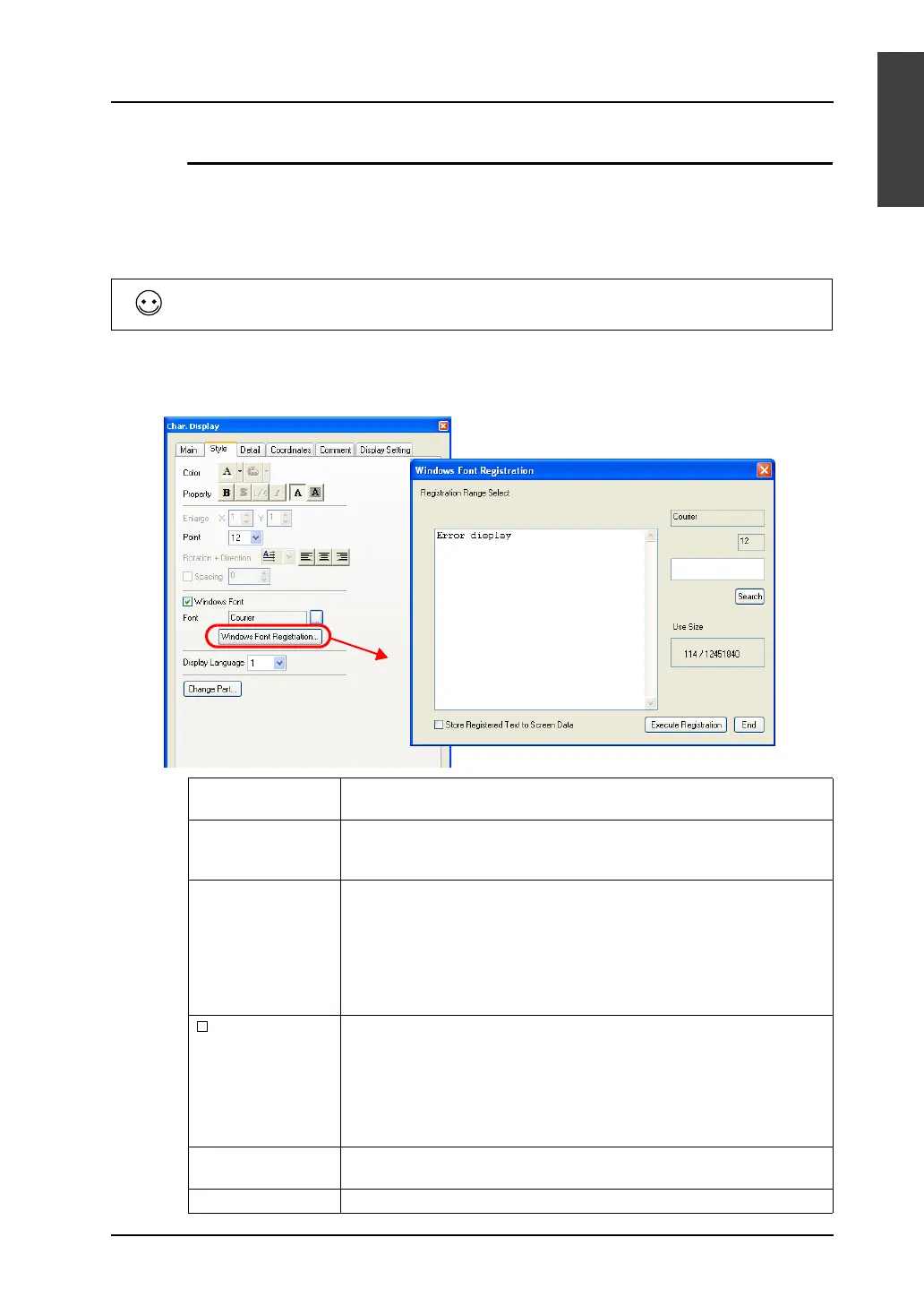
1. Open the [Style] tab window in the [Char. Display] dialog.
2. Click the [Windows Font Registration] button. The [Windows Font Registration] dialog is
displayed.
Characters that are not registered are displayed as spaces on MONITOUCH.
Registration Range
Select
In the area provided, register the text to be displayed in the selected
Windows font.
Search This button searches the area under [Registration Range Select] for the text
entered in the box. The text will be highlighted if found. Once you have
registered text, you do not need to repeat its registration.
Use Size The data size of the registered text in the currently selected font is
displayed.
The maximum size is 256 kB.
* The data size of characters in the same font and the same point
size is displayed. If there are characters in the same font but in
different point sizes, they are assumed to be different. These
characters must be registered separately.
Store Registered
Text to Screen Data
When this option is unchecked, a font registration file
*1
(with an extension
.txw) will not be stored in MONITOUCH. Because the file will be necessary
when screen data is transferred from MONITOUCH, be sure to store the file
together with the screen data.
*2
When this options is checked, a font registration file (with an extension .txw)
will be stored together with the screen data in MONITOUCH. The larger the
file size, the smaller the available memory becomes for the screen data.
Execute Registration This button registers the text you entered under [Registration Range
Select].
End This button ends the font registration.



 To Next Page