5.6 Graphic Library
5-15
5
Registration
Changing an offset position
Every graphic library screen in the graphic library has an offset position at coordinates X, Y (0, 0) as
default. To change the position, follow the procedure below.
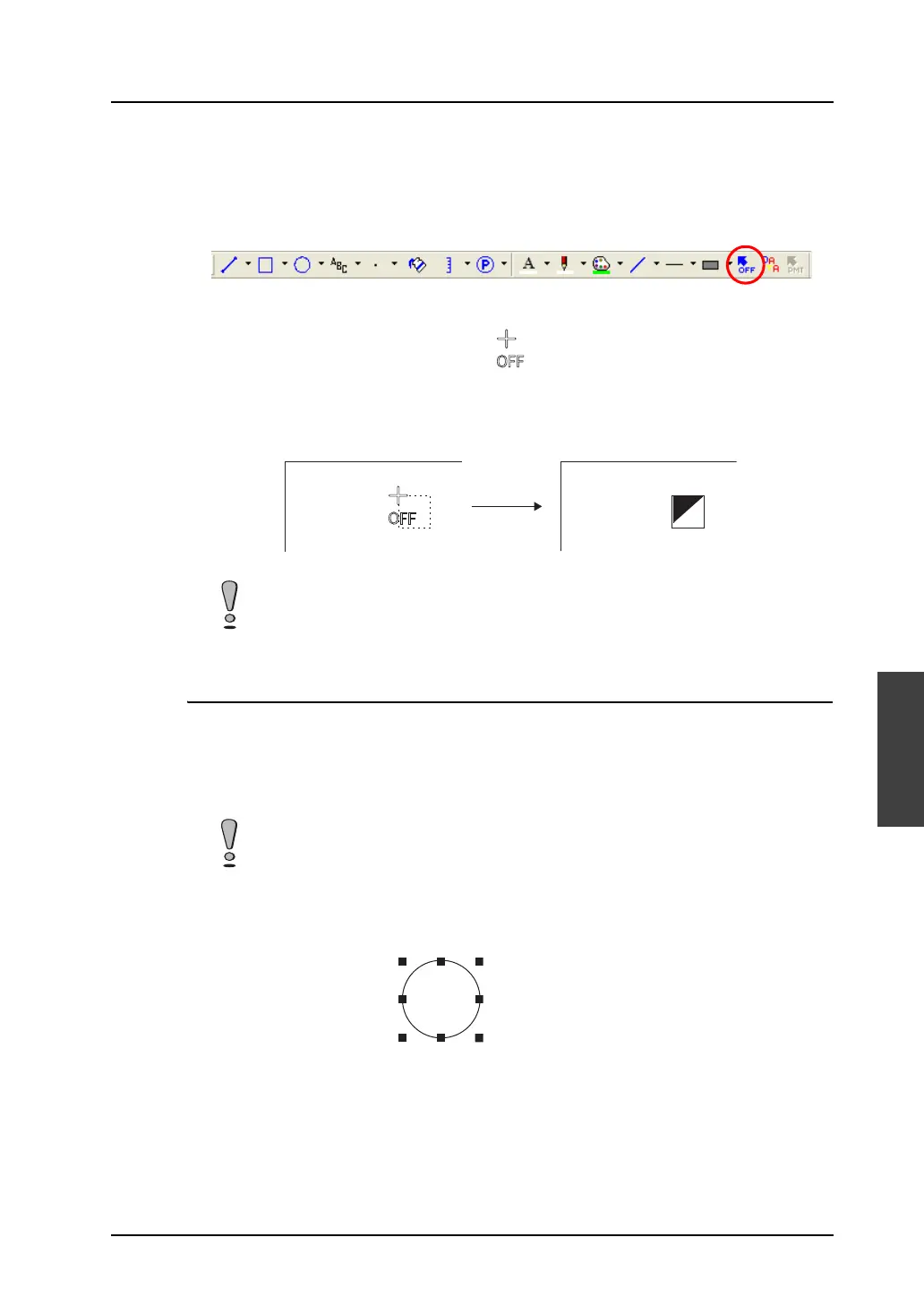
1. Click the [Offset] icon on the drawing toolbar.
2. A cross-shaped cursor marked with “OFF” appears.
3. Click the mouse in an arbitrary position on the screen. The offset mark is displayed at that
location.
Parameter Setting
Outline of parameter
Graphics registered in the graphic library may be moved or transformed on the screen. If data displays
(to be explained later) are registered, they also may be moved, transformed, or changed in displayed
value. For these items which are moved, transformed or changed, memory must be allocated.
This memory is called the “parameter.”
Parameter setting procedure
1. Click on a graphic in the graphic library to select it.
Changing the offset position prior to registering a graphic is not valid. Set an offset
position after registering a graphic.
Setting parameters only in the graphic library is not sufficient for moving, transforming, or
changing graphics. Make sure to set parameters for each part on the screen.
OFF
Click. The “OFF” mark is displayed.



 To Next Page