5.10 Pattern
5-54
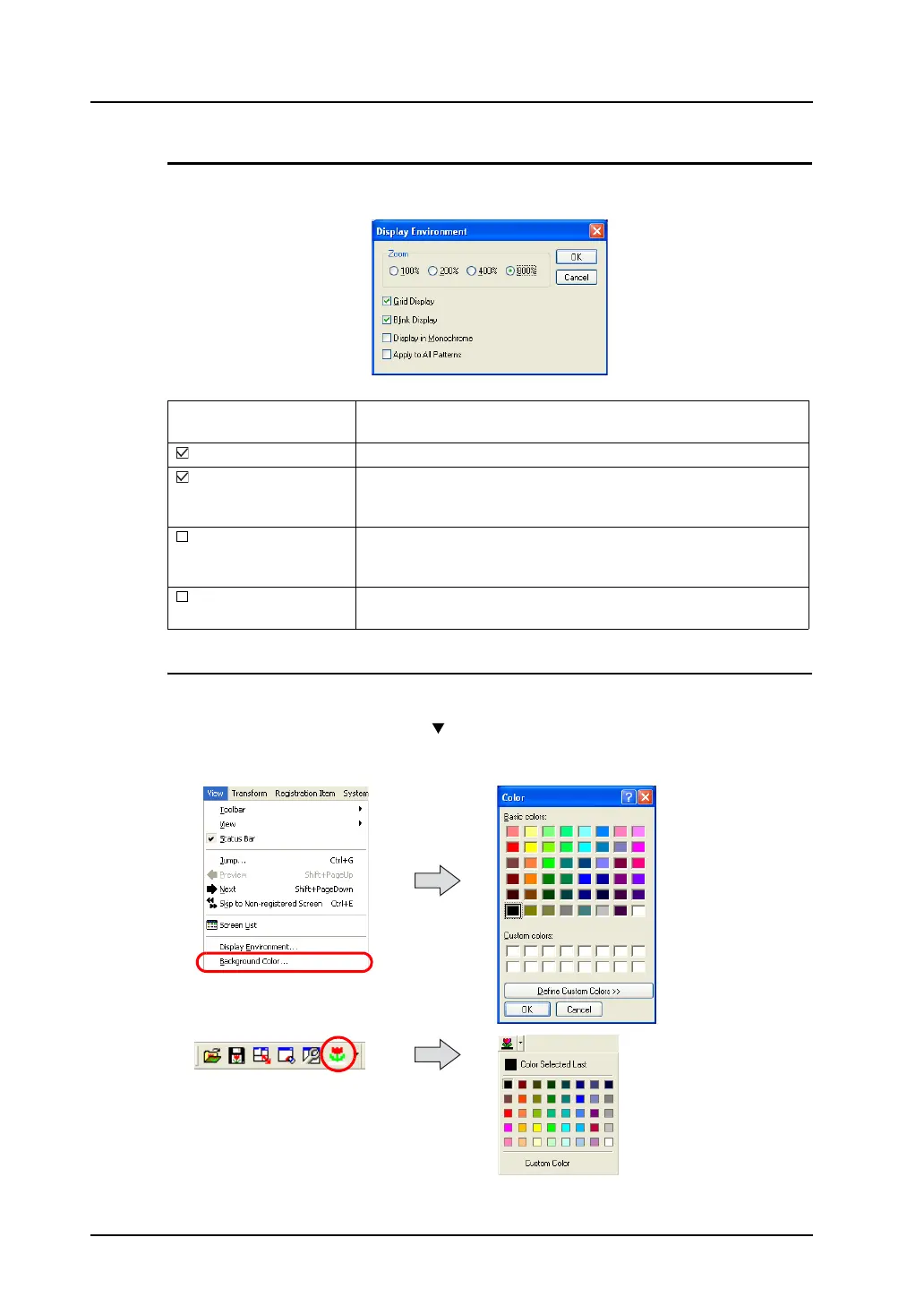
Display Environment
Clicking [Display Environment] from the [View] menu or the [Display Environment] icon brings up the
following dialog.
Background Color Setting
When editing a pattern, it is possible to view the actual screen background color.
Clicking [View] → [Background Color] or “ ” button on the right of [Background] icon brings up the
menu for selecting a background color. Select the desired color and click [OK].
The pattern edit window background color changes.
Zoom
(100%/200%/400%/800%)
Select a zoom in % for display. Default setting is 800%.
Grid Display Select whether or not to display grids in the background.
Blink Display It is possible to distinguish the color set to flash on the pattern. When
unchecked, the color set to flash is indistinguishable from the normal
color.
Display in 8-tone
Monochrome
When the monochrome display type is in use, checking this option
displays patterns in 8- or 2-gradation colors. Therefore, patterns are
made closer to images displays with MONITOUCH.
Apply to All Patterns When this option is checked, the display environment settings made
in this dialog are reflected through all patterns.
OR



 To Next Page