Parts Editing
A3-22
Trend Graph (Trend Sampling)
A trend graph part is displayed when you select [Trend Graph] from the [Parts] menu and then select
[Trend Graph] or [Trend Sampling].
Structure
Procedure
This section explains the procedure for editing a trend graph part*. The same procedure applies to
trend sampling part editing.
* The components of a trend graph part are liniked. Therefore, the components need to be
unlinked prior to editing. In the right-click menu, click [Link] → [Link Cancel]. Or, click
[Edit] → [Link] → [Link Cancel].
Once the components are unlinked, linking them again is recommended after editing is
finished.
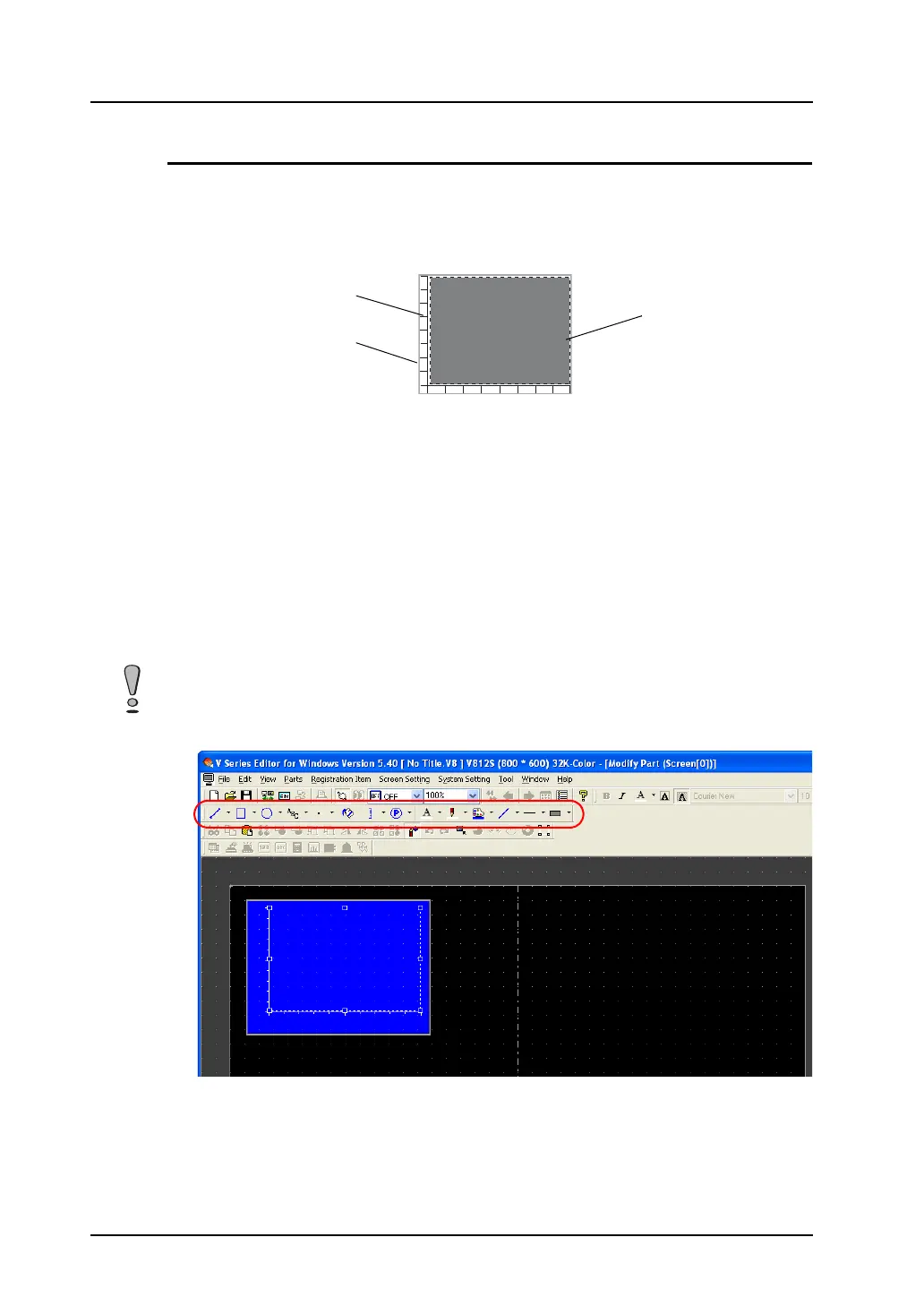
1. Select the trend graph part you wish to edit, and open the [Modify Part] window.
2. Using drawing icons etc., edit its design as desired.
For editing procedure with icons, refer to “4 Drawing” page 4-1.
Part basic area
Graphic data
Frame (part area)
In the case of trend sampling, note that graphics drawn in the part basic area will not be displayed
correctly on MONITOUCH.



 To Next Page