5.8 Screen Library
5-33
5
Registration
Calling a Screen Library
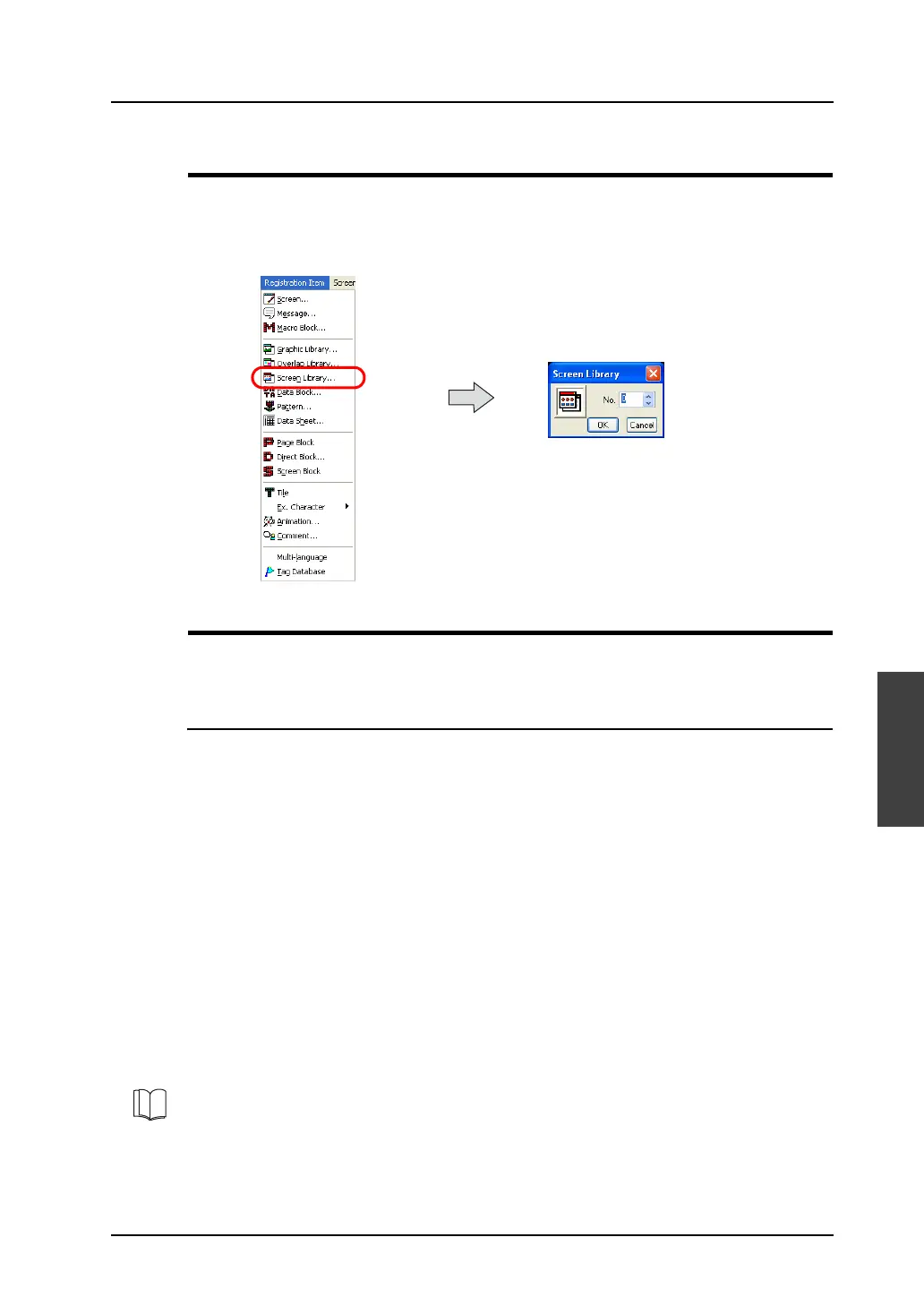
Select [Screen Library] from the [Registration Item] menu.
The [Screen Library] dialog is displayed. Specify the screen library number to be opened and click
[OK].
(Alternatively, you can call the screen from the [Screen] menu in Project View.)
Screen Library Editing
Most parts valid on screens are valid in screen libraries as well.
Parts and graphics can be placed in the same manner as on screens.
Notes on Editing
• The functions below are not valid for screen libraries though they are valid for screens.
- Overlap
- OPEN/CLOSE/CYCLE macro
- Local function switch setting
- Screen library
• When placing a screen library on the screen, check that parts to be placed do not exceed the
limited number.
Depending on the part type, only one piece can be registered on one ID. When placing a screen
library containing such a part on screens, make sure that the same ID number is not used for
multiple parts. Take care of ID numbers of parts at the time of registering parts in screen library.
To avoid a problem like the one described above, ID number 100 and higher should be allocated to
screen libraries because such numbers may not be used generally.
(Also take care not to use one ID number repeatedly in different screen libraries.)
• There are cases in which only one part (entry mode, memory card) can be used on one sheet, or
only one part (memo pad) can be used on one screen. Take the above note into consideration
when placing a screen library containing such a part on the base screen or the overlap display.
For more information on the limitation on screen parts placement, refer to “Capacity for Parts
Placement” (page 3-47) in “3 Screen Editing”.



 To Next Page