4.3 Drawing Methods
4-49
4
Drawing
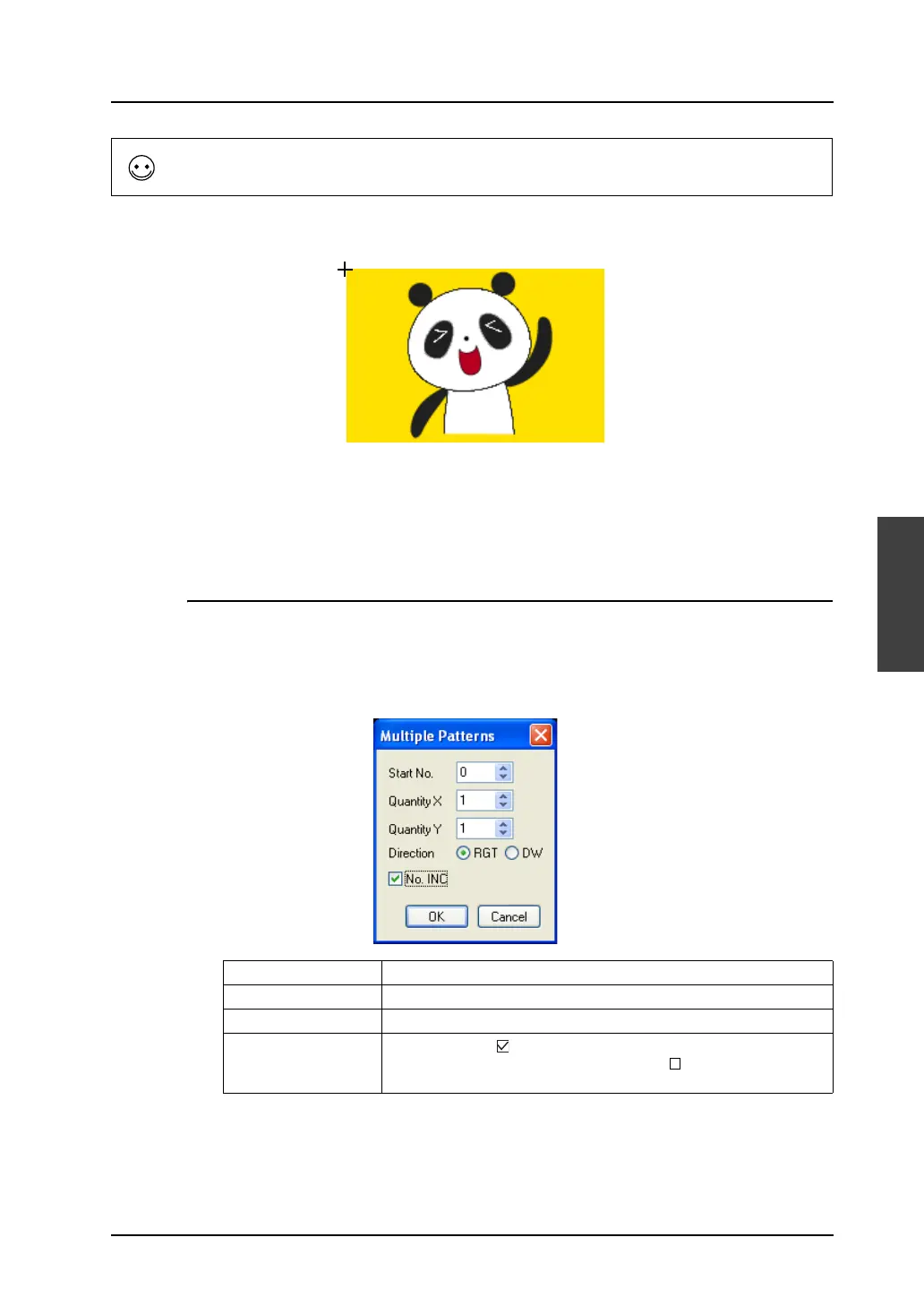
2. Click [Place]. A selected pattern is displayed along with the cursor.
3. Click the mouse in the desired position. The pattern is placed.
4. To quit placing patterns, right-click the mouse or click the [Select] icon. By clicking the mouse
again without doing so, you can place another pattern continuously.
Placing Multiple Patterns Continuously
This is useful when placing split-registered patterns in alignment.
1. In the [Pattern List] window, click the [Place Multiple Parts] button.
The [Multiple Patterns] dialog shown below is displayed.
The following options are included in the dialog.
To call the desired pattern, click the [JUMP] button.
Start No. Specify the top pattern number to be placed.
Quantity X/Y Specify the quantity of patterns along the X axis and the Y axis.
Direction (RGT / DW) Choose either direction of aligning patterns in multi-placement.
No. INC Check this box ([ No. INC]) when placing patterns increasing the
number by one. When this is not checked ([ No. INC]), the same
patterns are copied for multi-placement.



 To Next Page