3.8 Useful Functions for Screen Editing
3-109
3
Screen Editing
3. When the modification has been completed, click the [×] button at the top right corner of the
window or the [Modify Parts] icon.
You can go back to the previous screen.
Batch Change
While multiple graphics are selected, changes can be made in a batch to the colors and sizes of their
text and lines.
Setting Method
Select two or more graphics as desired and right-click → [Batch Change].
The [Batch Change] dialog is displayed:
[Char. Prop.] tab window
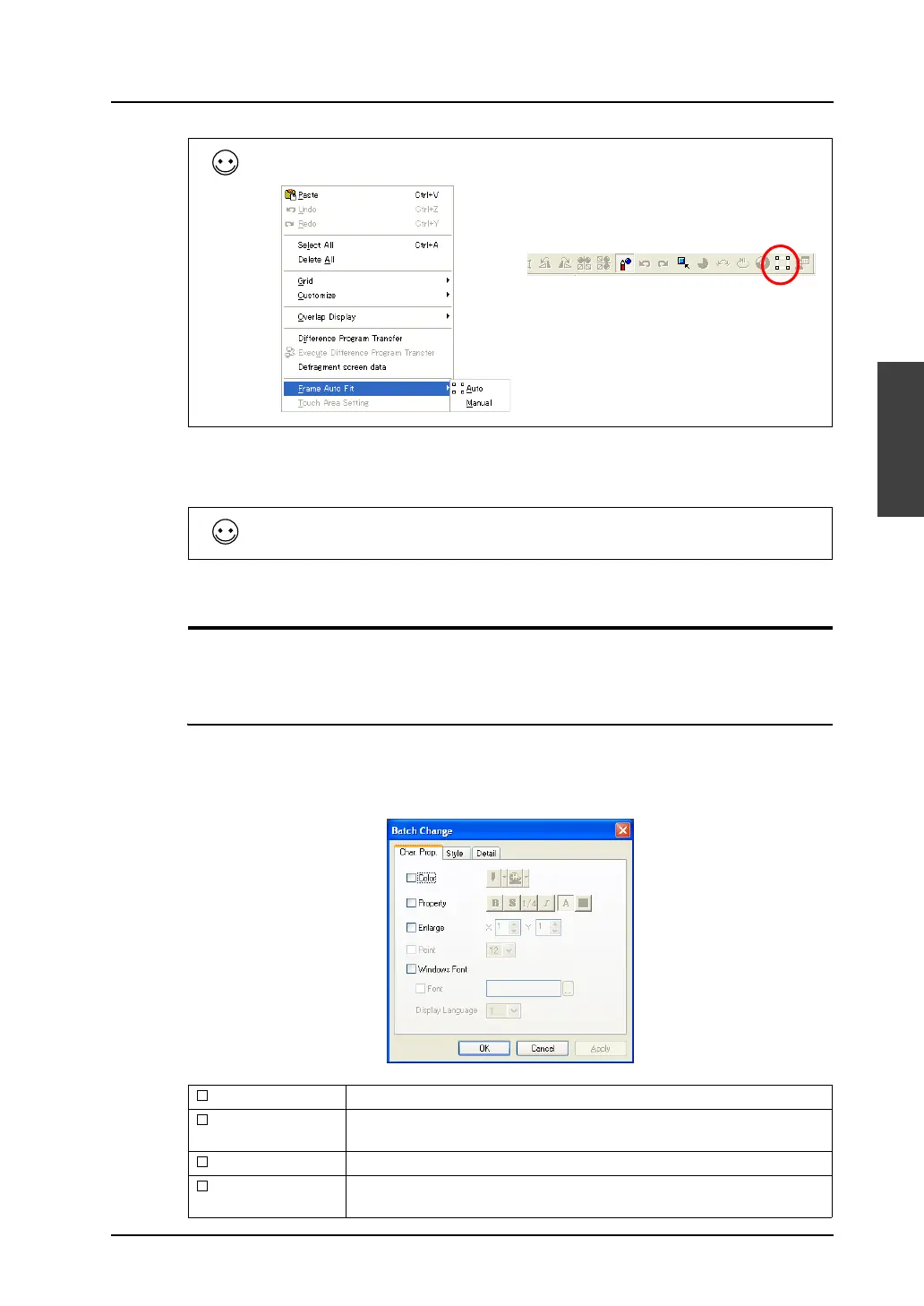
After modifying any part, right-click the part and click [Frame Auto Fit]. Click either [Auto] or [Manual]
for setting the frame of the part again.
For how to edit each type of part, refer to “Appendix 3 Parts Editing”.
Color Select the color of the characters or the background color.
Property Select character properties, such as character thickness, shadow setting,
italic typeface, and transparency.
Enlarge Set the enlargement factors for character resizing.
Point Set the point size of characters. [Point] is valid for Gothic or Windows
fonts.
OR



 To Next Page