3.7 Parts Placement and Setting
3-85
3
Screen Editing
Trend Graph / Trend Sampling
Placement procedure
1. Click [Parts] → [Trend] → [Trend Graph] or [Trend Sampling], or drag the part from the parts list or
Catalog View.
Move the mouse to the editing window. The part is displayed along with the cursor.
2. Click the mouse in an arbitrary position on the screen. The part is placed in the position.
Setting method
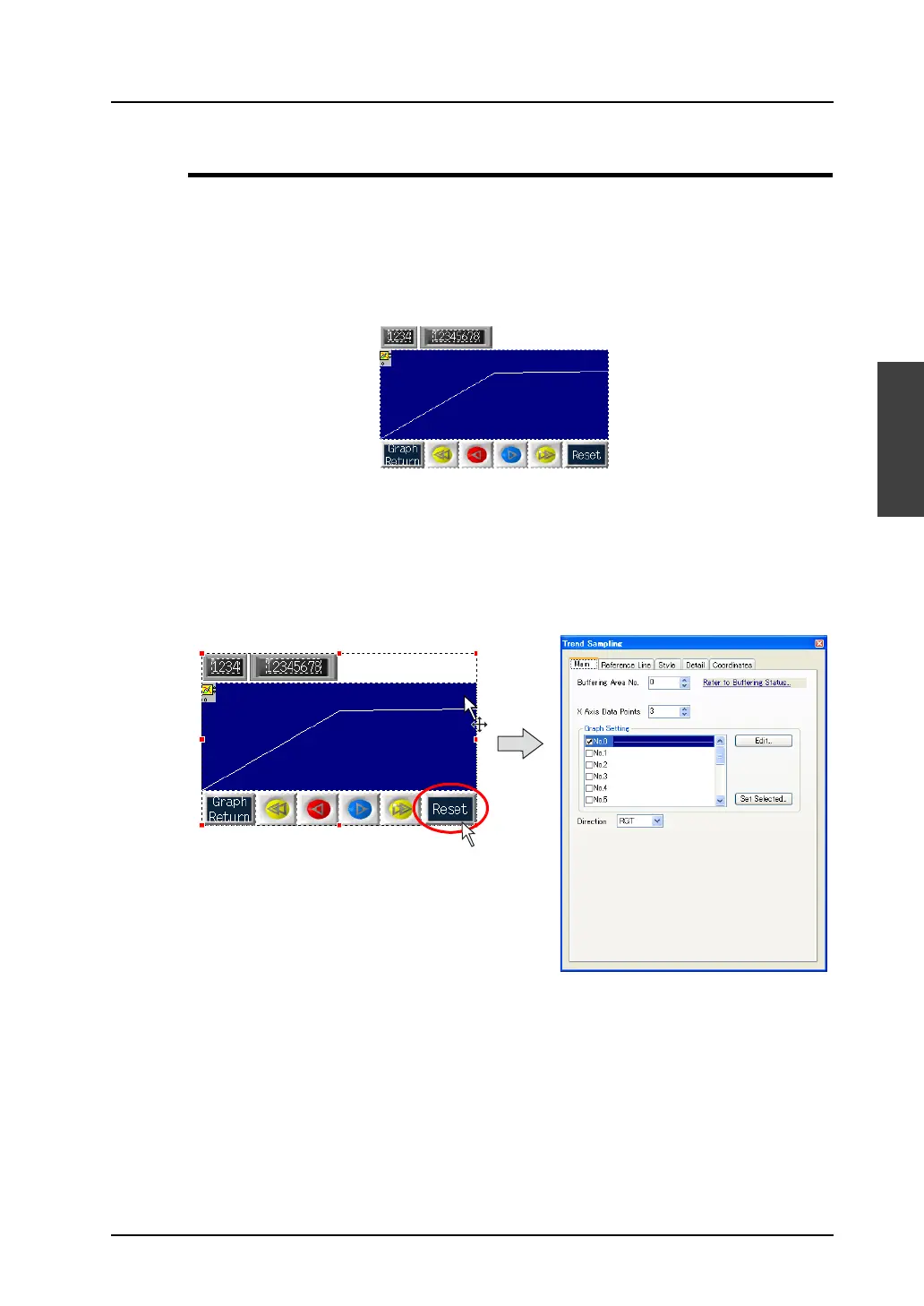
When the trend graph or trend sampling area is clicked (or double-clicked), the corresponding item
dialog is displayed.
In the case of the trend sampling area, clicking each switch part brings up the item dialog for the
switch.
Click the icon.
The item dialog is displayed.
Clicking a switch brings up
its item dialog.



 To Next Page