5.4 Message
5-9
5
Registration
Message Search and Replacement
Searching for or replacing messages is possible.
Search
1. In the [Message Edit] window, check the position of the mouse cursor.
2. Select [Find] from the [Edit] menu.
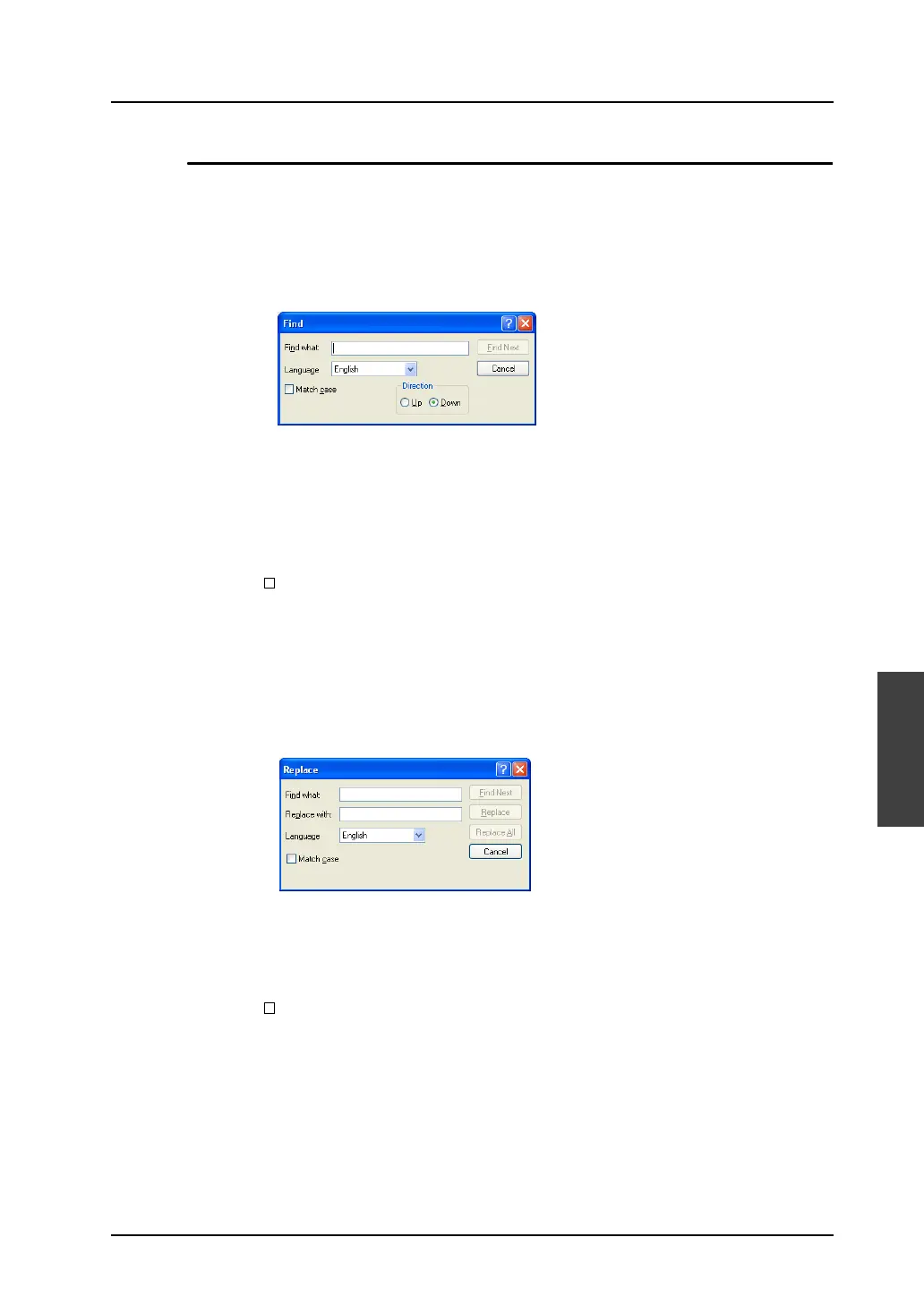
The [Find] dialog is displayed.
3. Enter the string to be searched for into the [Find what] field.
4. Set [Language] according to the language used for message editing.
(Search is performed based on the character codes corresponding to the [Language] setting.)
5. Select an option from [Direction].
Select [Up] when searching the window upward from the cursor position. Select [Down] when
searching the window downward from the cursor position.
6. Check [ Match case] to make a distinction between upper-case and lower-case letters during
searching messages.
7. Clicking [Find Next] starts searching the window in the selected direction.
Replacement
1. In the [Message Edit] window, check the position of the mouse cursor.
2. Select [Replace] from the [Edit] menu.
The [Replace] dialog is displayed.
3. Enter the desired strings respectively into the [Find what] and [Replace with] fields.
4. Set [Language] according to the language used for message editing.
(Search and replacement are performed based on the character codes corresponding to the
[Language] setting.)
5. Check [ Match case] to make a distinction between upper-case and lower-case letters during
searching messages.
6. Clicking [Find Next] starts searching the window downward from the cursor position.
When [Replace] is clicked, the string for [Find what], if found during searching downward from the
cursor position, is replaced with the string for [Replace with], and search continues.
When [Replace All] is clicked, all the strings for [Find what], if found during searching downward
from the cursor position, are replaced with the string for [Replace with].



 To Next Page