8.6 Customizing the Toolbar
8-61
8
Useful Functions
Separator Line
What Is “Separator Line”?
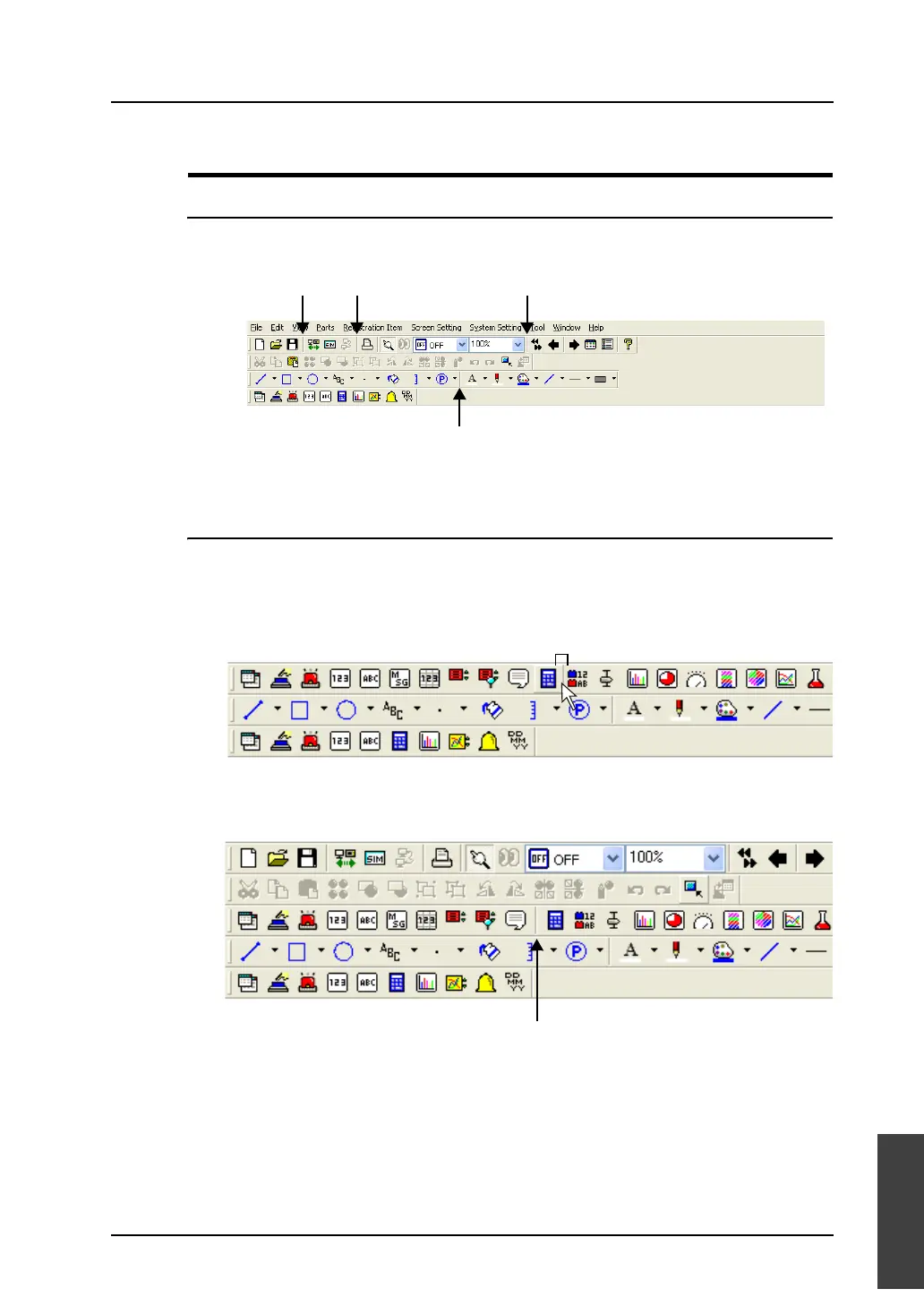
The toolbar can be vertically separated with a line.
This line is called a “separator line” in this section.
This section describes how to add or delete a separator line.
How to Add
This section explains how to add a separator line between the [Message] icon and the [Entry] icon on
the toolbar as an example.
1. Hold down the Alt key and click the right side (indicated as “A”) of the [Entry] icon.
2. The separator line is displayed on the left of the [Entry] icon.
Separator lineSeparator lineSeparator line
Separator line
(A)
Click the position marked “A” while holding down the Alt key.
Separator line



 To Next Page