4.2 Attribute Setting Icon
4-6
[Custom Color] dialog
A maximum of 64,000 colors (or 32,000 or 128 colors depending on the setting) is available in this
dialog.
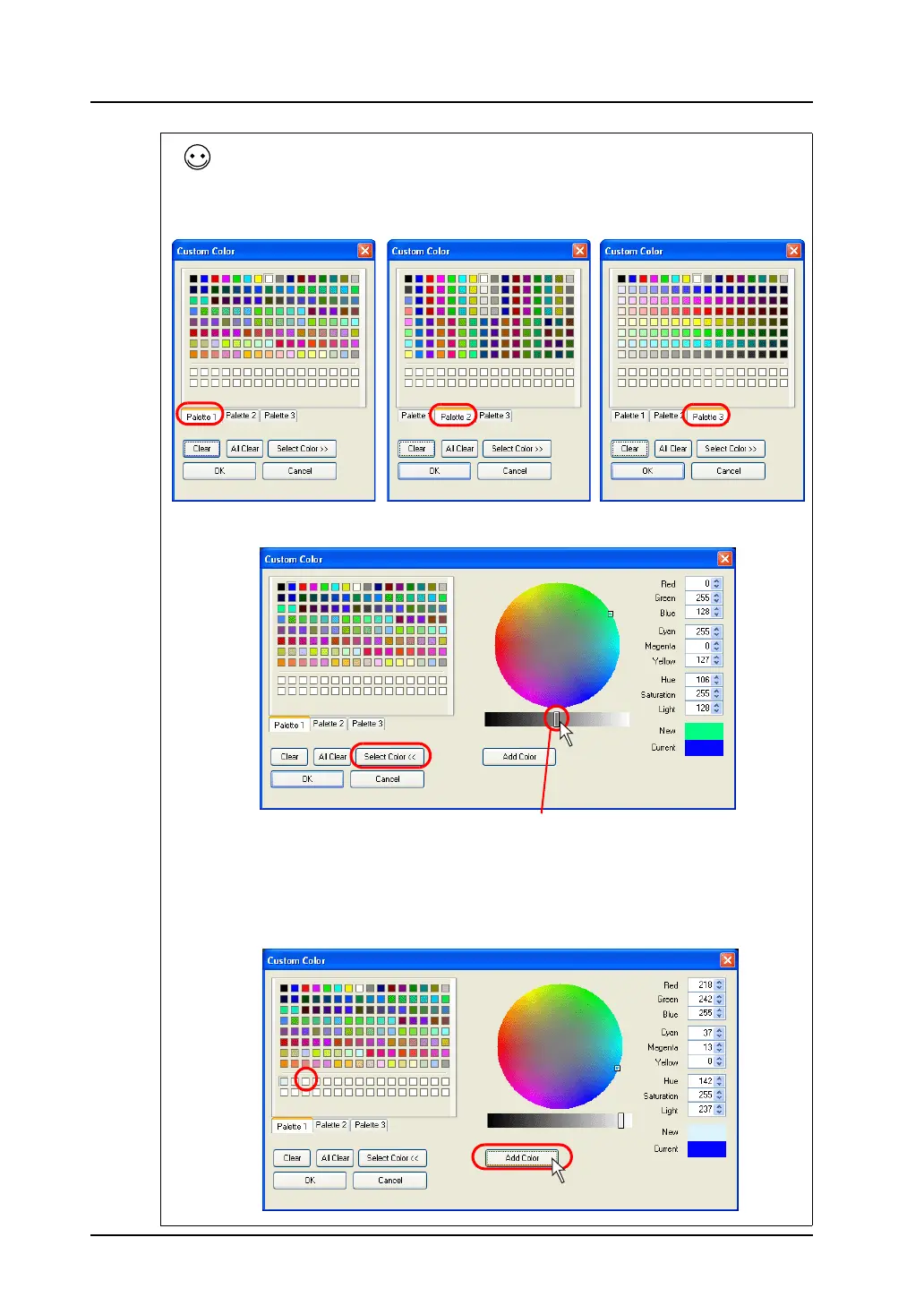
Clicking [Palette 1], [Palette 2] or [Palette 3] brings up each color palette. (For more information on
color palette such as a palette type or so on, refer to “3.5 Color Types and Settings” (page 3-35). Click
a desired color and [OK]. Then the graphic is displayed in the selected color.
If you cannot find a color which meets your preference, click the [Select Color>>] button. A more
detailed color creation menu is detailed.
When you click the desired portion on the circle, a corresponding color is shown in the “New” field.
The color can be adjusted finely by sliding the bar or changing the value of each field.
When a color is determined, click the [Add Color] button. The color newly created is displayed at the
bottom two lines in order.
Change the brightness by sliding this bar.
(If you prefer brighter color, move the bar toward right (white).)



 To Next Page